
How to Fix Facebook API Error (Quick and Complete Guide)


You’re trying to show your Facebook feed on your WordPress site. But, instead of posts, photos, and likes, you get an error message.
Frustrating, right?
Facebook API errors are one of those tech headaches that seem to pop up out of nowhere. One day everything’s working fine, the next day your feed plugin decides to stop cooperating like a kid refusing to get out of bed.
But no worries, most Facebook API errors in WordPress are fixable. And these errors are fixable without needing any tech knowledge.
You just need to check a few things in the correct order.
Let’s go through it together!
TL;DR
- Facebook API errors in WordPress usually happen when the Facebook connection expires or permissions change
- The fastest fix is reconnecting your Facebook account inside the feed plugin settings
- Keeping WordPress, your theme, and the Facebook feed plugin updated prevents most API issues
- Clearing WordPress, plugin, browser, and CDN cache helps remove old or broken data.
- Facebook Apps must be in Live Mode, with correct App ID, App Secret, and required permissions
- Facebook debugging tools help detect expired access tokens and permission errors
- Plugin conflicts, server firewalls, outdated PHP, or missing SSL can block Facebook API requests
- Facebook Page settings must be public, published, and accessible to admins
- Access tokens usually expire every 60–90 days and need regular reconnection
- Routine checks and updates help prevent Facebook API errors from coming back
Why Does This Error Even Happen?
Think of the Facebook API like a delivery person between Facebook and your website. If they get lost, blocked, or their access card expires, nothing gets delivered.
That’s when your feed breaks.
The most common reasons are pretty simple:
- Your Facebook connection expired. This happens a lot
- Your plugin is outdated and can’t keep up with Facebook’s changes
- Your server is blocking the connection
- Something changed in your Facebook App or Page settings
- A caching plugin is showing an old, broken version of your site
Now let’s fix the Facebook API error properly.
Solution 1: Reconnect Your Facebook Account
This is the #1 fix for most Facebook API errors. It’s like logging out and back in. Simple but surprisingly effective.
Facebook makes you reconnect periodically for security reasons. If your connection expired, your WordPress site can’t pull your feed anymore.
Here’s how to reconnect:
- Open your WordPress dashboard
- Go to your Facebook feed plugin settings
- Look for a button like “Connect to Facebook” or “Re-authenticate”
- Click it and log in to Facebook
- Approve the permissions
- Save your settings
Pro tip: If you’re managing multiple Facebook pages, make sure you’re connecting the right account with admin access to the page you want to display.
Solution 2: Update Everything
This one sounds boring, but it fixes the problem more often than you’d expect.
When plugins get old, sometimes they stop playing nicely with Facebook. You may find things work one day, then suddenly your feed breaks for no clear reason. That’s usually a sign that something needs an update.
Update your Facebook feed plugin:
- Open your WordPress dashboard
- Go to Plugins
- Find your Facebook feed plugin
- Click Update Now
- Refresh your site and check the feed

If it’s still broken, move on.
Update your theme:
- Go to Appearance → Themes
- Update the theme you’re using
- Check the feed again
Still no luck?
Update WordPress:
- Go to Dashboard → Updates
- Click Update Now if you see it
- Reload your site one more time
These will take a few minutes, but that’s it. No more extra steps.
Special Note: One quick favour to yourself before you update anything. Make a backup first. It only takes a minute, and if something breaks, you’ll be happy you did. Most hosting providers have a one-click backup option, so use it.
Want to show your Facebook feed on your website and keep it updated automatically?
Solution 3: Clear Your Cache
Cache helps your site load faster, but sometimes it shows old data.
So even after you fix the issue, the error can still appear.
If you use a caching plugin, follow these:
- WP Super Cache: Dashboard → Settings → WP Super Cache → Delete Cache
- W3 Total Cache: Dashboard → Performance → Purge All Caches
- WP Rocket: Dashboard → WP Rocket → Clear Cache
Also, clear your browser cache:
- Chrome: Ctrl+Shift+Delete (Windows) or Cmd+Shift+Delete (Mac)
- Clear cached images and files
- Reload your site
If you’re using Cloudflare or another CDN, you’ll need to purge the cache there too.
Solution 4: Check Your Facebook App Settings
Some plugins need a Facebook App to show your feed. If that app isn’t set up right, your feed won’t work.
Here’s what to do:
- Go to Facebook Developers
- Click My Apps
- Pick your app
- Make sure the app is approved for the permissions it needs
- Check that the App ID and App Secret match what’s in your plugin
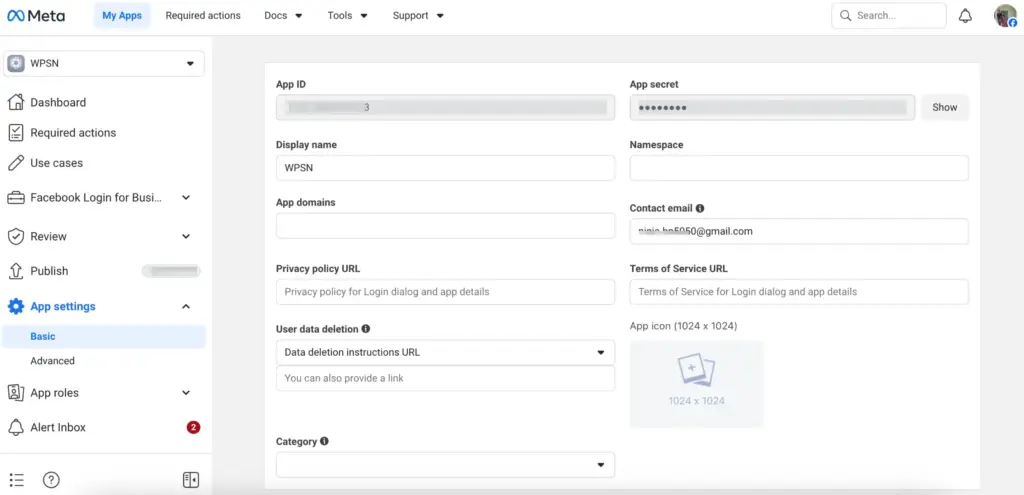
- Make sure the app isn’t in Development Mode (only Live Mode works for your site)
For more on managing your Facebook pages, see our guide on how to delete a Facebook business page (useful if you’re cleaning up old pages causing conflicts).
Common problems you might see:
- App is still in Development Mode
- Missing permissions like pages_show_list or pages_read_engagement
- App Review not finished
- Wrong redirect URLs
Solution 5: Use Facebook’s Debugging Tools
Facebook has some handy tools that show exactly what’s going wrong. Once you know where to look, they’re easy to use.
Access Token Debugger
- Go to Access Token Debugger
- Paste the access token from your plugin settings

- Check if it’s expired or missing permissions
- If it’s expired, just regenerate it in your plugin
Want to grab your Facebook Access Token in no time?
Sharing Debugger
- Go to Sharing Debugger
- Enter your site URL
- Click Debug
- Look for any errors from Facebook
- Click Scrape Again to refresh the cache
These tools basically show you what Facebook sees. Think of it like Facebook sending you a screenshot of your site’s connection and pointing out what’s wrong.
Solution 6: Check for Server and Plugin Conflicts
Sometimes it’s not Facebook that’s creating the problem. It could be your server or another plugin getting in the way.
Check for plugin conflicts
- Deactivate all plugins except your Facebook feed plugin
- See if the error goes away
- If it works, turn the other plugins back on one by one to find the one causing trouble
Common troublemakers are security plugins, other social media plugins, or custom code you’ve added.
Check your server
- SSL Certificate: Facebook needs your site to be HTTPS. Make sure it’s set up correctly
- PHP Version: The Facebook API needs at least PHP 7.0. Ask your host if you’re running an older version
- Server Firewall: Some hosts block API connections. Check with your host to see if this is happening
If you’re on shared hosting and none of this works, reach out to your host. They might have restrictions on API calls that you can’t fix yourself.
Solution 7: Verify Your Facebook Page Settings
Less common but still possible, your Facebook Page itself might have settings blocking the feed.
Make sure to check these:
- Is your Page published and public?
- Do you have admin access to the Page?
- Are your Page posts set to public?
- Is your Page restricted by age or location?
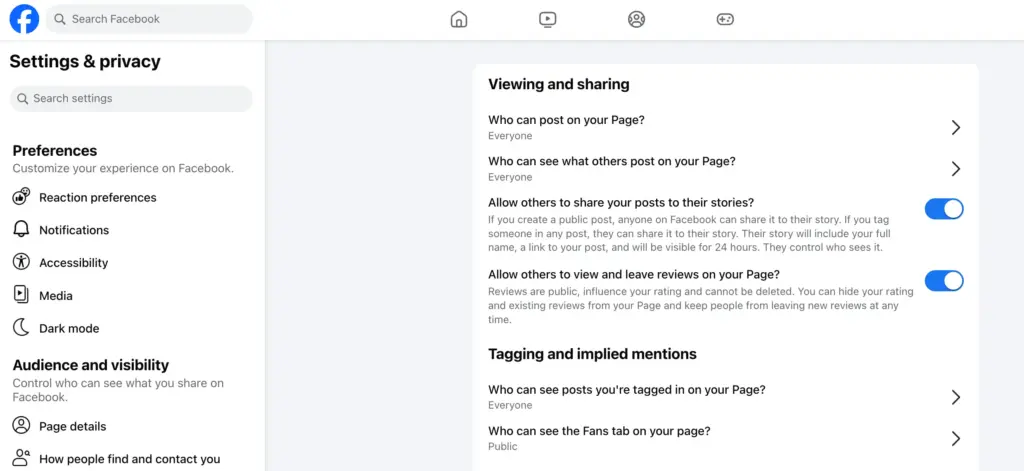
Go to your Facebook Page Settings → General and review the visibility settings. If your page is unpublished or set to certain restrictions, the API can’t pull content.
Still Getting Errors?
If you’ve tried everything and you’re still stuck, here’s your next move:
Contact your plugin’s support. Include these details:
- The exact error message you’re seeing
- What you’ve already tried
- Your WordPress version
- Your plugin version
- Screenshots of the error
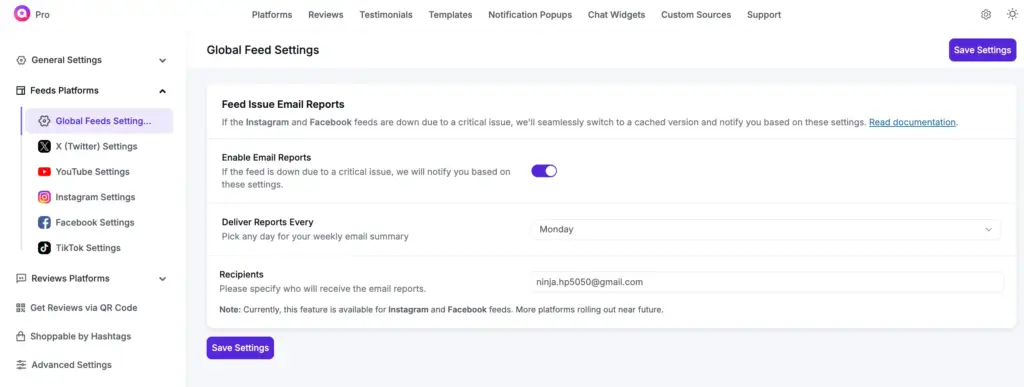
Consider switching plugins. Not all Facebook feed plugins are created equal. If your current one is consistently problematic, try WP Social Ninja. It lets you show your Facebook feed on your WordPress site with your own custom template.
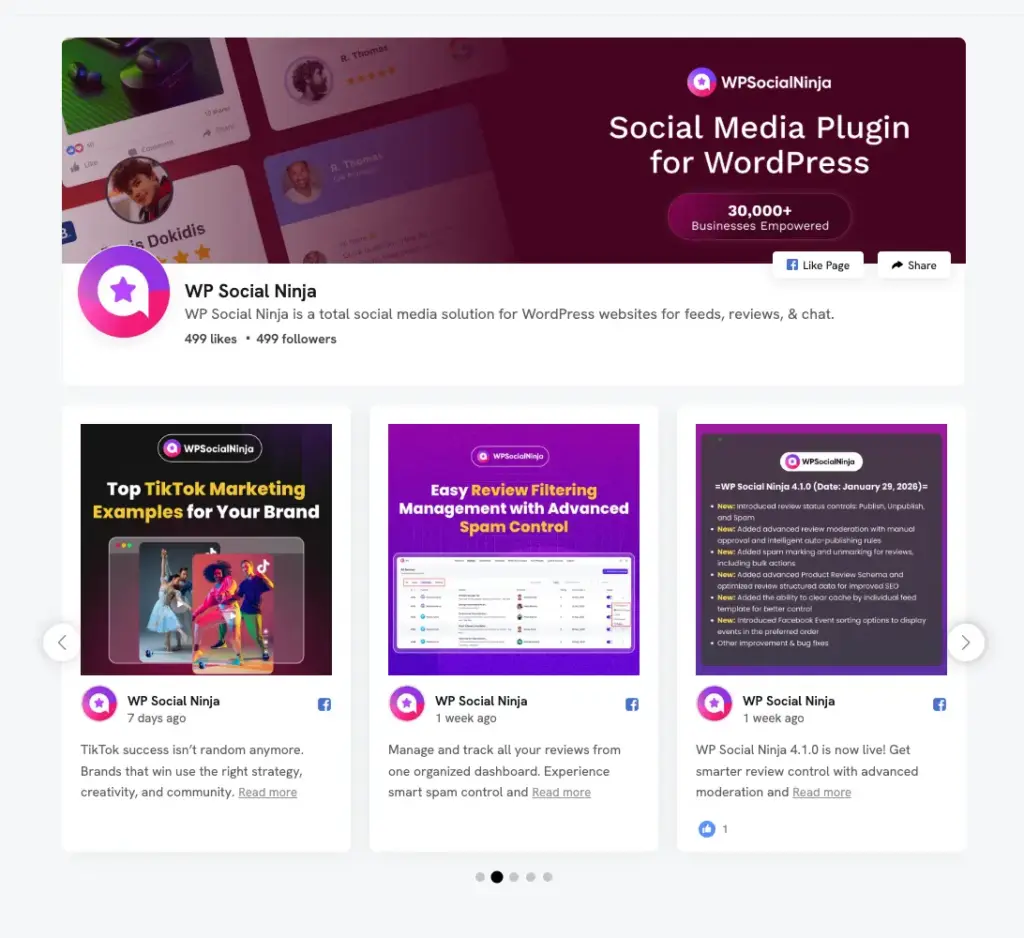
If something goes wrong, you’ll even get an error notification in your email. And their support team is easy to reach, so you can get help anytime you run into a problem.
Remember, sometimes a fresh start with a better-maintained plugin is faster than troubleshooting an old one.
Win your customers’ hearts with exceptional features
Discover how WP Social Ninja can assist you in designing outstanding customer experiences.
Quick Prevention Tips
Once you’ve fixed the error, make sure it doesn’t come back:
- Every few months, check your Facebook connection
- Turn on auto-updates for your feed plugin if it’s from a reliable developer
- Keep WordPress and your plugins updated
- Watch your Facebook App for messages about expiring tokens
The Bottom Line
Facebook API errors look scary, but most of the time they’re easy to fix. Usually, just reconnect your Facebook account or update your plugin, and it works.
Start with the easy stuff: log back in, update, and clear your cache. If that doesn’t help, check your Facebook App and use the debug tools.
Don’t think you’re the only one who’s facing this problem. This happens to everyone. Facebook changes things, plugins need updates, and connections expire. It’s normal.
So, got it fixed? Great, you can bookmark this page. You might need it again, because there’s always a next time with Facebook feeds!
Want to get more from Facebook on your WordPress site? Learn how to get Facebook reviews to build trust with your visitors
FAQ’s on Facebook API Error Fix
What does “Error validating access token” mean?
This is the most common Facebook API error. It just means your connection between WordPress and Facebook has expired. Facebook makes you reconnect sometimes for security. The fix is easy: go to your plugin settings and reconnect. Most plugins have a button like “Reconnect” or “Login with Facebook.” It usually takes less than a minute.
How do I fix a REST API error in WordPress?
REST API errors are a bit different from Facebook errors, but they can still break your feed. Here’s how to fix it quickly:
- Go to Settings → Permalinks and click “Save Changes”
- Make sure a security plugin isn’t blocking API requests
- Visit yoursite.com/wp-json/ to check if the REST API works
- Turn off plugins one by one to spot conflicts
- Ask your host to check if cURL and JSON are enabled
How do I fix “Application request limit reached”?
Your Facebook App just made too many requests. You can:
- Wait a few hours (the limit resets on its own)
- Increase the cache time in your plugin
- Use a plugin that handles request limits better
Why is my Facebook feed not updating even though there’s no error?
Most likely, your cache is not clear, and you’re seeing cached content. Fix it by:
- Clearing your WordPress cache
- Going to plugin settings and clicking “Clear Cache”
- Checking your cache interval
- Clearing your browser cache
If it still doesn’t update, reconnect your Facebook account. Sometimes it fails silently.
How often should I reconnect my Facebook feed?
Facebook tokens usually expire every 60-90 days. Set a calendar reminder every 2-3 months. Turn on plugin email notifications if available. And test after big Facebook updates. Most plugins will show a clear error when you need to reconnect. If you use WP Social Ninja, you will get this notification in your dashboard.

Subscribe To Get
Weekly Email Newsletter
Connect, Customize, and Display Social Feeds, Reviews, and Chat widgets

Trending Posts
-

-
 Mashfik Upal Aumy
 -
 Mashfik Upal Aumy





Leave a Reply