

How to Add Google Reviews to Elementor (Step-by-Step Guide)


You built your business website with Elementor like many WordPress users because it is simple. Drag, drop, and done.
Then you try to add Google reviews to Elementor. And suddenly, it is not that simple.
There is no built-in widget for Elementor Google reviews. You search for solutions and see code snippets or complicated steps. Nothing feels smooth. This is one of the most common frustrations for businesses.
So your reviews stay on Google and you are missing out on sales. It’s not just our speculation. Spiegel Research Center found that showing reviews can increase your conversion by up to 380%.
The good news is there is an easy way without coding or hiring a developer. And this is exactly what you’ll discover in this article.
By the end, you’ll be able to learn how to add Google reviews to WordPress elementor in just five minutes. So, let’s start.
TL;DR
- Elementor does not have a built-in widget for Google reviews, so many users try manual embeds or complicated workarounds.
- Manual embeds only show a map and review count. Visitors must click to see reviews, and new reviews do not sync automatically.
- The easiest solution is using a Google reviews plugin for Elementor, like WP Social Ninja.
- With WP Social Ninja, you can connect your Google Business Profile, create a template, add a verified reviewer badge, and display reviews using the Elementor Google reviews widget.
- Once set up, your Google reviews in Elementor update automatically and help visitors quickly see the trust your business has already earned.
What is the best way to add Elementor Google reviews widget?
You basically have two options when adding Google reviews to Elementor. Manual embed or using a dedicated Google reviews widget for WordPress.
Manual embed usually means copying a script and placing it inside an HTML block. What you get is a small Google Map with your business location and a review count in the corner.
Visitors have to click that number to see the actual reviews. That is not ideal.
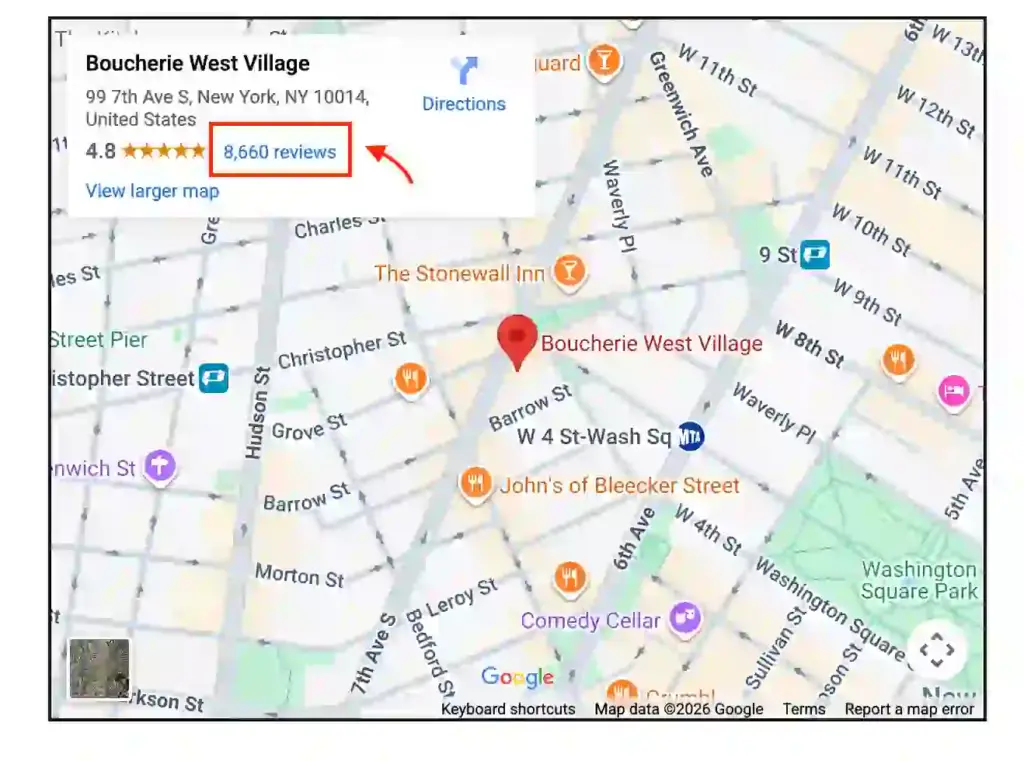
New reviews do not sync automatically. You get almost no design control. And it does not look like a native part of your page.
That is why most users choose Elementor reviews widgets for Google. Plugins like WP Social Ninja connects with your Google Business profile and helps you manage Google reviews easily and efficiently.

Instead of pasting code, you can style it like the rest of your design. Then you just drag the Google reviews widget into your page.
If you want to add Google reviews button to Elementor without touching code, this method keeps everything simple and stable.
Key features of WP Social Ninja that you’ll love:
- Multiple accounts connection
- Auto-sync latest Google reviews
- Multiple pre-built templates
- Filters by minimum rating and custom ordering
- Hide or show reviews based on keywords
- Reviewer verification badge
- GDPR compliance for top-notch privacy
- Smart review moderation with rating filters and spam detection
- Reviewer image optimization for a fast-loading webpage
- QR code generation to collect reviews offline
- An AI review summarizer to grab attention faster
- Schema snippet for better search visibility
- Review notification pop-up
- Trim long reviews with a “Read More” link
- Advanced styling options
- UI options to customize star, text, rating, and review colors
- Keep all reviews in a WordPress database
We will now walk you through the step-by-step process to add Google reviews Elementor widget with WP Social Ninja.
Explore our most exclusive and detailed guide on mastering Google reviews that will help you get more reviews from customers and grow your business fast.
Step 1: Install and activate WP Social Ninja to add Google reviews
If you have installed a WordPress plugin before, the process for WP Social Ninja will feel familiar. This Elementor Google reviews plugin takes only a few steps to set up.

You can do that in two ways:
- From your Dashboard
- From WordPress Repository
Here’s how to install it from your Dashboard:
- Navigate to the WordPress Admin panel. From the WordPress Dashboard, go to Plugins > Add New
- Next, in the search input field, type WP Social Ninja and wait for a moment for it to come up
- Now, click on the Install Now button
- Then Activate
If you decide to install from the WordPress Repository:
- Search WP Social Ninja in the WordPress Repository, and it will appear at the top. Once you click it, hit the Download button
- Now go to the Dashboard and go to Plugins > Add New > Upload Plugin > Choose the zip file
- After that, click the Install Now button and then Activate
Win your customers’ hearts with exceptional features
Discover how WP Social Ninja can assist you in designing outstanding customer experiences.

Step 2: Integrate Google Business Profile with WP Social Ninja
In this step, you’ll need to connect WP Social Ninja with your Google Business Profile to collect your customer reviews. The process is super easy.
Follow our step-by-step guideline to connect your Google Business Profile with WP Social Ninja:
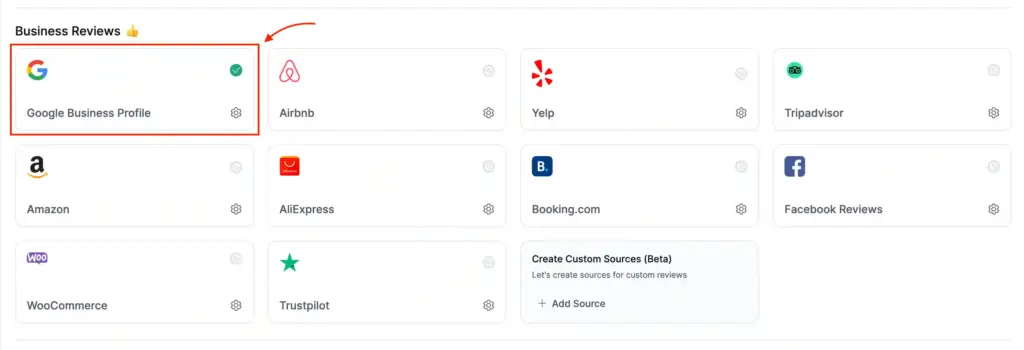
1. Select Google Business Profile from the Platforms section to add Google reviews to your website.
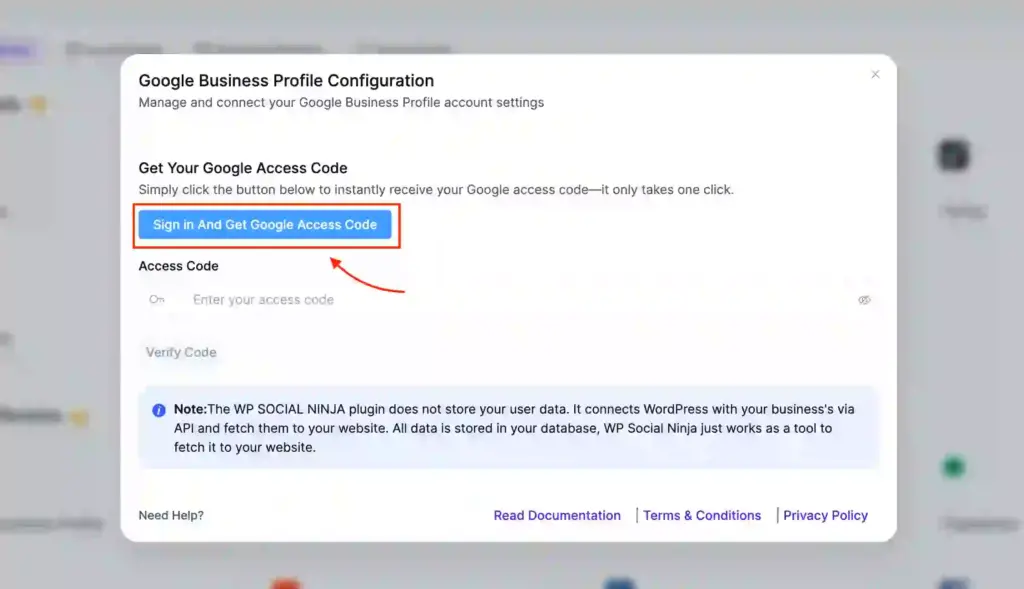
2. Now you’ll need to obtain a Google Access Code that’ll connect your profile to WP Social Ninja. Click on the Sign In And Get Google Access Code to proceed.
3. After that, a new window will open. Once you are done, select the email associated with your Google Business Profile.
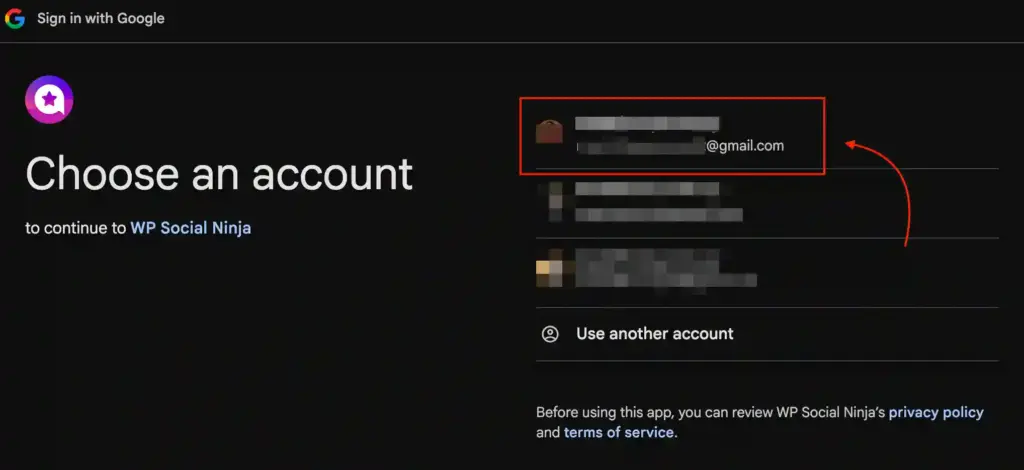
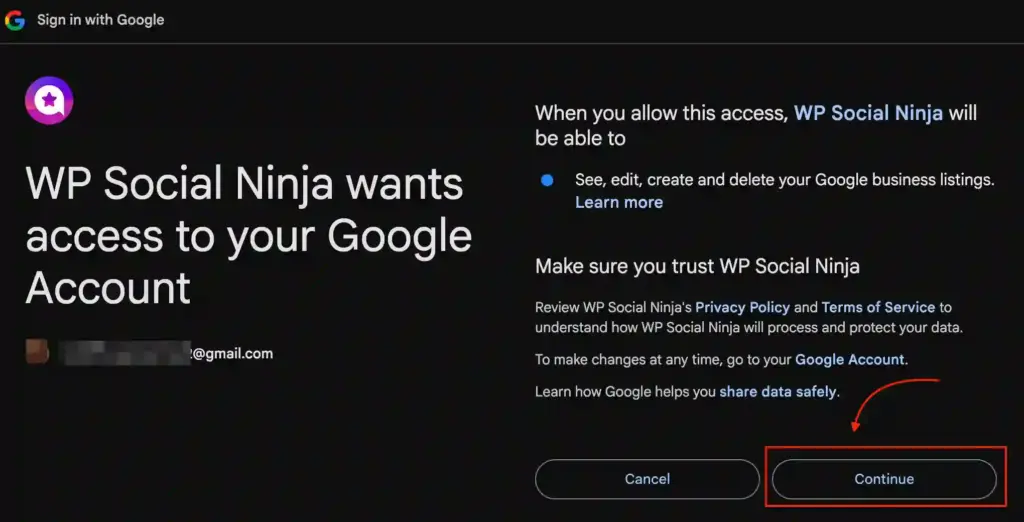
4. The next step is to select your email account to move forward with WP Social Ninja. Now, to access the permission, click on the Continue button.
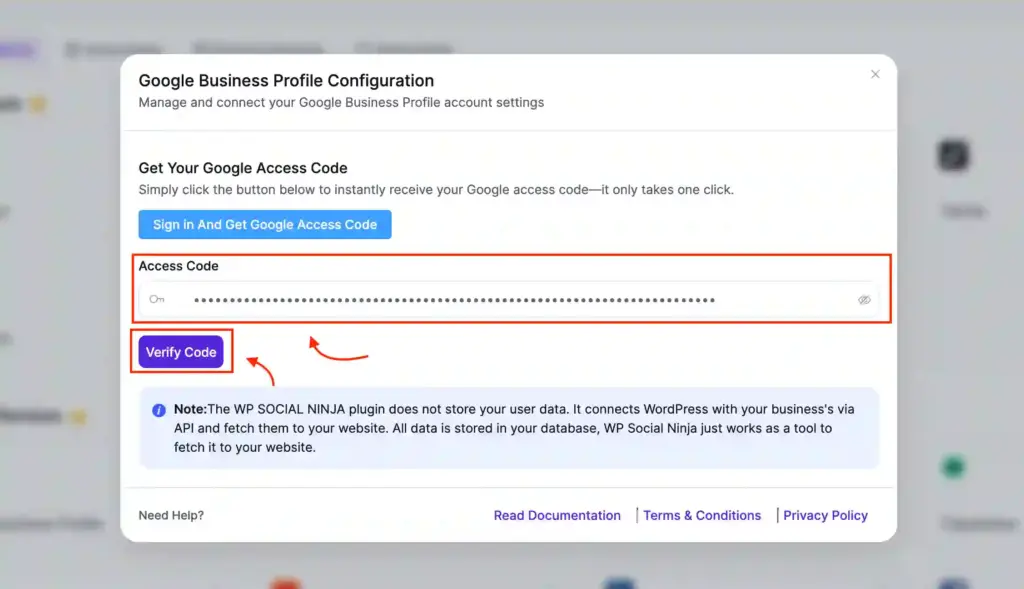
5. For the next step, copy the Access Code and paste it to insert it into the Google Business Profile Configuration page and click the Verify Code button.
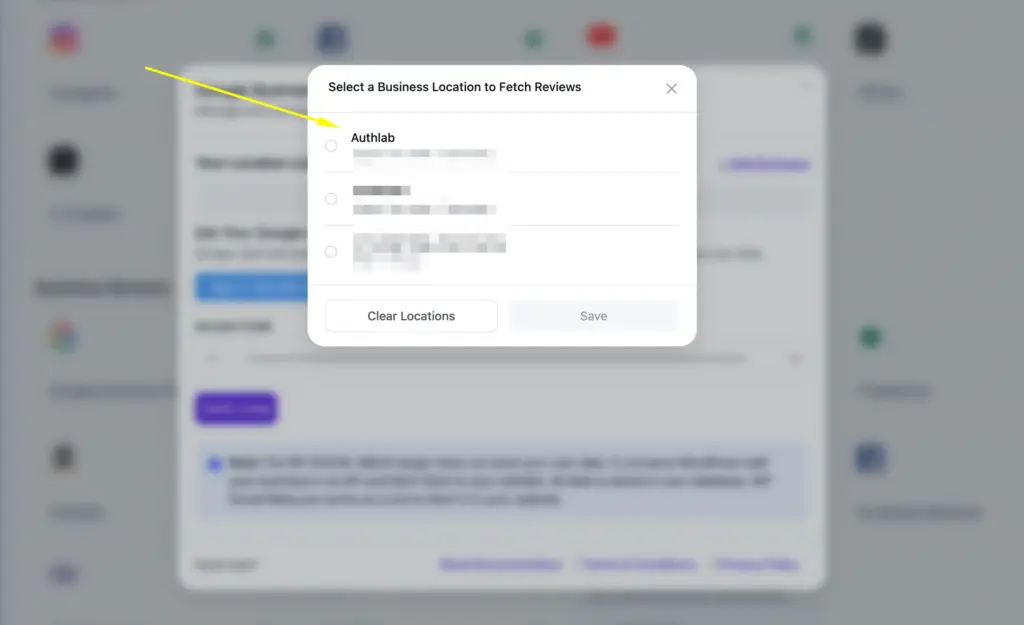
6. Now, a popup will appear. Select your business location to get your reviews and click on the Save button.
Pro Tips: The easier it is for people to find your Google Business Profile, the more likely they are to become your customers. Learn how to rank in the Google Local Map Pack to increase your visibility.
Step 3: Create a Template for your Google reviews
Along with easy configuration, WP Social Ninja focuses on simple integration. This Elementor review plugin comes with elegant pre-built templates to help your reviews match your website design.
In the next section, we will show you how to create a Google Reviews template using WP Social Ninja. Let’s get into it.
First, click on the Create a Template button.
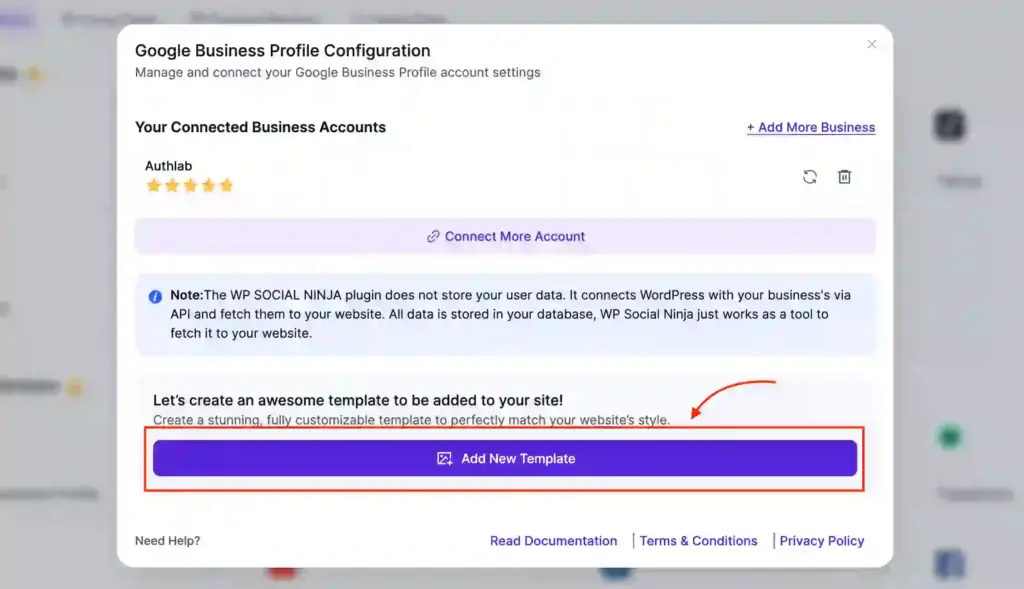
After that, you will find different customization options with many pre-built templates.
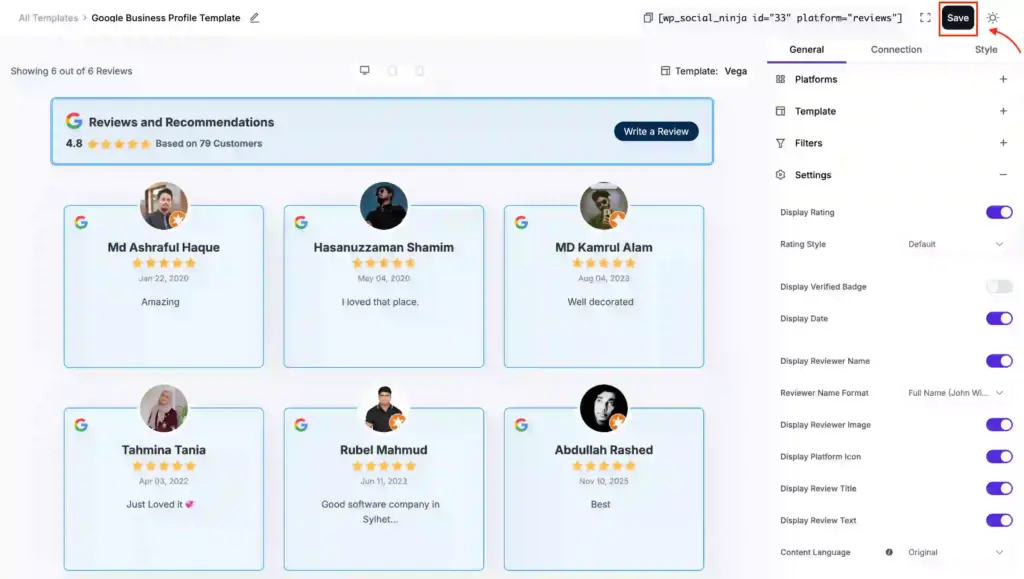
WP Social Ninja allows you to customize your Google reviews feed however you want. Its basic and advanced features will allow you to take full control over how your reviews will appear before your visitors.
As for adding a verified reviewer badge, go to the Settings and enable the Display Verified Badge button.
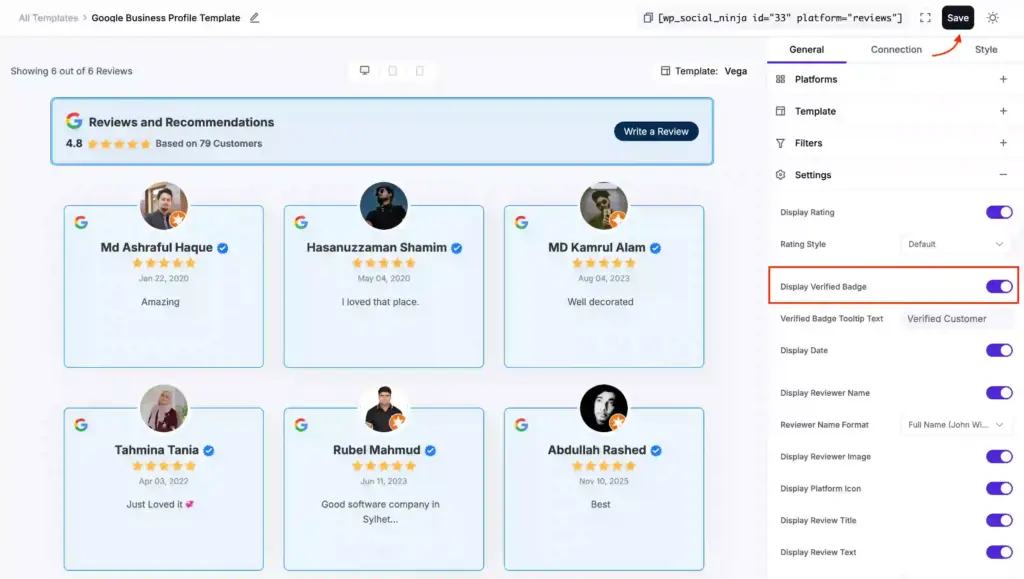
After customizing your template, click on the Save button. Follow our detailed Documentation to explore more customization features.
Step 4: Add the Google reviews widget to Elementor
In this step, you will display Google reviews in Elementor using the WP Social Ninja widget. Once your review template is ready, adding it to your page only takes a few clicks.
Follow these steps to show Google reviews on your Elementor page:
1. Open the page where you want to display the reviews in the Elementor editor.
2. From the widget panel on the left, search for Social Ninja Reviews.
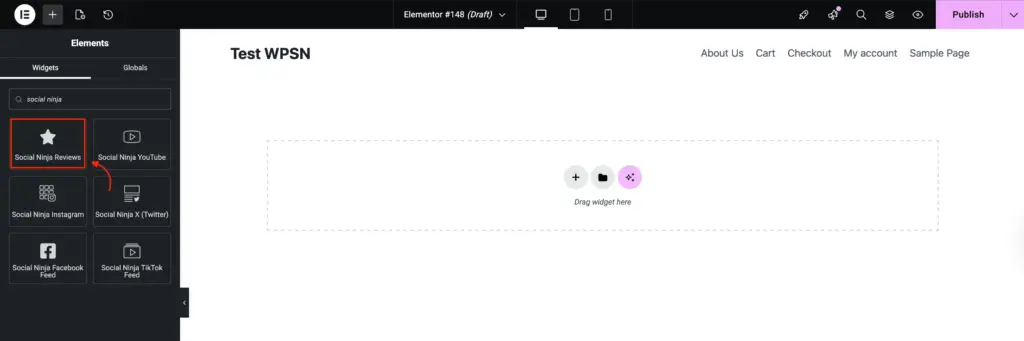
3. Drag and drop the widget onto your page. After placing the widget, go to the widget settings panel and select the review template you created earlier.
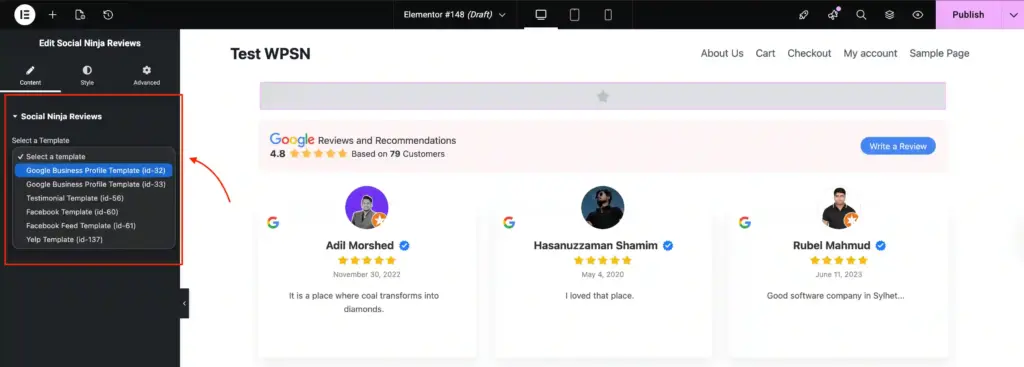
Finally, click Update or Publish to make the reviews live on your website. Here’s a sample of how your review will look like on your site.

Feel free to explore our beautifully curated Google reviews demo to visualize how well you can customize your reviews with WP Social Ninja.
Bonus Tips: Learn how to create a Google review link generator for your business. You can share it with your customers so they can easily leave reviews for your business.
Wrapping up
Adding Elementor Google reviews to your website does not have to be complicated. With the right method, you can avoid manual embeds and display your customer feedback in a clean and professional way.

Get exclusive social media marketing tips and tutorials in your inbox!
Using WP Social Ninja, you can connect your Google Business Profile, create a review template, and place the Elementor Google reviews widget anywhere on your page.
One important thing. Never think of buying Google reviews in any situation. Always ensure the quality and positive reviews will start to come in organically. All the best.

Subscribe To Get
Weekly Email Newsletter
Connect, Customize, and Display Social Feeds, Reviews, and Chat widgets


Trending Posts
-
-
 Mashfik Upal Aumy
 -







Leave a Reply