

Google Review Link Generator: How to Create and Share It (2026)


You’ve done the work. The customer smiled, thanked you, and meant it. Now you want them to leave a Google review, but there’s one small problem: how do they actually leave one?
You cannot possibly ask your customers to search and find your business on Google just to write a review. No customer will go to such extra lengths for you. That’s the reality.
However, a Google review link generator solves that problem. It gives you a single URL that takes customers straight to the rating screen when they click it.
It’s free, fast, and it doesn’t even need the old Google My Business workflow (that name was retired in 2022). In this article, we will show you all the ways to get your link, fix it when it breaks, and put it where customers actually click.
So, let’s get started.
Key takeaways
- A Google review link is a single shareable URL that takes customers straight to your review form.
- You can create it in three ways: the Share button inside Google Business Profile, the Place ID method, or a WordPress plugin like WP Social Ninja.
- Where you share the link matters more than how you create it. Match the placement to your business type.
- QR codes work best for in-person spots like table tents, menus, receipts, packaging, and reception desks.
- Email signatures, social bios, invoices, and support follow-ups turn everyday touchpoints into soft review asks.
- Most broken links come from unverified profiles, expired short URLs, or wrong Place IDs. Each has a quick fix.
- Test your link on a logged-out phone before printing it anywhere.
Why does a Google review link matter for businesses so much?
A Google review link matters because it removes the tiring steps between a happy customer and the review screen. The result is more positive feedback from people who would have given up halfway.
More reviews also improve local SEO and push your business higher on Google Maps. They’re the first trust signal a stranger sees before booking your service. You can share the link anywhere. Email signatures, post-service texts, QR codes, your thank-you page.
Each placement saves a few seconds. And those seconds decide whether a customer means to leave a review or actually leaves one. 97% of consumers read online reviews for local businesses. Many actively check before choosing a service or product. That’s why every saved second matters so much.
How to create a Google review link for your business
Creating your Google review link is quick and free. You don’t need a paid generator tool or any technical setup. Google already gives you everything you need inside your Google Business Profile, and a few simple methods turn that into a shareable link in minutes.
Below are three methods. Pick the method that fits your situation the best.
Method 1: Get your link from Google Business Profile
This method allows you to quickly generate a ready-made review URL directly from your Google Business Profile. It’s perfect for single-location businesses that already manage their profile.
- Copy the link. It usually looks like g.page/r/YOUR_ID/review
- Sign in to business.google.com with the account that manages your business
- Find the Read reviews card, click on it, and a pop-up screen will appear
- You can see your existing reviews with a Get more reviews button; tap on that
- Google generates a short URL automatically
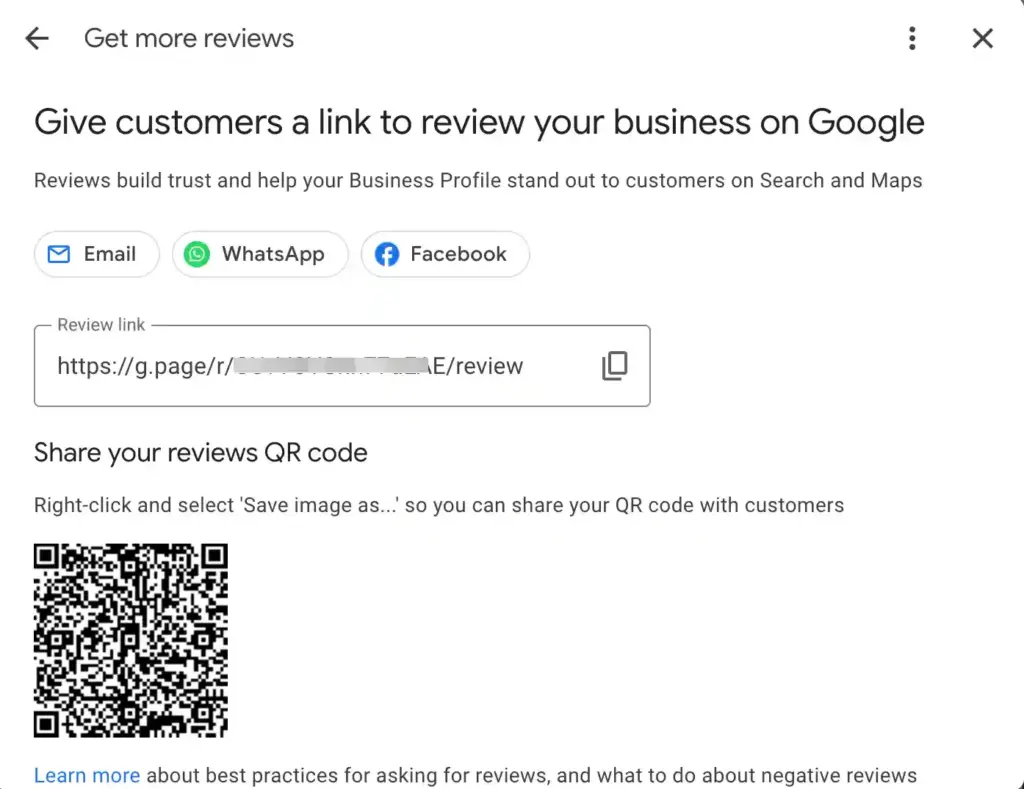
Google rotates the exact button label between Get more reviews, Share review form, and Ask for reviews. So, look for the share icon if the text differs. That short URL is your review link for Google. It’s permanent, it’s safe to paste anywhere, and it works on mobile and desktop.
If you don’t see the share option, you’re probably searching as a visitor instead of as the owner. Sign in with the email you used when you claimed your business listing. If you haven’t claimed it yet, our Google Business Profile listing setup guide walks through the claim and verification flow step by step.
Method 2: Create your Google review link manually using a Place ID
This method uses your business’s unique Place ID to build a permanent review URL with a fixed format. Best for multi-location brands that want predictable, identical link patterns across locations.
Follow these two steps for this.
- Go to Google Place ID Finder and search for your business
- Select your business from the results and copy the Place ID
- Add it to this URL: https://search.google.com/local/writereview?placeid=YOUR_PLACE_ID
- Test the link to make sure it opens the correct review form
If the link does not work, use the review link provided directly in your Google Business Profile.
Method 3: Generate a review link with a WordPress plugin (with QR code)
This method works best if you run your business on WordPress and want more than just a copy-paste link. A review plugin pulls your review link, packages it into a clean CTA button, and creates a matching QR code in one place. No separate tools needed.
A Google review plugin like WP Social Ninja handles all of this from a single dashboard. You connect your Google Business Profile once, pick a template, and the plugin gives you the review link, a styled “Leave a review” button you can drop into any page.
Here’s how you can easily connect your Google Business Profile with WP Social Ninja:
- Install and activate WP Social Ninja from the WordPress plugin directory
- Go to WP Social Ninja → Reviews → Google Business Profile from your dashboard
- Connect your Google Business Profile with an access code and customize your template
After customization, copy the shortcode and paste it into any webpage. Your visitors will find a Write a Review button, and when they click it, they’ll be directed to a Google review form. If the process seems a bit difficult, you can check the official documentation for more clarity.
You can also create a QR code for your business to collect reviews. Follow these steps:
- Log in to your WordPress dashboard
- Go to WP Social Ninja from the left sidebar
- Open Settings & click on Get Reviews by QR Code
- Click Add New QR Code, give your QR code a name, such as Google Reviews QR Code
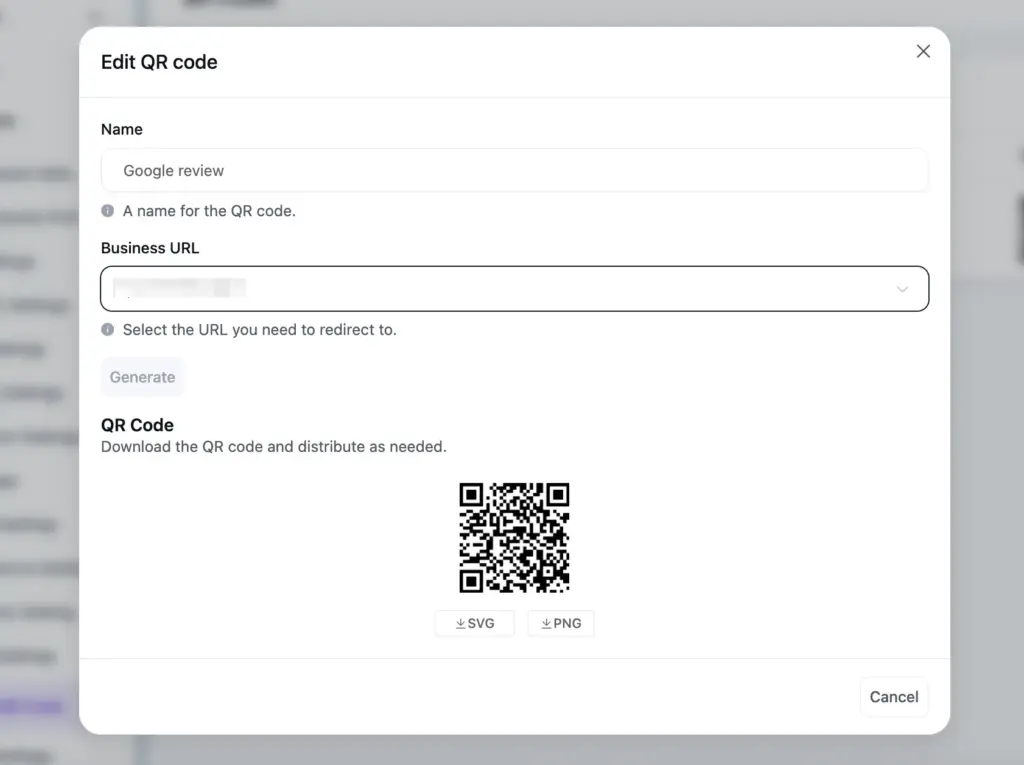
- Select your connected review platform, such as Google, from the business URL dropdown. You can also choose Custom URL and paste your Google review link.
- Click Generate
- Download the QR code as PNG or SVG
Win your customers’ hearts with exceptional features
Discover how WP Social Ninja can assist you in designing outstanding customer experiences.
Best places to share your Google review link
Generating the link is the easy part. The real difference comes from where you share it.
Below are the places where people are most likely to click and leave a review:
- Table tents and counters. Restaurants, cafes, and bars get the best response from a small QR code stand on the table or near the till. Customers scan while waiting for the bill or their order.
- Menus and order screens. A QR code printed on the menu or shown on the self-order screen catches diners at the moment they’re rating the experience in their head.
- Reception desks and waiting areas. Salons, clinics, and dental offices can place a small “How was your visit?” card with a QR code at checkout or in the waiting room.
- Hotel rooms and guest folders. A small card on the bedside table or inside the welcome folder catches guests while their stay is still fresh.
- Gym entry points and lockers. A QR code near the front desk or locker room turns regular members into regular reviewers.
- Email signatures. Add a short line like “Loved working with us? Leave a quick review here.” Every email becomes a soft ask without sounding pushy.
- Post-service or post-purchase texts. The 24-hour window after a service or delivery is when customers feel the most. A short SMS in that window converts the best.
- Printed receipts and business cards. A QR code next to “Scan to leave a review” works well for any business that hands customers something physical on the way out.
- Thank-you pages and order confirmations. For eCommerce, drop the link on your “Order received” page. Customers are still in a positive mood right after checkout.
- Social media bios and pinned posts. The same link works across LinkedIn, Facebook, Instagram, Threads, and X. Pin it once, and it stays visible to every visitor.
- Packaging inserts. Product businesses can include a small “How did we do?” card with a QR code inside every order. The unboxing moment is one of the highest emotional peaks for a customer.
- Booking and appointment confirmations. Hotels, clinics, and service providers can add the link to confirmation emails as a soft follow-up after the stay or visit.
- Invoices and quotes. B2B clients rarely think to leave reviews. A line at the bottom of your invoice keeps the door open without feeling salesy.
- Customer support emails. After resolving a ticket, a follow-up email with the review link catches customers right when they’re grateful for the help.
Bonus Tips: Getting customers to leave a Google review takes more than asking nicely; the timing, message, and follow-up all decide your response rate. Our guide on how to ask for Google reviews breaks it all down, from when to send and what to say to how to follow up without sounding salesy.
Google review link not working? Here’s how to fix it
A broken review link is the silent killer of review campaigns. Customers click, see an error, and never try again.
Here are the four reasons it usually fails and the fastest fix for each:
| What’s wrong | Why it’s happening | Fix |
| Link opens a generic Google search | Place ID is wrong, or your business isn’t verified | Re-verify your Google Business Profile and regenerate the link |
| Link says, “We can’t find this business.” | The listing was suspended, merged, or moved | Sign in to Google Business Profile and check listing status |
| Link works on desktop but not mobile | Old short URL format that mobile no longer redirects | Replace with the new g.page/r/ or maps.app.goo.gl/ format from the Share menu |
| Customers say, “I can’t find the review button.” | They’re not signed in to a Google account | Add a one-line note in your ask: “Make sure you’re signed in to Google first.” |
Turn one link into a steady flow of reviews
A Google review link does one job well: it removes the gap between a customer’s good experience and the moment they leave a review. You now have three ways to create it, more than a dozen places to share it, and a quick fix table for when it stops working.
The businesses that collect the most reviews are not always the ones with the best service. They are the ones who make leaving a review easy. Pick the method that fits your setup, place the link where your customers already are, and let those saved seconds add up.
Your next review is one shared link away. Generate yours today, test it on your own phone, and start dropping it into emails, receipts, and counters. The work you already did to earn happy customers deserves to show up on your Google profile.

Get exclusive social media marketing tips and tutorials in your inbox!
Frequently Asked Questions
How do I get a direct link to a Google review?
Sign in to your Google Business Profile Manager, select your business, and click the Get more reviews button that appears in the search results. Both paths give you the same short link that drops customers straight onto the review form.
Why is my Google review link not working?
The usual culprits are an unverified Google Business Profile, an outdated short URL, or a typo in your Place ID. Re-verify your business inside Google Business Profile, regenerate the link from the Share button, and test it on both desktop and mobile before publishing it anywhere.
How can I create a Google review link QR code?
Copy your review URL and paste it into any free QR code generator (Google Chrome’s address bar also generates one), then download the PNG. If you’re on WordPress, WP Social Ninja creates the QR code automatically when you set up your review link, so you don’t need a separate tool.
Can I share a Google review link on social media?
Yes, the short URL works on every platform. On Instagram, add it to your bio since captions don’t support clickable links. On LinkedIn, Facebook, and X, you can paste it directly into a post or pin it to the top of your profile.
Can customers leave a Google review without a Google account?
No, a Google account is required, but customers don’t need a Gmail address. They can sign up using any existing email (Yahoo, Outlook, etc.), and they can even write anonymous Google reviews by hiding their full name in account settings.

Subscribe To Get
Weekly Email Newsletter
Connect, Customize, and Display Social Feeds, Reviews, and Chat widgets








Leave a Reply