
Facebook Posts Not Showing Up? Easy Fixes for Timeline & Friends’ Feeds (2026)


You posted a photo of your cat on Facebook, but only you can see it. Or your business page post disappeared without a trace. If your Facebook posts are not showing up on your timeline or in your friends’ feeds, you’re not alone, and the fix is usually simple.
This issue is one of the most common (and frustrating) problems on Facebook, and it’s often misunderstood. The cause is rarely a single bug.
In most cases, it’s a combination of factors like a corrupted app cache, incorrect privacy settings, a scheduled post glitch, or Facebook’s algorithm limiting your visibility.
In this guide, you’ll learn exactly why Facebook posts stop appearing and how to fix each issue step by step, whether you’re a casual user, a business page owner, or embedding a Facebook feed on your website.
So, let’s get started.
Even if you’re not one of them, you can go through this blog, where you can find the causes and easy fixes for Facebook feed-related problems and implement them when needed.
TL;DR
- Facebook posts not showing up is usually caused by cache issues, wrong audience settings, or how the algorithm ranks content
- Clear your app cache and check post privacy settings first, these fix most personal post issues
- Friends may not see your posts because Facebook only shows content they interact with often
- Business page reach is low by default, so focus on engaging content, short videos, and consistent posting
- Scheduled posts not showing up on Facebook may occur due to glitches or expired login sessions, try publishing manually or logging in again
- Instagram posts won’t share to Facebook if accounts are not properly connected, re-link them to fix it
- Website Facebook feeds stop working due to expired tokens or outdated plugins, so use a regularly updated plugin to keep feeds running
Let’s get started!
What Does ‘Facebook Posts Not Showing Up’ Actually Mean?
Facebook post visibility failure is any situation where a post you published, or someone tagged you in, does not appear where it should: on your timeline, in friends’ feeds, on your business page, or embedded on your website.
Instead of being a single technical error, this issue usually comes down to how Facebook handles visibility through settings, cached data, or feed ranking decisions.
Before troubleshooting, it helps to identify what type of visibility issue you’re experiencing. The table below shows the most common symptoms and their most likely causes:
| Symptoms | Most Likely Cause |
|---|---|
| My own posts aren’t on my timeline | Cache or privacy settings |
| Friends can’t see my posts | Audience setting or algorithm |
| Business page posts vanish | Algorithm / page reach decline |
| Scheduled posts missing | Scheduling glitch |
| Tagged posts not on wall | Tag review enabled |
| Instagram share to FB not working | Account link broken |
| Facebook feed is not displaying on website | Plugin or token issue |
My Facebook Posts Are Not Showing Up on My Timeline
When Facebook posts disappear from your own timeline immediately after publishing, the two most common causes are a corrupted app cache and a restricted audience setting. Both are fixable in under two minutes.
Fix 1: Clear Your Facebook App Cache
Facebook stores temporary files (cache) to load pages faster. Over time, this data becomes outdated or corrupted, causing posts, images, and feed updates to stop appearing. Clearing the cache forces the app to fetch fresh data from Facebook’s servers.
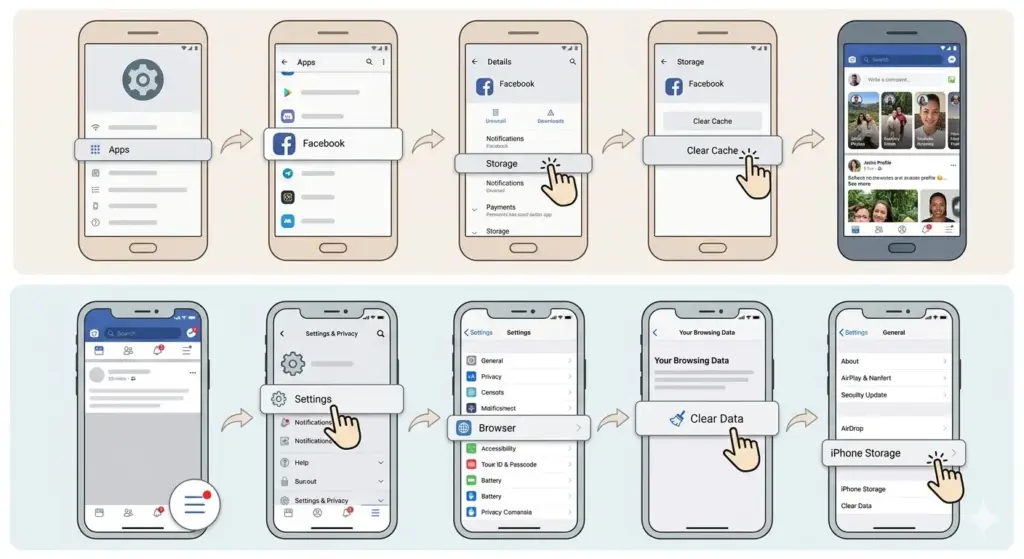
On Android:
- Go to Settings on your Android device
- Tap Apps (or Application Manager)
- Find and tap Facebook
- Tap Storage, then tap Clear Cache
- Reopen Facebook and check your timeline
On iPhone:
- Open the Facebook app
- Tap the three horizontal lines (Menu) in the bottom right
- Go to Settings & Privacy → Settings
- Under Browser, tap Clear Data next to Your Browsing Data
- If posts still do not appear, offload and reinstall the app: go to iPhone Settings → General → iPhone Storage → Facebook → Offload App
Experts recommend clearing your Facebook cache once a month to prevent overloaded storage from causing display issues, slow loading, and feed glitches.
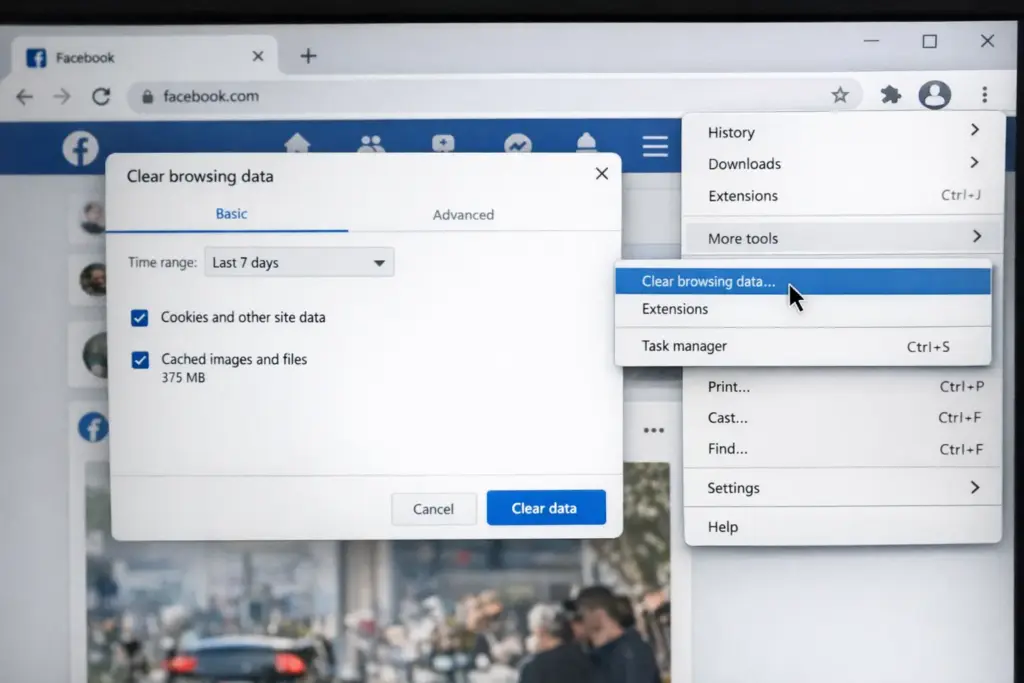
On Desktop (browser):
- Open Chrome. Click the three-dot menu → More Tools → Clear Browsing Data
- Select Cookies and Cached Images and Files. Set the time range to the past week
- Click Clear Data. Reload Facebook
Fix 2: Check Your Post Audience Settings
Facebook posts default to the audience you last selected. If you previously set a post to Only Me or a restricted list, all subsequent posts may carry that setting, making them invisible to everyone else.
- Open Facebook and go to your Profile
- Find Settings & Privacy > Settings > Posts (under Audience and Visibility)
- Scroll down to the Audience and Visibility section and tap Posts
- Tap Who can see your future posts? to select your desired audience
- Confirm it is set to Public or Friends
Meta states that post visibility depends entirely on the audience selected when publishing, meaning posts set to Only Me or a restricted list will not appear in other users’ feeds.
Source: Meta Help Center
My Facebook Posts Are Not Being Seen by My Friends
Facebook’s algorithm does not show every post to every friend. It uses over 100 prediction models to decide what each user sees, based on their past behavior, engagement history with you, and the type of content you post.
If your friends have not interacted with your posts recently, Facebook will show them your content less often, and eventually not at all.
This is not a bug. It is by design. Facebook’s feed ranking system analyzes every post against four factors: the inventory of available posts, signals from the post itself (type, freshness, engagement), predictions about how likely each user is to engage, and a final relevance score. Posts that score low simply do not surface.
Fix: Use News Feed Preferences and Favorites
You can ask your friends to add you to their Favorites list. This guarantees that your posts appear at the top of their feeds regardless of algorithmic assessments.
To add someone to Favorites:
- Go to their profile
- Tap Friends
- Select Favorites
Pro tip for business page owners: Encourage followers to select ‘See First’ from your page’s Follow settings. This single action guarantees your posts appear at the top of their feed, bypassing standard algorithm scoring entirely.
Facebook Business Page Posts Not Showing Up
A March 1, 2026 report that analyzes over 52 million posts to show current organic performance on Facebook. The median engagement rate per post is around 3.3 %, and reach per post metrics are provided so you can compare your performance to other creators, showing that organic visibility remains modest for many pages
The main reason posts don’t reach many followers is how Facebook prioritizes content. In 2026, the News Feed heavily favors posts that spark meaningful interactions and AI-recommended content, often showing users more from accounts they don’t follow than from business pages. This means your page’s posts have to compete with a flood of other content, making organic reach even smaller.
What the 2026 Facebook Algorithm Prioritizes
According to Meta’s 2026 Feed ranking guidance, the algorithm ranks business page content based on:
- Meaningful interactions: Comments, shares, and saves carry far more weight than likes or reactions
- Short-form video (Reels): Reels under 90 seconds continue to earn higher reach due to watch time and repeat views
- Watch time and silent signals: How long someone watches a video or saves a post now affects ranking
- On-platform content: Posts with low-quality external links or engagement bait are downranked. Posts without links perform better organically
Fixes for Business Page Visibility
Imagine spending an hour crafting the perfect Reels post, only for 98% of your followers to never see it. We know that frustration.
Here’s how to change that.
1. Switch your feed view from Top Stories to Most Recent
On the left sidebar of Facebook’s desktop interface, you can switch between Top Stories (algorithmic) and Most Recent (chronological). Setting this to Most Recent will show your page’s posts to followers who have made this switch.
2. Post without external links
Meta’s own Widely Viewed Content Report found that 97.9% of the most-viewed content in the US did not include a link to an external source.
Instead of linking to your blog post, write the insight directly in the Facebook post and save the link for comments.
3. Use interactive content formats
Content that invites audience participation, like questions, polls, or carousel posts, tends to perform better than plain images or link posts. When people comment, react, or vote, it signals to Facebook that the post is engaging, helping it reach more followers.
Polls, quizzes, and live videos are the highest-engagement formats on Facebook, according to marketing experts.
4. Post consistently and at optimal times
Facebook shows newer posts more often than older ones. Posting regularly works better than sharing a few big posts occasionally.
5. Engage with other pages
Tag collaborators, event sponsors, or partners in your posts. This exposes your content to their audiences organically and signals to the algorithm that your content has broader relevance.
Facebook Scheduled Posts Not Showing Up
Scheduled posts sometimes fail to appear due to a common Facebook glitch. For example, you might schedule a birthday post for your friend, but it never publishes.
The post can either go live without showing up on your timeline (so you still get likes and comments) or remain stuck in the scheduled queue and never publish at all.
Scenario A: Post Published But Invisible to You
Most of the time, this happens because of your device’s cache. The post is there, and other people can see and interact with it, but your app is showing an older version of your timeline that was loaded before the post went live.
Fix: Clear your app cache, then reload your timeline. The post should appear immediately.
Scenario B: Post Stuck in Scheduled Queue
This happens when Facebook runs into an error while trying to publish the scheduled post. It can be caused by an expired login token, changes to the post’s settings, or a temporary Facebook error.
Here’s what you can try to fix it:
1. Manually Publish the Stuck Post (Quickest Fix)
This is the most direct solution recommended by Meta for system errors with scheduled posts:
- Go to Meta Business Suite on your computer
- Click Content in the left menu
- Select the Scheduled tab (or Posts & reels > Scheduled)
- Look for the stuck post, it may show an error message
- Click on the post, then click Publish now (or Manage post > Publish now)
This bypasses the queue and publishes it immediately.
2. Check and Refresh Your Login/Access Token
An expired login token is a common cause:
- Log out of Facebook and Meta Business Suite completely
- Log back in (on the same device/browser you usually use)
- If you’re using a third-party scheduling tool (like Buffer, Later, or Hootsuite), re-authenticate/reconnect your Facebook Page. This refreshes the token
Facebook Friend Posts Not Showing Up in My Feed
If you only see posts from a few friends, it’s how Facebook works. It doesn’t show everything. It shows posts you’re most likely to engage with.
Friends you interact with often will appear more. Friends you don’t engage with much may stop showing up, even if they post regularly.
How to See More Posts from Specific Friends
- Go to Settings & Privacy → Content Preferences → Favorites
- Add the friends whose posts you want to prioritize. Their content will now appear at the top of your feed
- Alternatively: visit a friend’s profile, click the Following button, and select See First
- Select Unfollow on pages or profiles you never want to see again. This hides their posts without removing the connection
Facebook Tagged Posts Not Showing Up on My Wall
Tagged posts not appearing on your wall means your Tag Review feature is enabled. Got tagged in a funny meme but can’t see it on your profile yet?
It’s likely waiting for your approval. Tag Review is a privacy feature that holds all tagged posts until you manually approve them before they appear on your timeline.
How to Approve Pending Tagged Posts
- Go to your Facebook Profile
- Look for a red numeric badge labeled Pending Story near your cover photo
- Click it to review all pending tagged posts
- Click Add to Profile for any post you want to appear on your timeline
How to Disable Tag Review (Auto-Approve All Tags)
- Go to Settings & Privacy → Settings → Profile and Tagging
- Find Review Posts You’re Tagged In Before the Post Appears on Your Profile
- Toggle this setting off. All future tagged posts will appear on your wall automatically
Note: Disabling Tag Review means all tagged posts appear on your wall without your approval first. Consider leaving it on if you want control over your public profile content.
Instagram Posts Not Sharing to Facebook
If your Instagram post doesn’t show up on Facebook, it’s usually a connection issue. You might share a post on Instagram, but it never appears on Facebook.
This often happens when the link between your accounts stops working. The connection can break after an update, expire over time, or stop working after you change your password. So even if Instagram says “shared,” the post may not show on Facebook.
Follow the step-by-step process:
Step 1: Re-link your accounts
- Open Instagram. Go to your Profile → Menu (three lines) → Settings and Activity
- Tap Accounts Centre → Connected Experiences
- Find the Facebook account listed. Remove it and re-add it by logging in fresh
Step 2: Log out of both apps and back in
- Log out of Instagram completely. Log out of Facebook completely
- Log back into Facebook first, then Instagram
- Re-enable the sharing option in Instagram Settings → Cross-posting
Step 3: Change your Facebook password and re-link
If Step 2 does not resolve the issue, update your Facebook password, then repeat the account-linking process. A stale or cached credential is often the underlying cause.
Step 4: Disconnect, restart, reconnect
- In Instagram, go to Settings → Accounts Centre and fully disconnect Facebook
- Force-quit both apps. Restart your phone
- Open Instagram, go back to Accounts Centre, and reconnect to Facebook
Try each step in sequence. Most users find the issue resolves at Step 1 or Step 2.
Facebook Feed Posts Not Showing Up on Your Website
If your Facebook feed isn’t showing on your website, it’s usually a technical issue, not a problem with Facebook or your app. Most of the time, the plugin or tool you’re using to embed the feed has lost access because of an expired token, a permissions change, or a configuration problem.
Facebook’s API tokens expire regularly. When that happens, the plugin can no longer access your feed, so posts stop showing, often without any error message. Visitors might see a blank or frozen feed.
Why This Happens:
Plugin compatibility: Not all WordPress plugins stay updated with Facebook’s API. Outdated plugins stop working when Facebook removes old endpoints
Token expiry: Facebook gives tokens a limited lifespan. Plugins need to reconnect when the token expires
Permission changes: Facebook updates its API permissions from time to time. Older plugins may lose access silently
The Fix: Use a Maintained, Compatible Plugin
If you run a WordPress site, the easiest way to show a working Facebook feed is to use a plugin that is regularly updated. Facebook changes its system often, and without updates, your feed can stop working without warning.
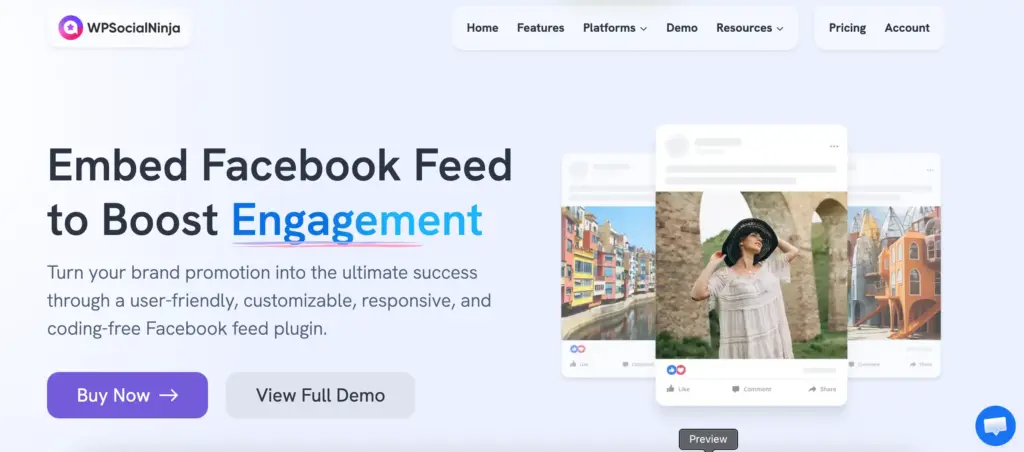
A plugin like WP Social Ninja works as a Facebook feed plugin for WordPress, helping you display your Facebook feed directly on your website. It includes cache clearing and auto-sync to keep your feed updated, image optimization to avoid slowing down your site, and GDPR compliance to help protect user privacy.
This way, your feed stays fresh, fast, and reliable without extra effort. If you’re trying to display a feed on your site, this guide on adding a Facebook feed on a website walks you through the basics in a simple way.
You can also explore the plugin directly from its WordPress directory page to see features, updates, and real user feedback.
Facebook Posts Not Showing Up: All Causes and Fixes at a Glance
Before you go, here’s a quick breakdown of all the causes and solutions covered above.
| Issue | Root Cause | Fix |
|---|---|---|
| Posts not on own timeline | Corrupted app cache | Clear cache in Settings → Apps → Facebook |
| Friends can’t see posts | Audience restricted or algorithm | Change audience to Public; encourage followers to ‘See First’ |
| Business page low reach | Facebook algorithm deprioritizing pages | Post Reels, avoid external links, use interactive content |
| Scheduled posts stuck | Publishing glitch or token expiry | Publish with Backdate, or delete and repost |
| Tagged posts missing | Tag Review enabled | Approve in Pending Stories, or disable Tag Review |
| Instagram not sharing to FB | Account link broken | Re-link via Accounts Centre; log out/in; change password |
| Feed not on website | API token expired or plugin outdated | Use an actively maintained plugin with auto token refresh |
Wrapping up
Well, that was about fixing Facebook issues, such as posts not showing what you may experience in your day-to-day life. We believe it will help you precisely the way you want, rather than searching multiple sources.
If you keep your eyes on our Facebook, X (Twitter), LinkedIn, and YouTube accounts, you’ll find more solutions and hacks like those you’ve found in this article. And to get these articles regularly, please subscribe.

Get exclusive social media marketing tips and tutorials in your inbox!
Also, join our Facebook community and share your issues with us!
Related articles:
- How to Leave A Review on Facebook (Things You Need to Know)
- How to Fix Facebook API Error (Quick and Complete Guide)
- 9 Interactive Facebook Posts Ideas to Boost User Engagement
FAQ
More questions regarding the issue of Facebook posts appearing:
How to make Facebook posts appear again after being hidden?
If your post suddenly stops showing, try making a small change. Edit the caption, adjust the audience, or repost it with a stronger hook that invites people to react or comment. Sometimes a fresh post performs better because the system treats it as new content.
Why are my Facebook Reels or videos not showing up?
Reels usually struggle when watch time is low, the audio has copyright issues, or people scroll away quickly. Ask a simple question in the caption or reply quickly to comments; this helps the post pick up activity quickly.
Facebook posts not showing up after an update, what to do?
After updates, the app may behave erratically for a while. Log out and back in, update the app, or give it a little time; posts often start appearing normally again once things refresh on Facebook’s side.
How long does it take for Facebook to fix posts not showing?
Small glitches usually settle within a day or two. If it’s about engagement, it can take longer; your posts start showing again once people begin interacting with them consistently.

Subscribe To Get
Weekly Email Newsletter
Connect, Customize, and Display Social Feeds, Reviews, and Chat widgets

Trending Posts



Comments
-
I opened settings under my timeline picture. There was no line mentioning feeds . 🙁 Clicked a line there saying setting and it brought up my information. I am also an administrator on a Page and the posts don’t show up except under the Quad where I then see a picture of the posts and some are blank which don’t have pictures. Wished your instructions would have helped.
-
Here are some steps you can try to resolve the problem:
Check Privacy Settings for Your Posts:
Go to your Facebook profile.
Click on the three dots (…) next to your profile picture and select Privacy Checkup.
Review your privacy settings for posts and make sure they are set to either “Public” or to the desired audience (Friends, Friends of Friends, Only Me, etc.).
Review Page Settings:
If you need help with posts on a Facebook Page where you are an administrator, go to the Page.
Click on Settings located in the top right corner of your Page.
In the left column, click General and ensure that the settings related to post visibility are configured correctly.
Check Page Moderation Settings:
In your Page settings, under General, check the Country Restrictions and Age Restrictions settings. Make sure these settings are not limiting the visibility of your Page’s content.
Clear Browser Cache and Cookies:
Sometimes, browser cache and cookies can cause display issues. Clear your browser’s cache and cookies, and then try reaccessing Facebook.
Use a Different Browser or Device:
Sometimes, issues are browser-specific. Try accessing Facebook using a different web browser or device to see if the problem persists.
Contact Facebook Support:
If the issue persists, please get in touch with Facebook support directly. Go to the Help Center on Facebook and follow the prompts to report the problem you’re experiencing.
-
-
I just want to get all my facebook messages reinstated
-
If you believe your messages were disabled in error, or if you have made necessary changes to comply with their standards, you can contact Facebook Support. Go to the Help Center on Facebook and search for a way to report the issue or contact support. Provide as much information as possible about the situation.
-
-
If you believe your messages were disabled in error, or if you have made necessary changes to comply with their standards, you can contact Facebook Support. Go to the Help Center on Facebook and search for a way to report the issue or contact support. Provide as much information as possible about the situation. Thanks me lATER!
-
Thanks for the advice! We’ll look into it and share our thoughts on our content.
-
-
I’m having lots of trouble reading my Facebook. It keeps cutting off about 1/4of both left n right sides
I can’t push an arrow to post a comment either. I just bought this new I phone. What’s going on with this crap
-
Hello there,
If you’re still facing the issue, you can try these out:1. Refresh the page
2. Close the page & reopen/ update the app
3. Clear your cache
4. Try again with a different browser if you’re using your PC
5. And most importantly make sure you’re connected to a reliable internet network
-
-
When I look at my profile from a stranger’s profile, you cannot see my public posts or any posts at all for that matter nor any information at all except my profile picture and i have been posting lots of publlic posts. It is NOT a privacy setting. I’ve seen some other discussions about this and noone has given a solution. What’s going on?
-
This issue typically occurs when your privacy settings for your posts are not set to “Public”. However, since you mentioned that your public posts are not visible, we recommend double-checking the solutions we provided in this blog post. If none of them work, please report the problem to Facebook. Thank you.
-
-
When I look at my wife’s business’ page on my FB app it won’t show me recent posts.(last couple days).
If I go to the feeds tab in the app…and click on “favorites”, I can see those posts. If I look at her page via a web browser I can see those posts on her page. I have cleared the cache. I have un-installed and reinstalled both the FB app and FB messenger to force a manual re-login. It is super annoying that i can’t just open my app and go to her page to see recent posts.-
It sounds frustrating not being able to see recent posts on your wife’s business page in the Facebook app. Here are a few steps you can try to resolve the issue:
– First, ensure that your wife’s posts aren’t restricted by any privacy settings, like audience selection or custom filters. They might be visible in the browser but limited on mobile
– Though you have mentioned that you already cleared the cache, but sometimes, clearing only the cache isn’t enough. Go to your phone’s app settings and clear the entire app data to reset the app thoroughly before reinstalling
– Log out of Facebook on all devices, including the web and app, then log back in to refresh synchronization across platforms
– Make sure the Facebook app has all necessary permissions on your device, including background data usage, which could affect content refresh
– Even if you’ve reinstalled, double-check for any new app updates and apply themStill, if the issue persists, contact Facebook’s support team through the app for further assistance. They may be able to diagnose if this is a known bug or an account-specific issue. This should hopefully help resolve the issue and allow you to see the posts as expected!
-
-
When I’m making a post, none of my friends names pop up to choose from (in blue) to tag. Why is this? This just recently started & I can’t find anywhere that addresses this. Please help!
-
If you’re unable to tag friends in your Facebook posts, here are some possible causes and quick fixes:
Friends’ Privacy Settings: Your friend may have disabled tagging or enabled tag review. Ask them to check Settings.
App Glitch: Cache or app bugs (especially on iOS and Android). Clear your app’s cache, update the app, or try a browser.
Post Privacy Settings: If set to Only Me or a limited audience, tagging may be restricted. Set post to Friends or the Public.
Account Restrictions: Check your Activity Log for tagging limits.
Friend List Glitch: Facebook may not load suggestions. Try typing @ + full name or interact with their profile.
Page-Specific Issue: If posting from a Page like from ( wpsocialninja.com), only Page likers can be tagged. Confirm friends have liked the Page.
If the issue persists, report it via the Help Center or share more details (device, app/browser, specific friends) for further help!
-





Leave a Reply to Karen Brown Cancel reply