

3 Best Free YouTube Widget Plugins for WordPress (Setup + Common Fixes)


You have a YouTube channel. Maybe you share product demos, tutorials, or behind-the-scenes moments your audience actually enjoys. And of course, you want those videos on your website too.
So you copy the embed code from YouTube, paste it into your page, and… it just doesn’t look right. On mobile, it stretches awkwardly. On a desktop, it feels too small. Or worse, it sits there like it doesn’t belong instead of blending into your site’s design.
Sounds familiar?
That’s the difference between simply embedding a video and using a proper YouTube widget. A responsive and easy-to-use widget helps you display your channel, playlists, or specific videos in a clean, organized way that actually fits your website. It looks professional. It feels intentional. And it keeps visitors watching.
Let’s fix this the right way.
3 Best YouTube Widgets for Websites
| YouTub Widget Tools | Type of YouTube Widget | Free Version Strength | Limitations |
| WP Social Ninja | Channel, Playlist, Search, Specific Videos, Live Streams | Basic customizations, All feed types, Control YouTube feed playback with autoplay, GDPR compliant, Lazy loading, Auto-updates, responsive design | Advanced customization needs the Pro version |
| Embed Plus | YouTube playlist gallery, YouTube livestream | Multiple customization options, Interactive controls | Autoplay, custom sorting, and advanced navigation are Pro-only |
| Smash Balloon | Basic Channel Feed | Auto‑updates, Multiple layout options, and responsive designs | Very limited free features |
What is a YouTube Widget?
A YouTube widget is a tool that shows your YouTube videos on your website. You add it once, and it updates on its own whenever you post new videos. There’s no need to copy embed codes over and over.

Here’s what YouTube widgets can do:
Gallery widget: Display multiple videos in a clean grid layout
Live Streams Widget: Show your YouTube live streams in real-time on your site
Channel showcase widget: Give visitors a full view of your YouTube presence
Playlist Widget: Showcase a specific YouTube playlist, so visitors can watch a curated set of videos.
Why use a YouTube widget instead of plain embeds?
- Better appearance: Traditional embeds look similar to classic YouTube players, but they rarely match your site’s design or layout
- Time savings: Auto-updates when you post new videos (no manual embed updates)
- Higher engagement: Visitors stay on your site longer when videos are easy to browse
- Subscriber growth: Easy access to your channel encourages visitors to subscribe directly from your website
- SEO value: Fresh video content keeps your page updated and improves user interaction signals, which helps search engines understand your page is active and useful
Key Features to Look For in a YouTube Widget
Not all widgets are created equal. When you decide to choose a YouTube widget for your WordPress website, make sure you get these features:
Multiple Feed Types
Maybe you want a single video on one page and a full channel feed on another. Look for options like:
- Channel feeds (all your videos)
- Playlist feeds (specific collections)
- Single video embeds
- Live stream displays
Auto-Sync with Your Channel
Good widgets connect to your channel and pull the latest content automatically. You don’t need to update manually every time you upload a video.
Customization Options
Look for the widget tool that will allow you to change colours to match your brand, adjust the number of videos shown and pick which playlist to display. Flexibility matters because every site is different.
Mobile-Friendly Design
If your YouTube widget doesn’t work well on mobile, it can frustrate visitors. Choose a widget that adjusts automatically to any screen size so your videos always look good.
Keep Your Site Fast with Lazy Loading
Some widgets load all videos at once, which can slow down your site. The best ones use lazy loading, which only loads a video when someone scrolls to it. This keeps your pages fast and smooth for visitors.
Make your YouTube playlists shine on your website. Follow this guide to add them in just a few clicks.
Best Free YouTube Widget Tools for WordPress
If you want a YouTube widget for WordPress, these three free plugins will make adding videos simple and quick:
1. WP Social Ninja
WP Social Ninja is the best YouTube plugin for WordPress websites. If you want an easy, no-stress way to create a YouTube feed on your website, then it’s a must-try option

Using this, you can connect your channel in just a few clicks, and your videos automatically appear on your website. Want to show your entire channel? A specific playlist? Just one featured video? You can do all of that without touching a single line of code with their deep customization options
And the best part is, every time you upload a new video, it syncs automatically. It doesn’t ask you to copy and paste embed links again and again. You can connect your multiple YouTube channels, too.
The layouts and templates look clean and professional; you can choose your preferred one. Your videos will adjust perfectly on mobile and desktop, so nothing will look stretched, broken, or out of place. You can control how many videos show, how they open, and where the feed appears on your site.
Want your YouTube channel on your WordPress site? Follow this step-by-step guide to embed it easily.
What you get for free:
- Channel feed with auto-sync (new videos appear automatically)
- Custom feed header (add your branding above the feed)
- Control video playback with autoplay settings)
- Custom play mode for YouTube feeds
- “Load More” pagination to keep visitors engaged
- Multiple layout options (grid, list, carousel)
- Page builder compatible (Gutenberg, Elementor, Beaver Builder, Oxygen)
- Feed issue email alerts (get notified if something breaks)
- GDPR compliant
Pros:
- More free features than most competitors charge for
- Clean, modern layouts that look professional
- Autoplay and playback controls are included free
- Lightweight and fast loading
- Will get Instagram, Facebook, TikTok widgets too
Cons:
- WordPress only (won’t work on Wix, Squarespace, etc.)
- Advanced filtering and lightbox popups require the pro version
Price: Pro version starts at $44/year.
Want to know more about WP Social Ninja’s YouTube feed? Check it out
2. Embed Plus for YouTube
Embed Plus for YouTube is another viable option for adding YouTube videos to your WordPress site without any technical setup.
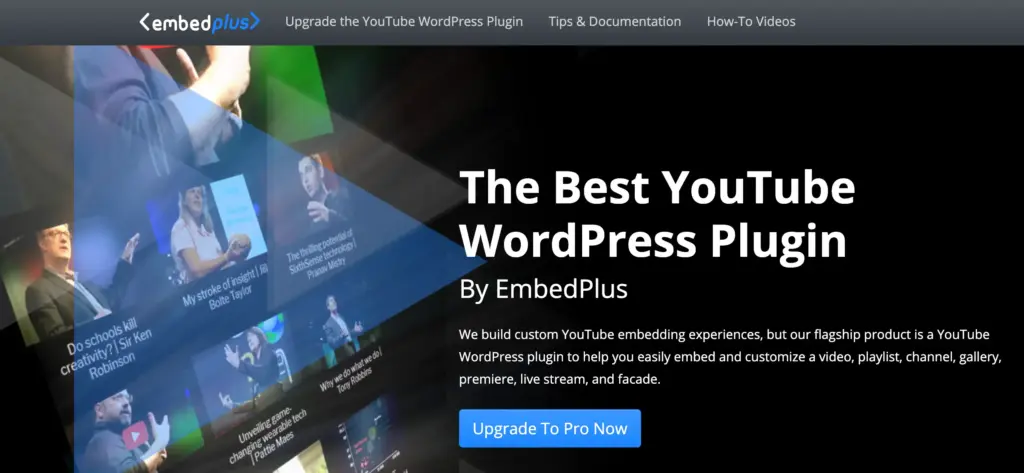
If you want to share just one video, you can. If you prefer to show a full playlist, your entire channel, or an upcoming premiere, that works too. You simply add it to your page, and it shows up the way you want.
It supports privacy-friendly embeds and works well with the WordPress editor and most page builders.
What you get for free:
- Embed single YouTube videos by simply pasting the link
- Create playlists and channel galleries on your site
- Lazy load/facade mode to improve page speed
- Responsive videos that adjust to all screen sizes
Pros:
- You can embed videos, playlists, galleries, and live streams without coding
- Includes useful playback control settings (autoplay, loop, hide controls)
Cons:
- Many advanced features, like analytics, custom gallery effects, thumbnails, and video SEO tags, are Pro-only
- The interface may feel overwhelming with lots of settings for beginners.
- Performance options like animation, lazy load, or premium gallery styles require upgrading
Price: Premium version starts at $90/year.
If you want to know more about YouTube plugins, read: 5 Best WordPress YouTube Plugins for Your Websites.
3. Smash Balloon
Smash Balloon YouTube Feed is another good option if you want to show your YouTube videos on your WordPress site without dealing with code.
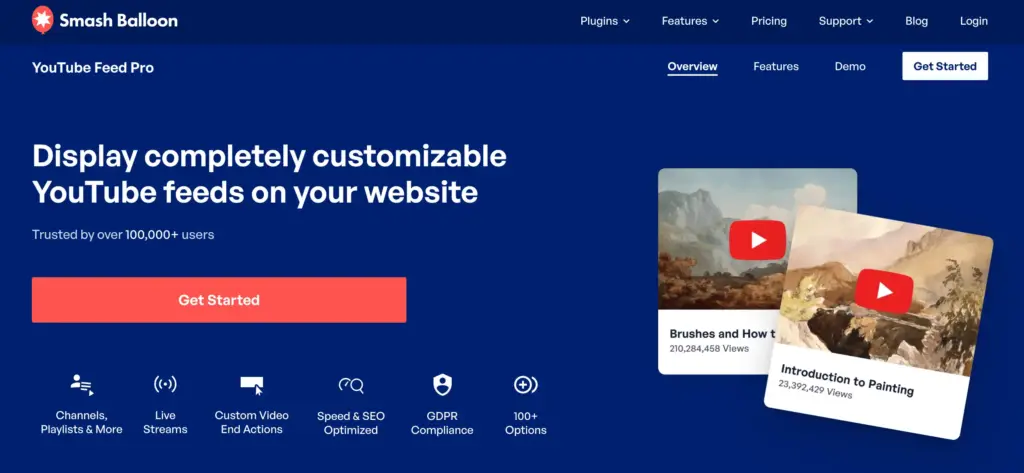
Once you connect your channel, your videos appear automatically, and you can choose how they look. Show them in a grid, a list, or a gallery. Pick the style that matches your website. The design adjusts to your theme, so it does not look out of place.
If you have more than one YouTube channel, you can display videos from those as well. The plugin also stores video data efficiently, keeping your website fast.
It works well on mobile and tablets, too. Your videos will look clean and organized on any screen.
What you get for free:
- Display a channel feed (new videos appear automatically)
- Multiple layout options (grid, list, gallery)
- Mobile responsive
- GDPR compliant
- No coding required
- “Load More” button to show more videos
Pros:
- Clean, modern layouts that look professional
- Auto-sync for new videos is included free
- Lightweight and fast loading
- Compatible with major page builders
Cons:
- WordPress only (won’t work on Wix, Squarespace, etc.)
- Advanced features like playlists, live streams, filters, carousel sliders require Pro
- Custom feed header and playback controls are Pro only
Price: Pro version starts at $98/year.
How to Add a YouTube Widget to WordPress
We just reviewed three YouTube widget plugins and what each offers. Now let’s see how things actually work.
Instead of showing complicated steps for every plugin, we’ll show you the method that is quick, simple, and works reliably for most WordPress users.
For this, we’ll show you how to do it using WP Social Ninja, which makes embedding a YouTube feed ready in just a few minutes.
Step 1: Install and Activate the Plugin
First, you need to install the plugin so you can access YouTube feed features inside your dashboard.
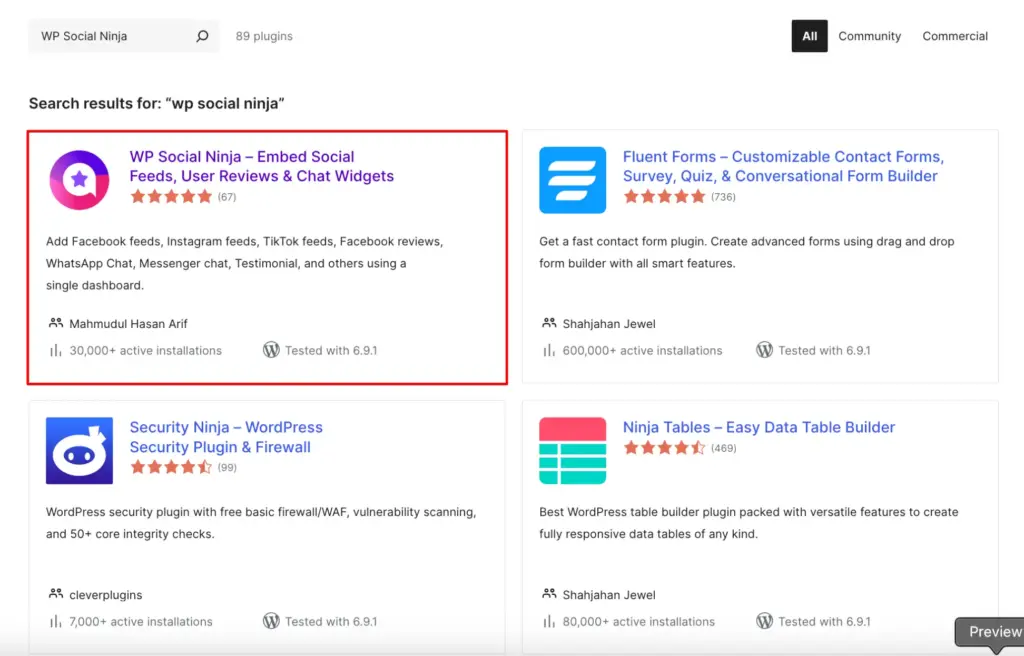
- Go to WordPress plugn directory and search for WP Social Ninja
- Find WP Social Ninja and click on it
- Download the plugin and activate it
If you need help in installing the plugin, you can give a read on our blog: How to Install Plugins for WordPress (3 Easy Ways).
Step 2: Connect Your YouTube Channel
Now connect your YouTube account so the plugin can pull your public videos automatically.
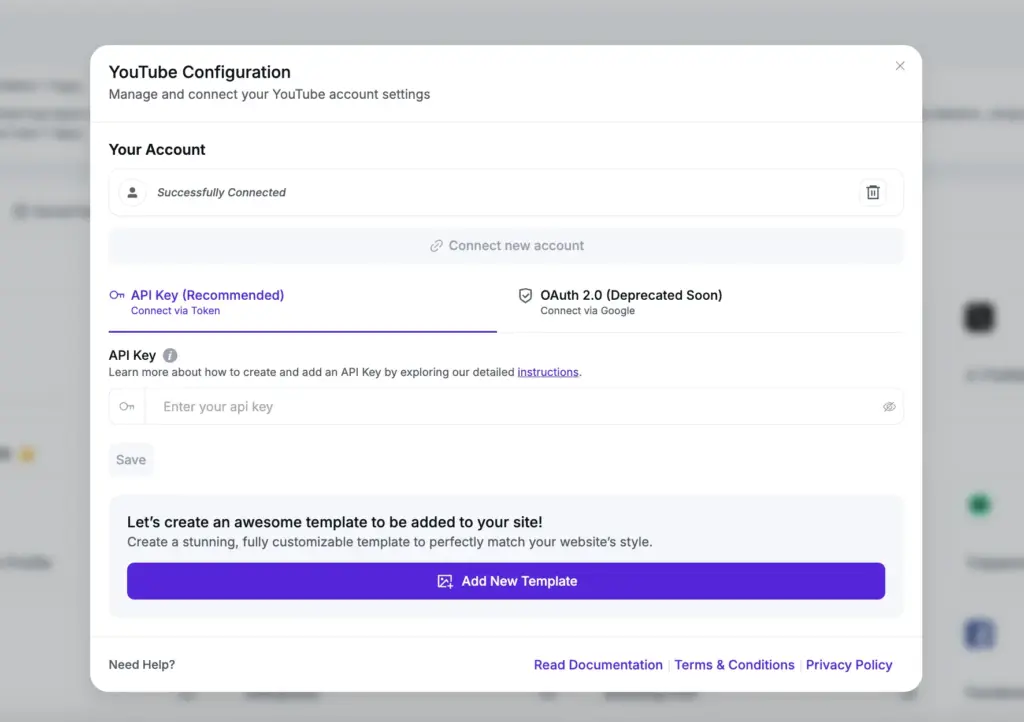
- Go to WP Social Ninja → Platforms
- Click the YouTube icon
- Choose your preferred configuration method from API Key or OAuth 2.0 (Try to select the API Key as it’s recommended)
We have a detailed guideline for configuring the YouTube channel for both methods. Check it out here. YouTube configuration guide.
Step 3: Create a New YouTube Feed
After the configuration part, choose the type of content you want to display on your website.
- Go to YouTube Feeds → Create New
- Select a feed type:
- Channel Feed
- Playlist Feed
- Search Feed
- Specific Videos
- Live Streams
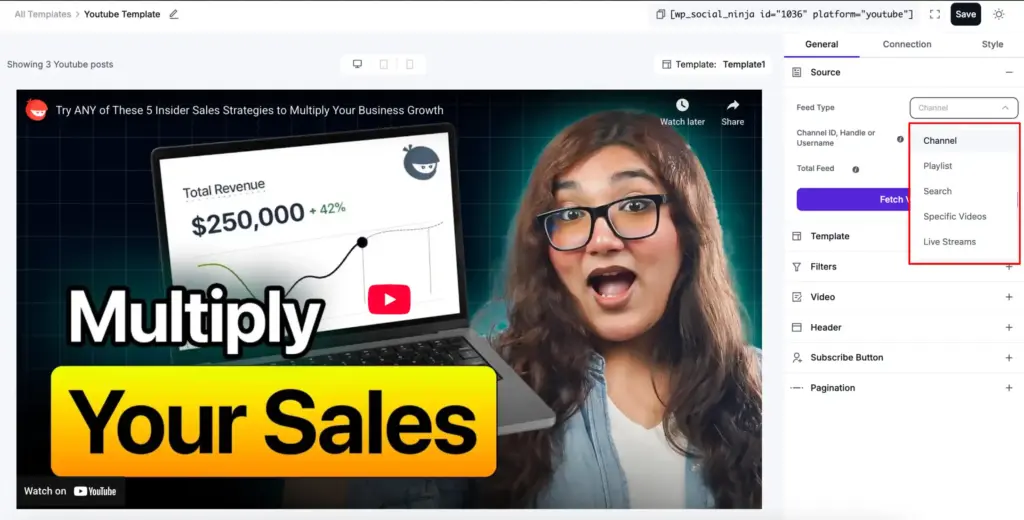
Step 4: Customize Feed Settings
Adjust how your videos will look and how much content you want to show.
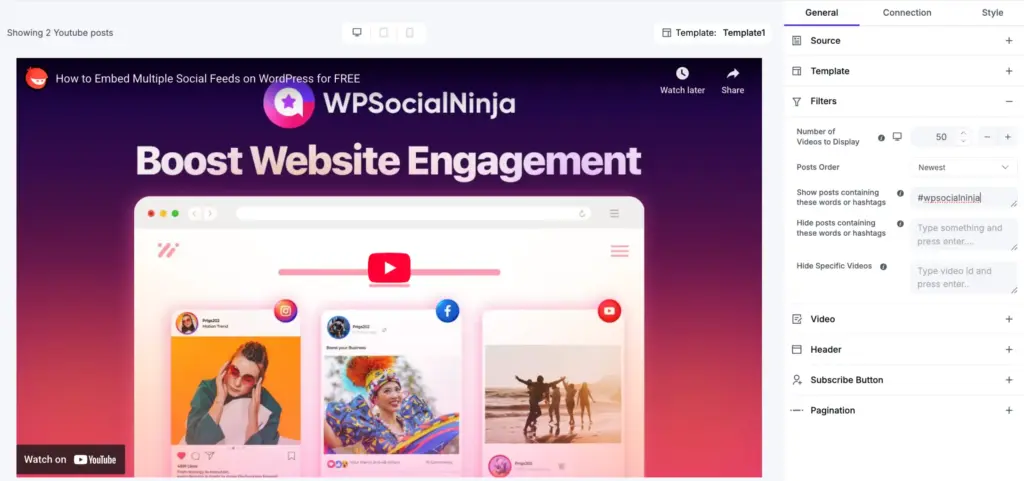
- Choose layout (Grid, Carousel)
- Select a Template from multiple options
- Set a number of videos
- Personalize design and tweak styles
- Hide/show specific videos with a filtering option
Step 5: Copy and Paste the Shortcode
Once your feed template is ready, you just need to publish it on your site.
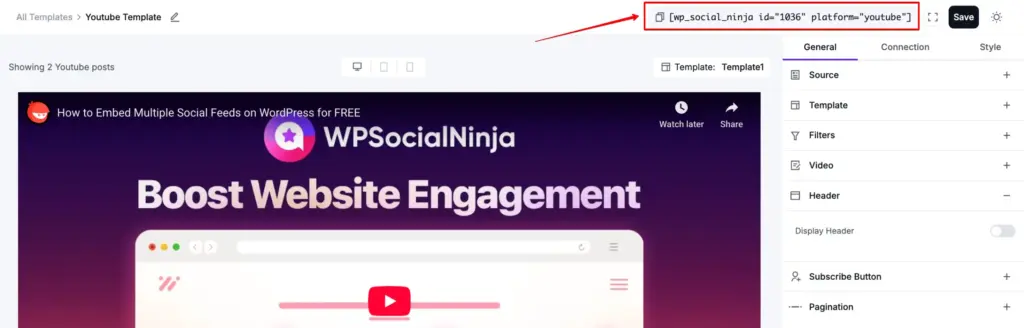
Save the feed, copy the generated shortcode from the template settings, and paste it into any page, post, or area where you want the YouTube feed to appear.

Looking to share your YouTube live streams on your website? Follow this guide to embed them easily and keep your audience tuned in!
How to Embed YouTube Videos on Non-WordPress Websites
Not using WordPress? No worries, in this case, what you need to do is:
- Go to your YouTube video
- Click Share > Embed
- Copy the iframe code
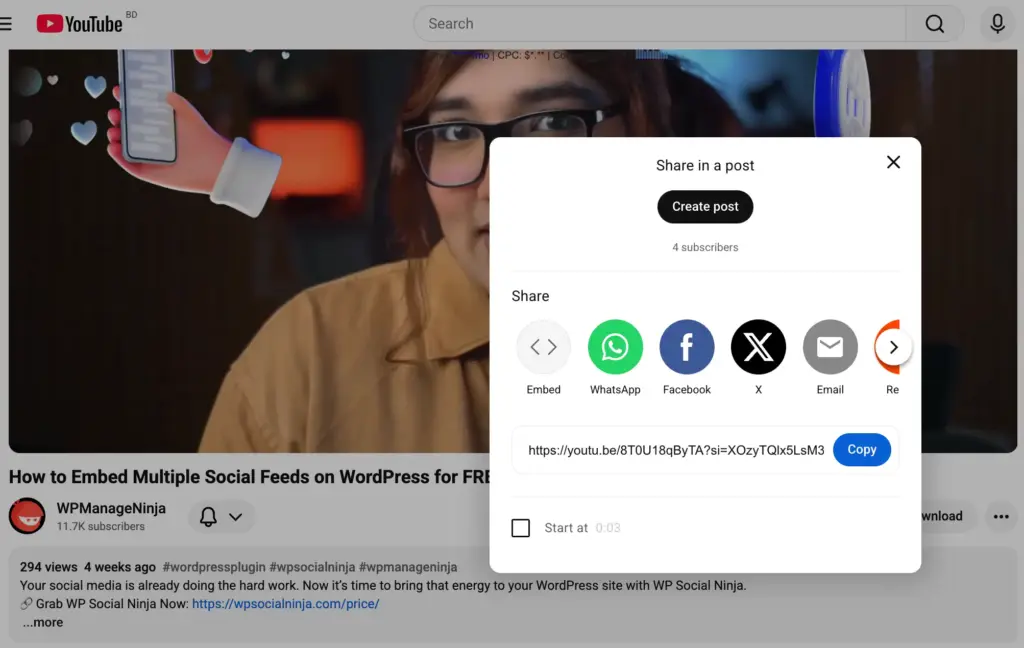
- Wrap it in this responsive container:
<div style=”position: relative; padding-bottom: 56.25%; height: 0;”>
<iframe src=”YOUR_YOUTUBE_URL”
style=”position: absolute; top: 0; left: 0; width: 100%; height: 100%;”
frameborder=”0″ allowfullscreen>
</iframe>
</div>
This maintains the video’s aspect ratio on any screen size.
Limitation: You must manually update the code for each new video. There will be no auto-sync in this method.
Fixing Common YouTube Widget Problems
If your YouTube widget is not working the way you expected, don’t worry. Most issues happen for simple reasons, and you can fix them in a minute or two.
Widget Not Showing
To fix this problem, you need to check plugin conflicts (deactivate others one by one), clear site cache and browser cache, verify JavaScript isn’t blocked (press F12, look for red errors), and re-authorise your YouTube connection in settings.
Videos Not Updating
If you notice your videos aren’t updating, click the “Refresh Feed” button to clear the plugin cache. Then, disconnect and reconnect your YouTube account, make sure your channel is public, and check that you haven’t reached the API limit.
Broken Mobile Layout
When the layout looks broken or unorganized on mobile devices, first ensure you’ve selected a responsive layout option. Your theme’s CSS might also be affecting the design. Make sure the widget has enough space inside its container. Also, test the page on different devices and browsers to confirm.
Videos Won’t Play
If videos are visible but not playing, check if the video has region restrictions or if embedding is disabled. Ad blockers can sometimes interfere, so test the page in incognito mode. This helps rule out browser extensions.
Also read: The Best Time to Post on YouTube (Insights for Content Schedule).
Slow Page Loading
Show fewer videos at once and avoid refreshing the feed too frequently. This prevents your page from loading heavy content every time someone visits.
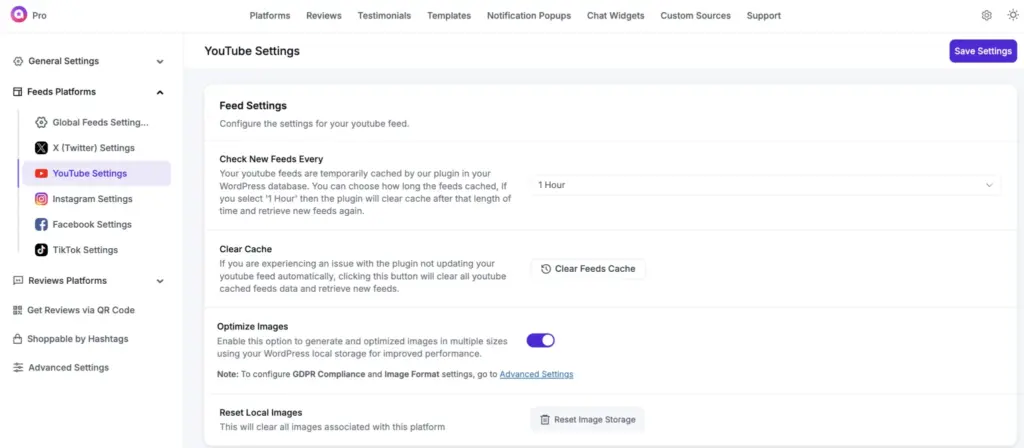
Special Note: WP Social Ninja makes it easier by letting you set refresh intervals, clear cache in one click, and store optimized thumbnails locally so the page loads faster.
Your Takeaways for Embedding the YouTube Widget
Creating a YouTube widget mainly depends on how much control you want.
If you’re using WordPress, a plugin can automate syncing, layouts, and updates so you don’t have to manage embeds repeatedly.
For other platforms, YouTube’s native embed with responsive CSS works, though you’ll need to update it manually.
In the end, choose what works for you, either a tool that saves time or handling things yourself the simple way.
Win your customers’ hearts with exceptional features
Discover how WP Social Ninja can assist you in designing outstanding customer experiences.
Must read: 15 Tips about How to Increase Watch Hours on YouTube (Free).
Frequently Asked Questions
How do I add a YouTube widget?
For WordPress: Install WP Social Ninja, connect your channel, create a feed, and embed using shortcode or block. For other sites: Use YouTube’s embed code with responsive CSS.
Do YouTube widgets slow down websites?
Not if they use lazy loading. Quality plugins load videos only when visitors scroll to them, protecting page speed.
Can I customize widget appearance?
Yes. Most widgets let you control colours, layouts (grid/list/carousel), number of videos, spacing, and displayed metadata.
How do widgets work on mobile?
Modern widgets are responsive and automatically adjust to any screen size while maintaining proper aspect ratios.
Will embedded videos help SEO?
Videos increase time on site and reduce bounce rate, which helps rankings. Quality widgets add video schema markup for search engines.

Subscribe To Get
Weekly Email Newsletter
Connect, Customize, and Display Social Feeds, Reviews, and Chat widgets








Leave a Reply