
How to Embed Google Reviews on WordPress Websites Easily


Looking for a simple way to embed Google reviews on your WordPress website?
Whether it is a giant company or a startup, business reviews matter the most in this era. Almost 83% of US consumers check Google reviews to choose a business.
That’s why Google reviews are equally important for businesses and consumers.
If you sell online, the fastest way to earn the trust of your customers is to display Google reviews on your website. And it’s not our speculation. Spiegel Research Center found that showing reviews can increase your conversion by up to 380%.
Luckily, it’s much easier to add Google reviews on WordPress websites.
In this article, we will tell you how to embed Google reviews on WordPress websites, introduce you to the best Google reviews plugin, and show you the integration process.
Let’s start then.
How to add Google reviews to WordPress websites
There are two ways to add Google reviews to any WordPress website:
- Manually embed Google reviews: Copy the embed code of a Google review and paste it into the HTML block of your website. For any changes, you’ll need to edit the embed code by yourself.
- Add Google reviews with a plugin: Use a Google reviews widget to fetch and display reviews automatically. You don’t need to touch any code to manage your Google reviews.
The biggest problem with manual embedding is that you have to repeat the process whenever new reviews appear. You’ll have to tweak the code even for minor changes like review length, and have zero control over how your reviews will appear.
On the other hand, using a Google reviews widget automates the entire process. All you need to connect your account to display Google reviews and use the built-in features to customize your reviews.
However, we will show how to add Google reviews using both methods in this section. So, stay with us and see which method suits your needs the best.
Bonus Tips: Explore our most exclusive and detailed guide on mastering Google reviews that will help you get more reviews from customers and grow your business fast.
How to add Google reviews to WordPress manually
Follow our step-by-step guidelines to add Google reviews manually on your WordPress website:
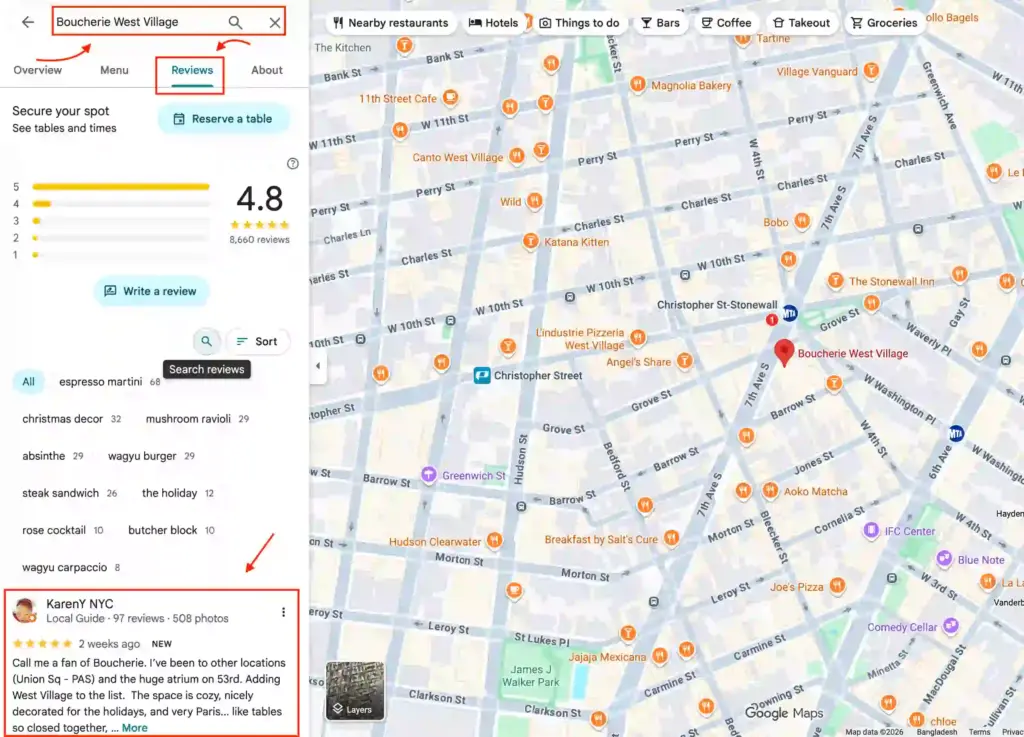
1. First, open Google Maps and search for your business name. Once it appears, click on it and select the Reviews tab. You’ll see that your reviews are appearing one after another.
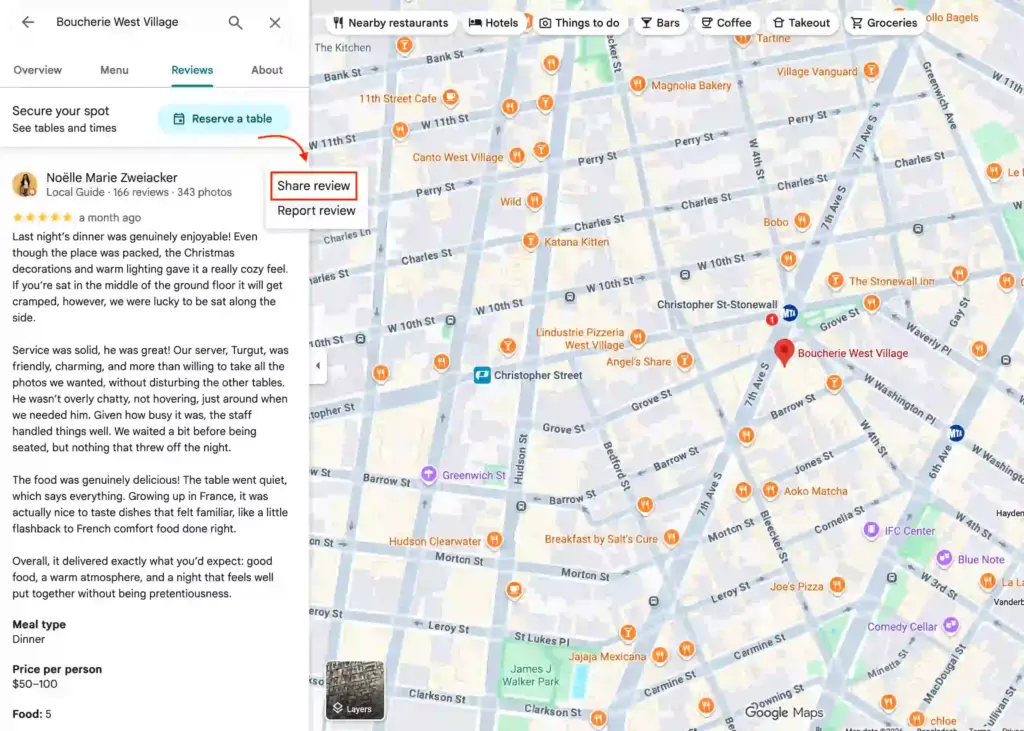
2. Now, choose any review you want to embed, click on the three dots in the top right corner, and choose the Share review option.
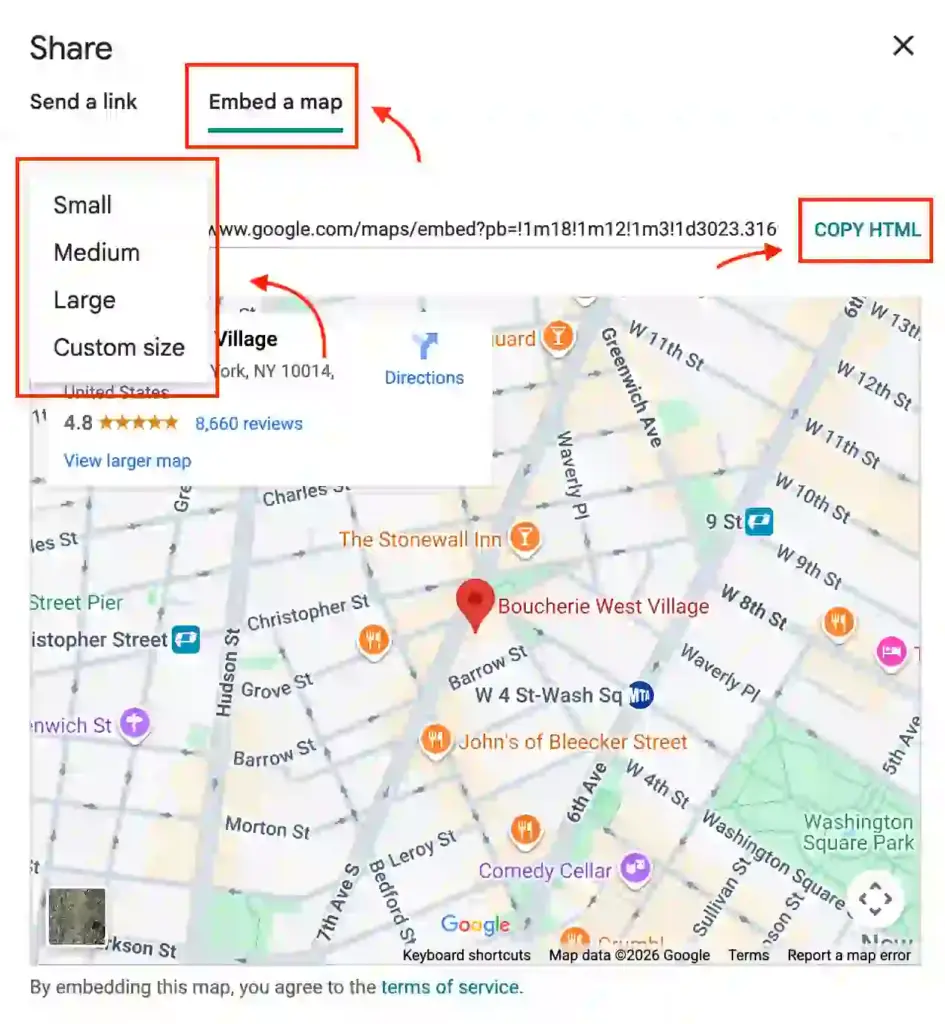
3. Then, select the Embed a map option, as Google does not provide a standalone “reviews-only” embed. Choose a map size or keep the default and click the COPY HTML to copy the embed code.
4. Finally, log in to your WordPress dashboard. Go to the page or post where you want to show Google reviews, type “/” or click the “+” button, select the Custom HTML block, and paste the code.
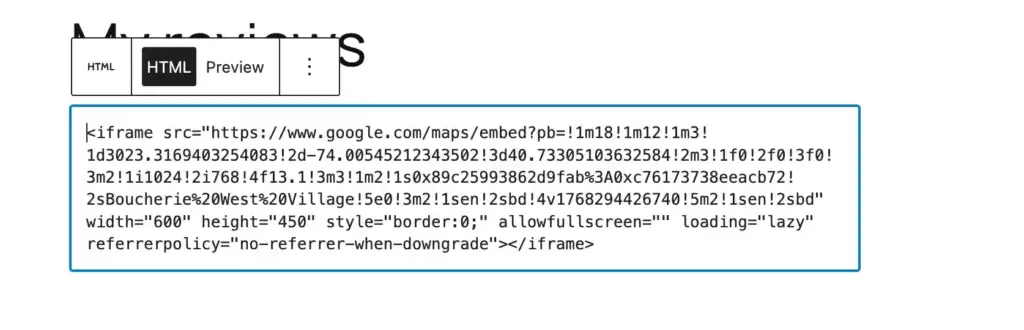
5. Here’s what it will look like.
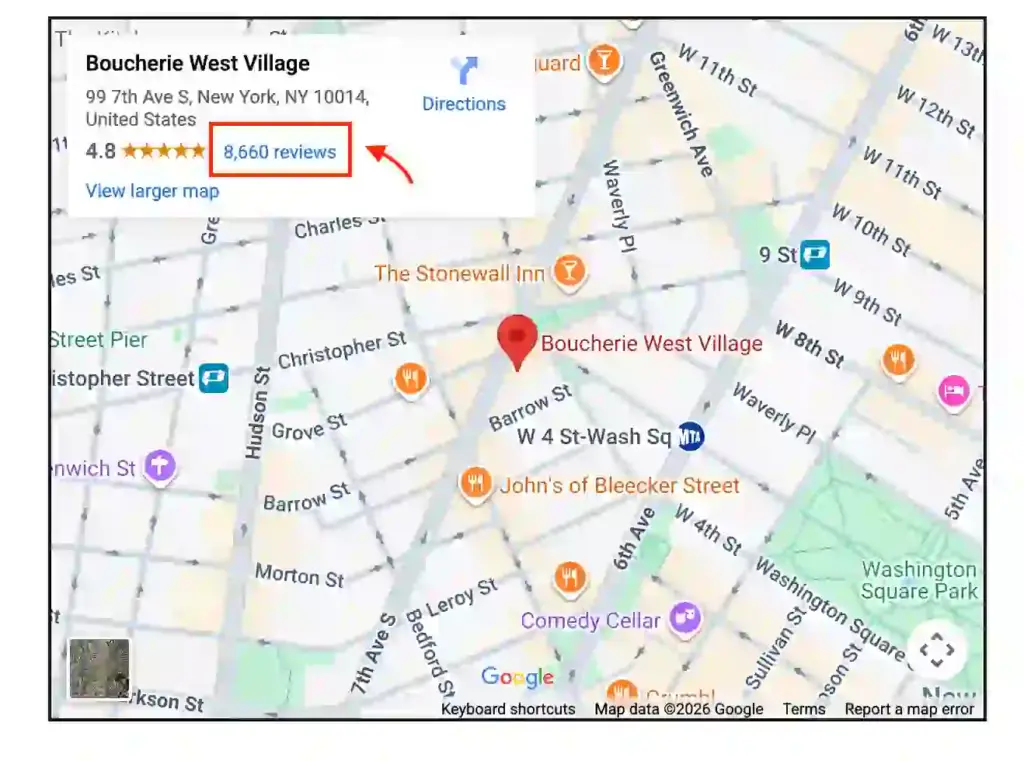
Note that manually embedding Google reviews will only show the map on your website. When a visitor clicks on the number of reviews, they will be redirected to a new tab and read all the reviews.
That’s inconvenient, but this is how far it goes. For further tweaks, you’ll need to hire a developer.
How to embed Google reviews in WordPress with a plugin
The most convenient and easiest method to embed Google reviews in WordPress is to use a Google reviews plugin. It will show actual reviews (not a map), and many plugins offer basic to advanced customization without touching a single line of code.
Now, let us save you from the hassle of the suitable Google reviews plugin hunt and introduce you to the best Google reviews widget for WordPress– WP Social Ninja.

Noteworthy features you’ll love:
- Multiple accounts connection
- Auto-sync latest Google reviews
- Multiple pre-built templates
- Filters by minimum rating and custom ordering
- Hide or show reviews based on keywords
- GDPR compliance for top-notch privacy
- Reviewer image optimization for a fast-loading webpage
- QR code generation to collect reviews offline
- An AI review summarizer to grab attention faster
- Schema snippet for better search visibility
- Advanced styling options
You can check the Google Review Integration page to explore more features. So, without any further ado, let’s see how to embed Google reviews with WP Social Ninja.
Bonus Tips: Find out how a stream of Google customer reviews acts as a powerful SEO signal to improve your rankings and attract more customers.
Step 1: Install and activate WP Social Ninja to add Google reviews
If you are familiar with installing WordPress plugins, WP Social Ninja is no different. It will take only a few steps.
You can do that in two ways:
- From your Dashboard
- From WordPress Repository
Here’s how to install it from your Dashboard:
- Navigate to the WordPress Admin panel. From the WordPress Dashboard, go to Plugins > Add New
- Next, in the search input field, type WP Social Ninja and wait for a moment for it to come up
- Now, click on the Install Now button
- Then Activate
If you decide to install from the WordPress Repository:
- Search WP Social Ninja in the WordPress Repository, and it will appear at the top. Once you click it, hit the Download button
- Now go to the Dashboard and go to Plugins > Add New > Upload Plugin > Choose the zip file
- After that, click the Install Now button and then Activate
Win your customers’ hearts with exceptional features
Discover how WP Social Ninja can assist you in designing outstanding customer experiences.

Step 2: Integrate Google Business Profile with WP Social Ninja
In this step, you’ll need to connect WP Social Ninja with your Google Business Profile to collect your customer reviews. The process is super easy.
Follow our step-by-step guideline to connect your Google Business Profile with WP Social Ninja:
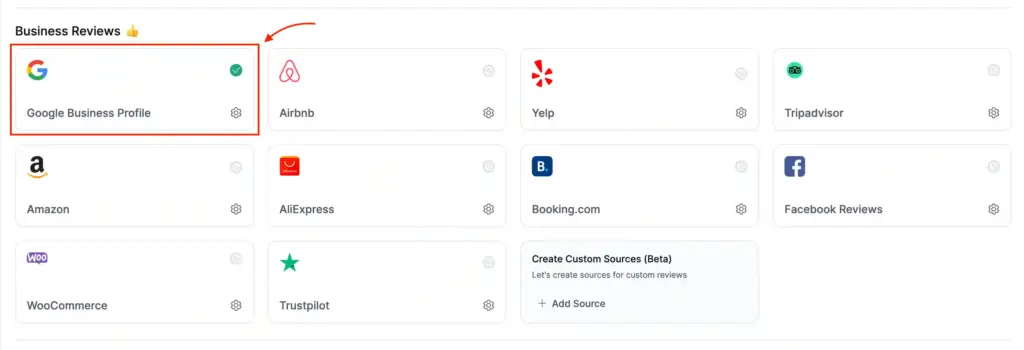
1. Select Google Business Profile from the Platforms section to add Google reviews to your website.
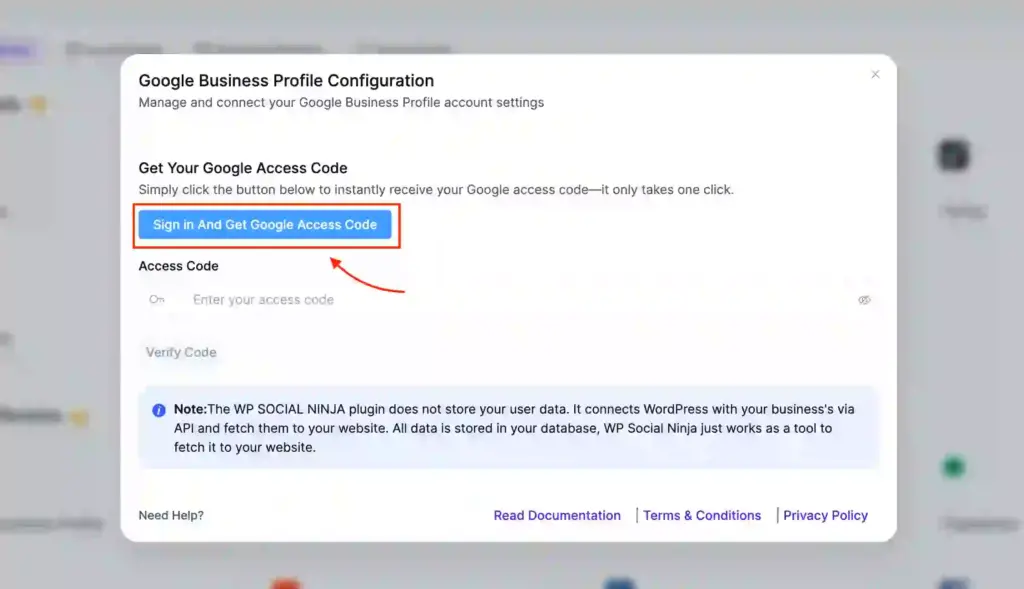
2. Now you’ll need to obtain a Google Access Code that’ll connect your profile to WP Social Ninja. Click on the Sign In And Get Google Access Code to get the Access Code.
3. After that, a new window will open. Once you are done, select the email associated with your Google Business Profile.
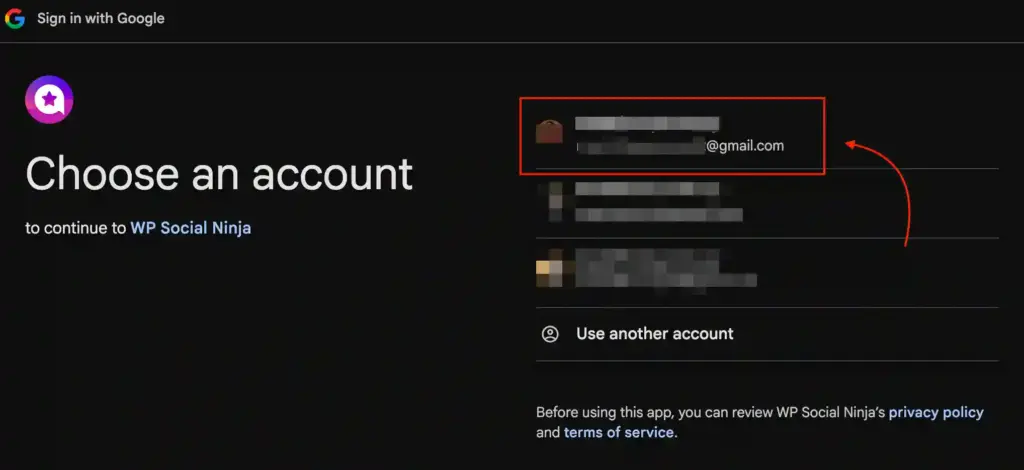
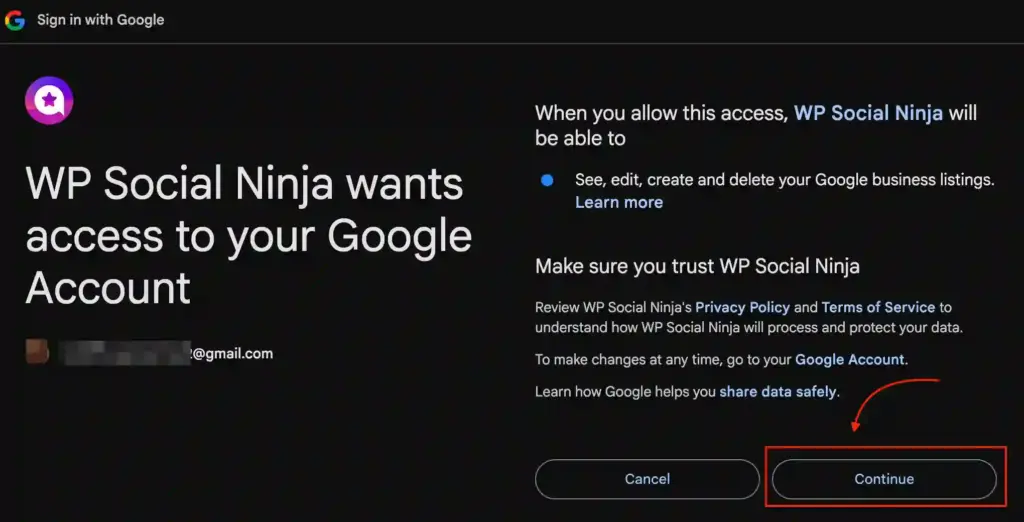
4. The next step is to select your email account to move forward with WP Social Ninja. Now, to access the permission, click on the Continue button.
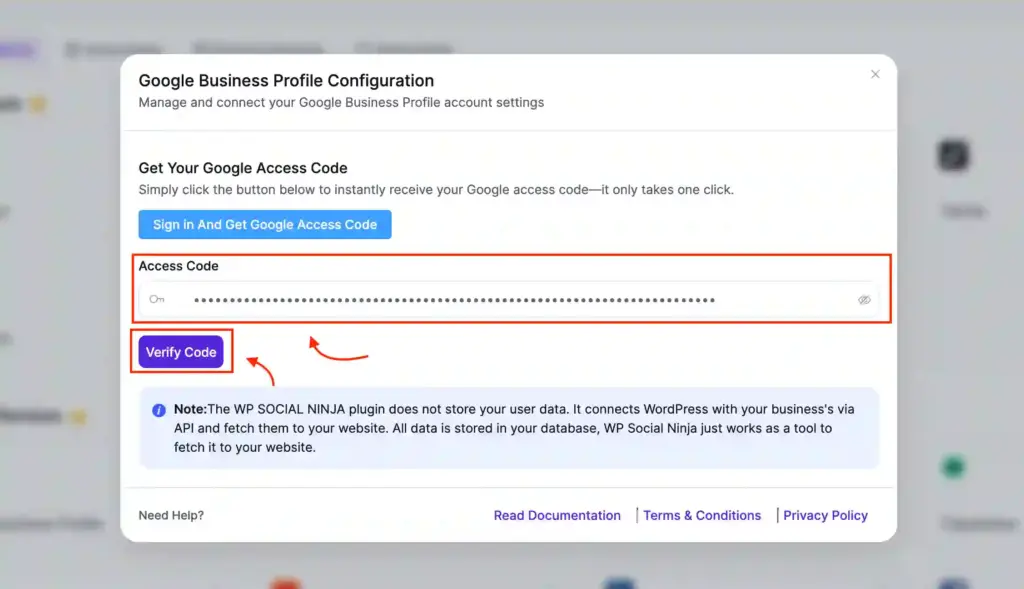
5. For the next step, copy the Access Code and paste it to insert it into the Google Business Profile Configuration page and click the Verify Code button.
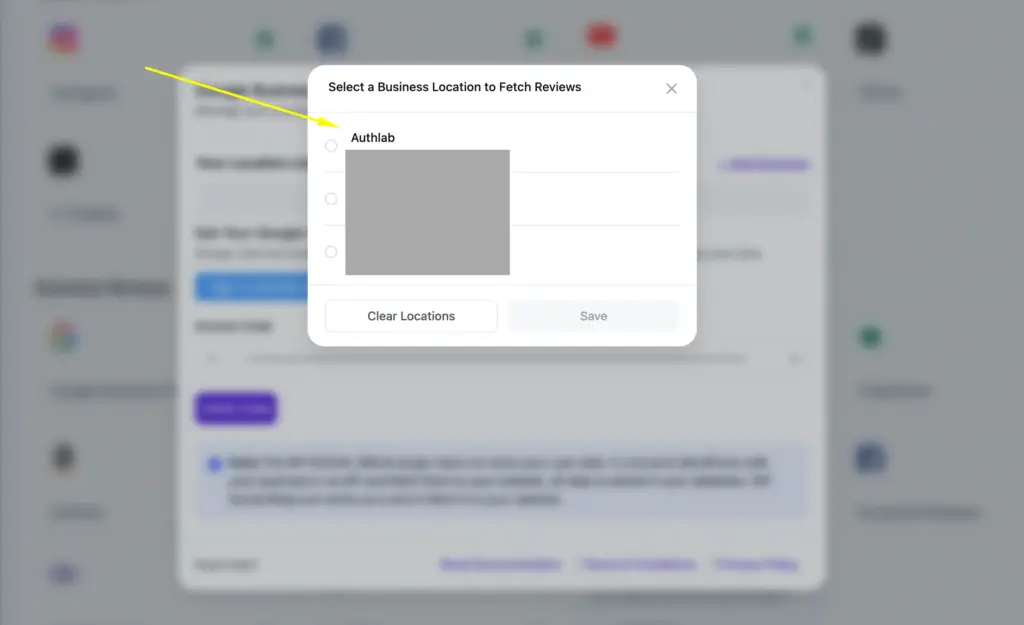
6. Now, a dropdown menu will appear. Select your business location to get your reviews and click on the Save button.
Step 3: Create a Template for your Google reviews
Along with easy configuration, WP Social Ninja focuses on simple integration. This plugin has elegant pre-built templates to make your website look exquisite.
In the next section, we will show you how to create a Google Reviews template using WP Social Ninja. Let’s get into it.
First, click on the Create a Template button.
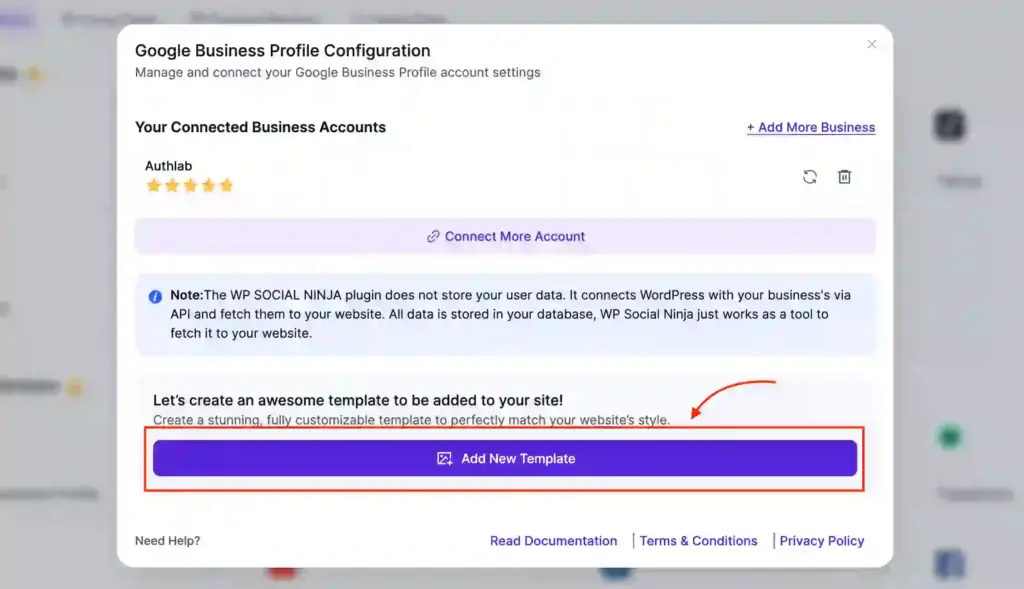
After that, you will find different customization options with many pre-built templates, and you will see a short code above.
After customizing your template, click on the Save button, copy the short code, and paste it into any page of your website. That’s it.
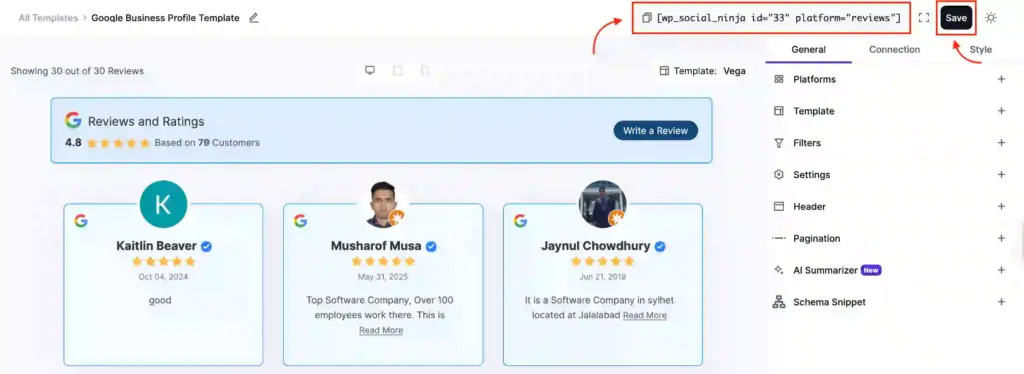
WP Social Ninja allows you to customize your embedded Google reviews feed however you want. Its basic and advanced features will allow you to take full control over how your reviews will appear before your visitors. Feel free to explore the Google Reviews Demo made with WP Social Ninja to visualize how it would appear on your site.
Pro Tips: Follow our detailed Documentation to explore more customization features.
Concluding words
We hope this article helped you understand how to embed Google reviews on a website. You have also learned about an exclusive review plugin that aggregates all social reviews on a single platform.
Win your customers’ hearts with exceptional features
Discover how WP Social Ninja can assist you in designing outstanding customer experiences.
Moreover, installing a review plugin like WP Social Ninja will offer you social feeds and social chat on your website. So, it is an extra privilege for the brands to get feeds and chats along with reviews.

Subscribe To Get
Weekly Email Newsletter
Connect, Customize, and Display Social Feeds, Reviews, and Chat widgets


Trending Posts
-

-
 Mashfik Upal Aumy
 -
 Mashfik Upal Aumy





Leave a Reply