
How to Manage Google Reviews: Complete Guide to Review Management


Managing your Google reviews is not a problem that you solve once and then ignore. It’s an ongoing process that directly impacts whether people choose or move on from your business.
92% of consumers read reviews on the Internet prior to making a purchase, while 83% of consumers use Google to check the reviews of a local business. Therefore, managing your Google reviews has immense potential in influencing the perception of consumers about your business.
Well, you might think managing Google reviews is about hoping for positive reviews to come up and worrying when negative reviews start appearing.
But the actual Google review management is more systematic. It’s about monitoring, responding to reviews on Google, and using that information to improve your business while gaining consumer trust.
Let’s learn more!
Why Managing Google Reviews Actually Matters
Reviews on Google are often the very first thing people notice on their search for your business. An excellent rating quickly increases trust, while a few unresolved negative reviews can also make potential customers hesitate.
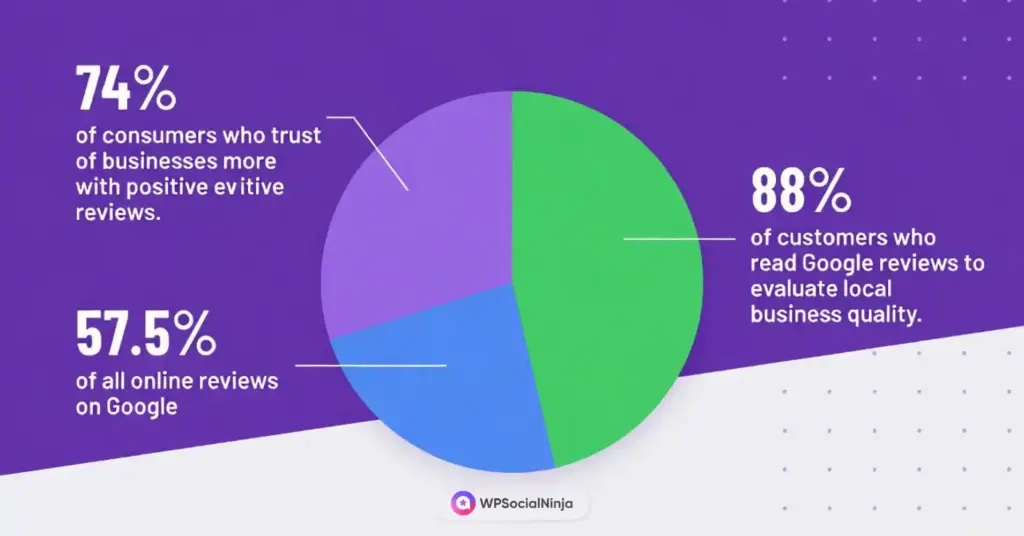
Google review management enables you to influence the first impression customers have before visiting your website.
It’s not just a matter of first impressions either. When you actively manage your reviews on Google, customers feel like they are not alone and that you care. It’s a subtle but significant thing; it may make them choose one business over another.
How to Access and Manage Your Google Business Reviews
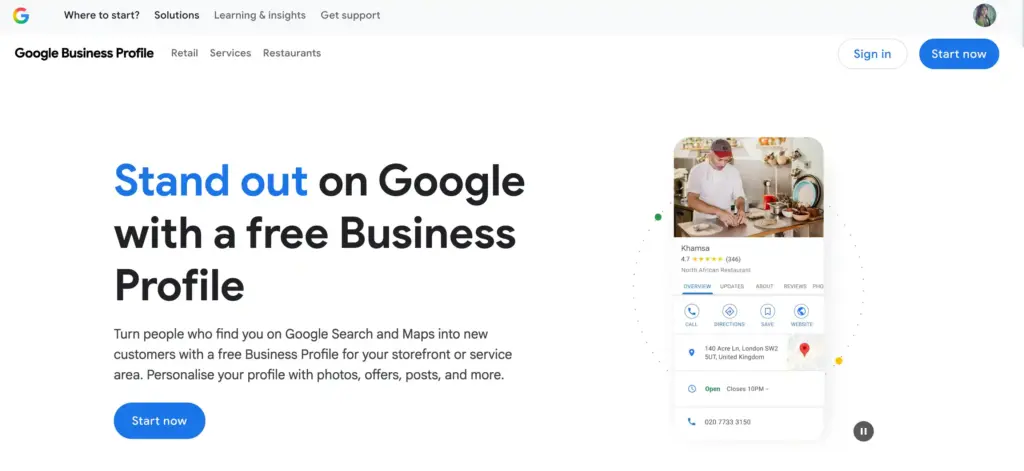
First, it’s necessary to understand where feedback exists and how to manage it. Without your Google Business Profile, you won’t be able to see reviews, engage with customers and have no ability to stay informed about your reputation.
Claim Your Google Business Profile
Go to google.com/business. Then, claim your Google Business Profile listing. After claiming the listing, you can choose a verification option that Google provides.
Access Your Reviews
Sign in to your Google Business Profile and select “Reviews” on the left menu. All your reviews will be listed, newest on top. You can filter by star rating, date, or whether you replied or not.
Set Up Review Notifications
Make sure that notifications for reviews come through in your email settings. That way, you will receive notifications as soon as customers post reviews. And of course, you should also install the Google Business Profile app on your smartphone. With it, you will be able to track reviews even while you’re not right there at your business location.
You can have a read on our blog on Google Map Pack seo to make your business appear in the top positions of Google search!
How to Respond to Google Reviews (The Right Way)
Good Google reviews management begins with knowing how to respond to the reviews you receive. Your responses are visible to the public. They should not only benefit the reviewer but also all people who read the responses.
Responding to Positive Reviews
When a consumer leaves you a 5-star review, don’t just respond with ‘Thanks!’ Here’s how you need to respond:
Poor response: “Thanks for the review!”
Good response: “Thank you so much, John! We’re glad you’re enjoying your new gadget. Our team will be thrilled to hear your feedback, and we can’t wait to help you explore more gadgets in our store soon!”
The good response involves addressing the customer by name, referring to details, adding personality, and encouraging return visits.
Learn more from our blog on how to edit and respond to Google reviews.
Responding to Negative Reviews
That is where managing your Google reviews becomes a tricky situation. Whenever you experience negative reviews, you should acknowledge what they experienced with compassion, explain briefly without excuses, and offer to make it right.
Example: “Hi Michael, I’m really sorry your order was received later than expected. We had a problem with shipments that day, but I see how frustrating that can be. I’d like to rectify that, so please get in touch with me at [email]. I can give you a replacement or a discount on a future order. Thank you so much for giving us a second chance. Max, Owner”
53% of customers want the company to respond to online reviews within a week. Therefore, you must not let more than 48 hours pass in order to demonstrate your commitment to the process.
Must read: Why Negative Reviews Are Good for Your Business?
If you come across a review that breaks any of Google’s rules and says anything offensive, here’s how to report it:
- Go to your Google Business Profile and locate the review.
- Click on the three dots in the corner.
- Click on “Report review” and select the reason.
- Now submit it to Google to await their response. This will take a few days to one week.
Are reviews editable? Only the owner of it can modify it. If you solved a customer issue, then you can ask them to modify their review, like:
“If you are satisfied with how we handled the situation, would you mind changing your review accordingly?”
Display Your Google Reviews on Your Website
Here’s something most businesses overlook when thinking about how to manage Google reviews: your reviews shouldn’t just live on Google. They should work for your entire online presence, especially on your website, where customers visit to research your business.
When potential customers visit your website, they’re already interested. However, they might still be confused. Displaying your Google reviews for business directly on your website builds immediate trust and removes those doubts. According to Spiegel Research Center, displaying reviews can increase conversion rates by up to 270%.
Google Business Profile and how to manage reviews on Google.
Using WP Social Ninja to Manage and Display Google Reviews
If you’re running a WordPress website, managing and displaying your Google reviews will be simple with WP Social Ninja. Instead of manually copying reviews, taking screenshots, or writing any code, this Google review plugin automatically pulls your Google reviews directly from your Google Business Profile and displays them beautifully on your site.
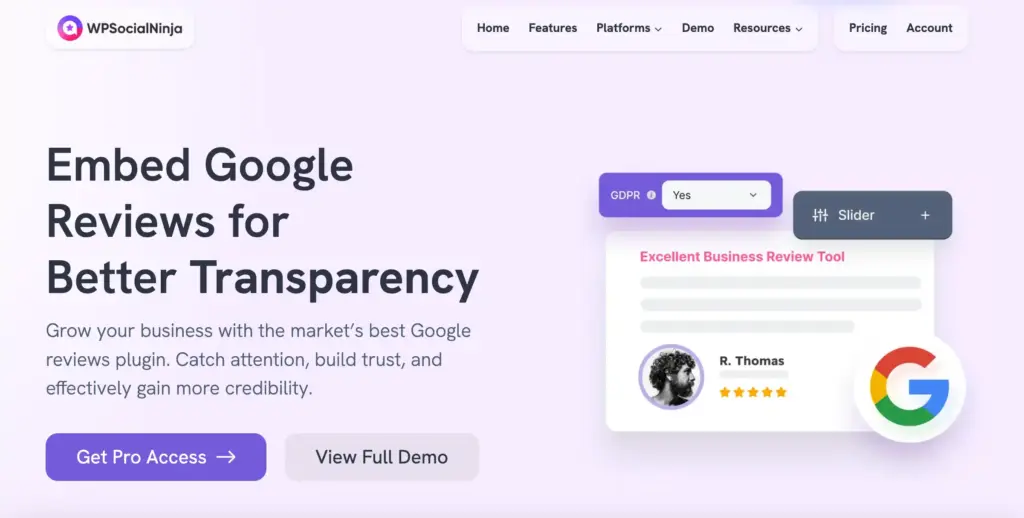
How it helps with managing Google reviews:
Connect multiple business accounts: If you manage multiple locations or business profiles, WP Social Ninja lets you connect and display reviews from all of them in one place.
AI review summarizer: Instead of reading through hundreds of reviews manually, you can give a quick overview of what other customers say about you.
Multiple template layouts: You can choose from professional layouts, including sliders, grids, and badges that are customizable to match your brand’s look.
Learn: Best Way to Add Google Review Slider on Your WordPress Website.
Filter negative reviews: You can choose to showcase only your positive feedback, including just 5-star reviews, to highlight your best ratings. And hide the negative wants by specific hashtags or keywords.
Schema snippets for SEO: This plugin adds structured data markup so your star ratings can appear in Google search results. Also, it will improve your click-through rates and visibility.
Reviewer badge: Add a verified reviewer badge next to each reviewer’s name. This small icon shows visitors that feedback comes from real, authenticated customers, boosting credibility and trust right on your site.
Collect more reviews with QR codes: Generate QR codes that customers can scan to leave a Google review instantly. With this, you can make it easy for your customers to share their Google feedback on the spot.
For a step-by-step process to collect your reviews, check this out: Best Way to Collect Reviews with QR Codes.
Add call-to-action buttons: Add a custom Google review button alongside your reviews to drive actions like “Book Now,” “Contact Us,” or “Write a review”. This will help turn your social proof into conversions.
Easy setup: Install the plugin, connect your Google Business Profile, choose your display template, customize the design, and publish. New reviews appear automatically, and you manage everything from your WordPress dashboard. If you need more help, give a read to this guideline: How to Install Plugins for WordPress (3 Easy Ways).
Win your customers’ hearts with exceptional features
Discover how WP Social Ninja can assist you in designing outstanding customer experiences.

Best Practices for Managing Google Reviews Long-Term
When you decide to manage reviews effectively, it means more than addressing negatives; it’s about building a system that keeps your reputation strong over time.
- Use response templates: Prepare some templates that you can use to give positive responses to criticism or negative follow-up messages, initial negative messages, and follow-up messages.
- Monitor daily: Look for any new reviews each day, even just for a quick check in your daily routine.
- Track key metrics: Watch your average rating, review volume, response rate, and recurring complaints to identify trends and improve operations.
- Learn and act: Use your reviews as a free source of market research. Reward employees for their appreciation in reviews, fix common problems, and work towards feasible solutions.
- Encourage reviews proactively: Most people leave reviews if asked. Share a simple Google review link, train your staff to request reviews at the right moment, and include it in emails, receipts, or packaging.
Overall, monitor your reviews consistently, ensure thoughtful responses, and collect reviews in the best ways; these will help your business grow.
Want your business to show up in local searches when customers are ready to buy?
Common Google Review Management Mistakes to Avoid
Even experienced business owners make common mistakes during review management. It is as important to know what to avoid as it is to know what to do.
Mistakes you should avoid:
Ignoring neutral reviews: It may seem irrelevant to overlook a 3-star review, but this usually indicates that the consumer has been left with a mixed impression. If you respond to them, it shows you can encourage them to return with a better impression.
Using copy-paste responses: It is quite impersonal when you send the same reply to multiple reviews. It must be a reaction that matches the reviews.
Getting defensive with negative reviews: Even if a customer is wrong or unfair, arguing with them has a destructive impact on your business. Always respond professionally and courteously.
Responding only to negative reviews: If you respond to negative reviews, it shows that you only care about things when they go wrong. You can make a customer feel valued by acknowledging their feedback.
Taking too long to respond: When it takes a long time to respond to customer inquiries, it indicates poor monitoring and low engagement. Respond as quickly as possible to show that customer feedback is a priority.
Ignoring repeated feedback patterns: Reviews pointing out similar concerns highlight areas that need improvement. Addressing these concerns and improving what your customers want will save your reputation.
Want to know more about Google’s basic rules, common mistakes and how to stay compliant? Read our blog about Google Review Policy (Rules, Violations & Best Practices). Also, if you’re stuggling to get reviews and planing to buy Google reviews, find out what you must know before risking your Google Business Profile.
Start Managing Your Reviews Today
The real secret to great review management isn’t aiming for five-star reviews; it’s about staying engaged, responding carefully, and actually using customer feedback to make things better.
What sets the top businesses apart isn’t zero negative reviews; This way they handle them professionally, listen carefully and keep developing based on what people say.
Start by checking reviews daily and treating every review as a chance to build trust. Use WP Social Ninja to display reviews on your website and the Google Business Profile app to manage them on the go.
Stay consistent and proactive. You can turn every review into an opportunity to strengthen your reputation, build customer loyalty, and drive real growth.
Frequently Asked Questions
Can I delete or remove a negative Google review?
No, Google doesn’t allow you to delete reviews you didn’t write. They remove content if it violates their guidelines. This includes things like posting false reviews, spam, hate speech, or reviews from people who haven’t been to your business. If you see an unacceptable review, you can report it through your Google Business account by clicking on the “Report Review.” If it’s still there, the best course of action would be to leave a professional reply.
How do I respond to Google reviews?
Sign in to your Google Business Profile, click on the ‘Reviews’ button, find the comment, and click the ‘Reply’ button. Respond to the customer by thanking them for their compliment and mentioning specific details they shared. For negative reviews, acknowledge their concern, be calm, solve the problem, or suggest discussing more outside the comment section.
Should I respond to every Google review, even positive ones?
Absolutely. It’s always better to react to every review you get. It means you care about your customers and value your relationship with them. It will make your business easily accessible to others who may give you feedback.
Can I display Google reviews on my website?
Yes. You can highlight Google reviews on your website using review management tools. If you’re a WordPress user, WP Social Ninja will help you display genuine Google reviews with customizable layouts.

Subscribe To Get
Weekly Email Newsletter
Connect, Customize, and Display Social Feeds, Reviews, and Chat widgets


Trending Posts
-
 Mashfik Upal Aumy
 -
-
 Mashfik Upal Aumy





Leave a Reply