
Instagram Feed Not Loading? 9 Quick Fixes to Get It Back (+ Bonus Tips)


You open your website, scroll to your Instagram feed, and it’s just blank. Or maybe the app itself stopped loading. Either way, it’s frustrating, and you don’t have time for confusing error messages.
Instagram feed not loading is almost always fixable. The problem usually comes from one of three places: Instagram, Meta’s API, or your WordPress website setup. Most issues are resolved in minutes without technical knowledge.
This guide shows you proven, step-by-step fixes for your phone app and WordPress website, explains what changed after recent Meta API updates, and helps prevent future problems.
TL;DR
- Instagram feeds can stop loading on apps or WordPress due to connection issues, expired tokens, outdated apps/plugins, or API changes
- Quick app fixes include checking internet, clearing cache, updating the app, logging out/in, and reinstalling if needed
- For WordPress websites, common causes are expired access tokens, outdated plugins, theme or plugin conflicts, and permission errors
- Always switch to a Business or Creator account for website feeds; personal accounts no longer work reliably with the current API
- Reconnecting your Instagram account and refreshing access tokens fixes most feed issues immediately
- Updating or replacing plugins ensures compatibility with Instagram’s API and avoids silent feed failures
- Clearing website cache, checking plugin settings, and fixing scope/permission errors keeps feeds displaying new posts
- Recognize platform-specific issues: app vs browser differences, server or connection glitches, and device-specific problems
- Monitoring feeds proactively and using plugins that handle API updates and token refreshes reduces recurring problems
Let’s get started!
Why Is My Instagram Feed Not Loading?
Instagram feed not loading is usually caused by a poor internet connection, a corrupted app cache, a temporary server issue, or an expired access token on your website. It can also happen due to recent API changes by Meta that affect how feeds display. Most cases are temporary and can be fixed within a few minutes.
| Cause | Where It Happens | Quick Fix |
|---|---|---|
| Weak or unstable internet | App and browser | Toggle Wi-Fi off/on or switch to mobile data |
| Corrupted app cache | Instagram app on phone | Clear cache in app settings |
| Instagram server outage | App, browser, website | Check DownDetector; wait if it’s down |
| Expired access token (60-day limit) | WordPress website feed | Reconnect your Instagram account in the plugin |
| Meta Basic Display API shutdown (Dec 2024) | WordPress website feed | Switch to Business/Creator account and reconnect |
| Outdated Instagram app | Instagram app on phone | Update via App Store or Google Play |
| Plugin conflict or an outdated plugin | WordPress website feed | Update your plugin or switch to an actively maintained one |
| Wrong account permissions | WordPress website feed | Re-authorize your account with all required scopes |
Instagram Feed Not Loading on the App (Step-by-Step Fixes)
Instagram feed not loading on the app is usually caused by a few common issues: 1. A weak internet connection, 2. A corrupted app cache, 3. An outdated app version, 4. A temporary Instagram server outage. Try the fixes below step by step, as the first two solutions resolve the problem for most users within a couple of minutes.
We’ve tested these fixes across both Android and iPhone in 2025 – 2026. The connection check and cache clear resolve the issue for most users without further steps.
We’ve shown the common fixes below; try them out depending on the problem you’re facing.
Fix 1: Check Your Internet Connection
Instagram shows a blank feed, a spinning indicator that never stops, or the ‘Couldn’t refresh feed’ error message.
Why it happens: Instagram needs a stable connection to fetch new posts from its servers. A weak Wi-Fi signal or slow mobile data means the app can’t complete the request, and instead of showing an error, it just stops.
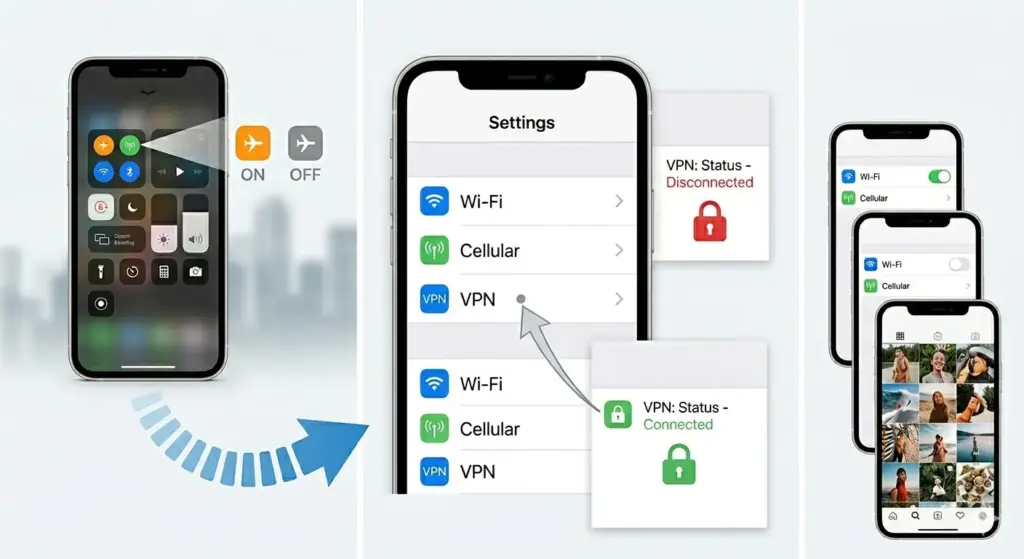
How to fix it:
- Open your browser and load any webpage. If it’s slow or won’t load, your connection is the problem
- Toggle Airplane Mode on for 10 seconds, then off. This forces your phone to reconnect to the network
- Switch between Wi-Fi and mobile data. If it works on one but not the other, that points directly to the issue
- Restart your Wi-Fi router; unplug for 30 seconds, plug back in
- Turn off your VPN if you have one running. VPNs frequently interfere with Instagram’s connection
Quick fix: If Instagram loads on mobile data but not on your office Wi-Fi, your firewall or ISP may be blocking it. Try a personal hotspot to confirm, then contact your IT team.
Fix 2: Clear the Instagram App Cache
Feed loads slowly, shows stale posts, images won’t load, or the app freezes on refresh.
Why it happens: Your phone stores temporary data from Instagram to make it load faster. Over time, this data can become corrupted or overloaded, like a messy desk where nothing is easy to find anymore. Clearing it forces a fresh start.
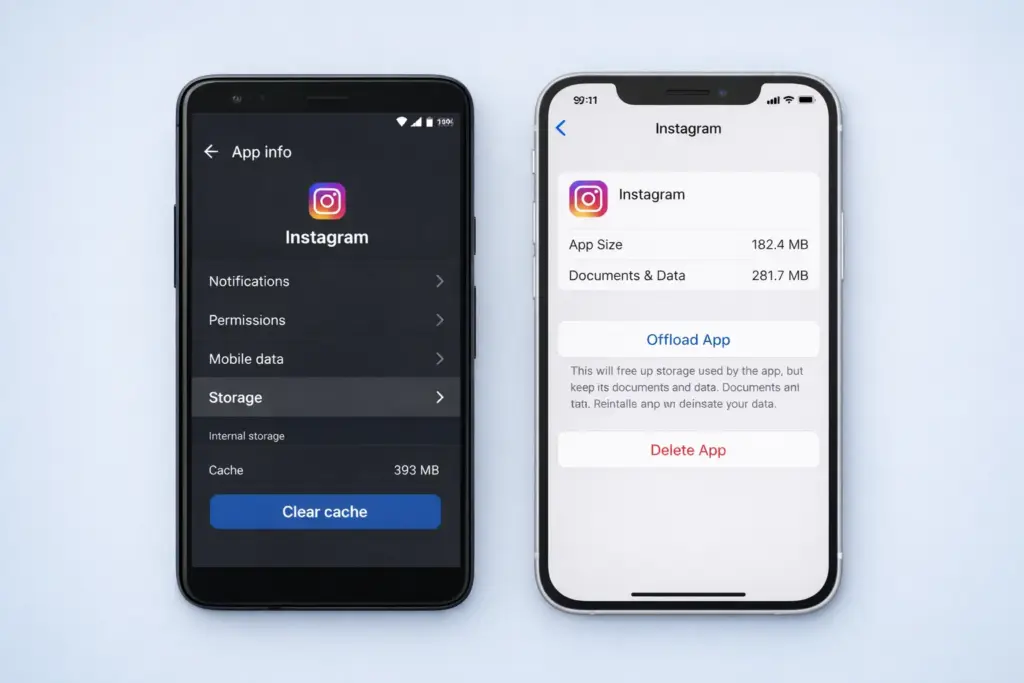
On Android:
- Go to Settings → Apps → Instagram → Storage → Clear Cache
- Open Instagram and check if the feed loads
On iPhone:
- Go to Settings → General → iPhone Storage → Instagram → Offload App
- Reinstall from the App Store and log back in
Clearing the cache does not delete your photos, posts, or account. It only removes temporary files stored on your device.
Fix 3: Update Your Instagram App
Feed works for some people but not others using the same account, or problems start right after Instagram releases a new version.
Why it happens: Instagram regularly rolls out updates with bug fixes. An old version may no longer be fully compatible with Instagram’s current servers.
- Open the App Store (iPhone) or Google Play (Android)
- Search for Instagram. If an Update button appears, tap it
- Open Instagram once updated and check your feed
Fix 4: Log Out and Log Back In
Feed was working, then suddenly stopped; no obvious error message, no connection issue.
Why it happens: Your Instagram session can get stuck. Logging out and back in resets it completely.
- Open your Instagram Profile → Three lines (top right) → Settings → Log Out
- Close the app completely. Reopen and log back in
Fix 5: Restart Your Phone
A full phone restart clears temporary memory and fixes minor software glitches that cause apps to freeze. Hold the power button, tap Restart, wait 30 seconds, and try Instagram again.
Fix 6: Check if Instagram Is Down
Feed suddenly stops for everyone, not just you. Friends report the same issue at the same time.
Why it happens: Instagram’s servers occasionally go down for maintenance or during unexpected outages. Meta’s infrastructure serves over a billion users, and Instagram’s servers occasionally face interruptions or maintenance periods.
Check DownDetector to see if Instagram is facing a real-time outage, then review InstagramComms for official updates. If an outage is confirmed, wait 30 to 60 minutes as repeated refresh attempts will not fix the issue. If there’s no outage, follow the step-by-step fixes below to resolve your Instagram feed not loading problem.
Fix 7: Try Instagram in Your Browser
If the app isn’t working, go to instagram.com in your browser. If it works in the browser but not the app, the issue is device-specific, not your account. This also rules out a network issue on your end.
Fix 8: Reinstall Instagram
If nothing above worked, a full reinstall removes any corrupted files that a simple cache clear might miss.
- Delete Instagram from your phone
- Restart your phone
- Reinstall from the App Store or Google Play
- Log back in with your username and password
Quick fix summary for the app: For feeds that suddenly stop in your app or show a blank space, always check plugin updates, the cache, and your account connection. It solves 90% of cases. If not, check if Instagram is down.
Instagram Feed Not Loading on Your WordPress Website (All Fixes)
If your Instagram feed isn’t loading on your website, it’s usually because Meta retired the Basic Display API in December 2024, your access token has expired (tokens last about 60 days), or your plugin isn’t updated to support the current Instagram Graph API. Switching to a Business or Creator account and reconnecting in your plugin settings fixes most feeds.
December 2024 (the biggest cause of broken WordPress Instagram feeds): Meta shut down the Instagram Basic Display API on December 4, 2024. Any website using a personal Instagram account to display a feed stopped updating automatically on that date.
Many WordPress users still experience broken Instagram feeds due to Meta retiring the Basic Display API in December 2024. If your feed worked before that and stopped updating, this change is almost certainly the cause. Switching to a Business or Creator account and reconnecting your plugin usually fixes it immediately.
Fix 1: Switch to a Business or Creator Account
Your Instagram feed appears blank, frozen, or stops updating entirely. This typically happens if your account is still personal, especially for feeds that stopped working
Why it happens: Personal Instagram accounts can no longer connect properly to website feed plugins because they don’t support the current connection method. Only Business and Creator accounts are compatible, using the active Instagram Graph API to display feeds reliably.
How to fix it:
- Open the Instagram app and go to your Profile
- Tap the three lines → Settings → Account → Account Type and Tools
- Tap Switch to Professional Account and choose Business or Creator. This is free and takes two minutes
- Go back to your WordPress plugin settings and reconnect your Instagram account. If using WP Social Ninja, go to WP Social Ninja → Platforms → Instagram and click Reconnect
- Your feed will start updating immediately after reconnection
You don’t need to actually run a business to use a Business account. Switching is free and takes two minutes. It gives your website feed access to Instagram’s Graph API, which is what all plugins now require.
Fix 2: Reconnect Your Instagram Account (Expired Access Token)
Your Instagram feed slowly stops showing new posts. It doesn’t break suddenly; it just stops updating over time.
Why it happens: Instagram access tokens, which let your website fetch posts, expire every 60 days. If your plugin doesn’t refresh them automatically, the connection fails silently, and the feed stops updating.
- Source: Meta for Developer
How to fix it:
- Go to your WordPress dashboard and open your Instagram feed plugin settings
- Find the Connected Accounts or Sources section
- Click the ‘Reconnect’ button next to your account, and your feed should update within minutes
Tip: If you’re setting up a new Instagram feed or need a fresh token, WP Social Ninja’s Access Token Generator lets you create a valid Instagram token in seconds. This ensures your feed connects properly and fetches posts without any errors.
Fix 3: Update or Replace Your Plugin
You might face the problem that your Instagram feed shows blank space or an error message, and the plugin hasn’t been updated in several months.
Why it happens: Meta updates the Instagram Graph API on a rolling basis. Plugins that aren’t actively maintained fall behind. This often occurs without any visible error message until the feed simply stops loading.
How to fix it:
- Go to WordPress Dashboard → Plugins
- Find your Instagram feed plugin. Check the last update date
- If it hasn’t been updated for a long time, that’s your problem
- Update to the latest version. After updating, reconnect your Instagram account
If updating doesn’t solve the problem, consider replacing your plugin with WP Social Ninja, one of the best Instagram feed plugins for WordPress, built to handle API changes automatically.
Once installed, follow the step‑by‑step guide on how to add Instagram feeds gallery to your WordPress website to get your feed live quickly and reliably.
Fix 4: Resolve a Theme or Plugin Conflict
Feed shows blank space, but the plugin says it’s connected. Everything looks fine in settings, but nothing displays on the page.
Why it happens: Some WordPress themes load their own version of jQuery instead of WordPress’s default version. Most Instagram feed plugins depend on WordPress’s version. A mismatch can break the feed.
- Temporarily switch to a default WordPress theme
- If the feed works with the default theme, your current theme’s jQuery is the conflict.
- If it still doesn’t work, deactivate other plugins one at a time.
- Check your browser’s developer console (F12 → Console) for JavaScript errors pointing to the conflict.
Fix 5: Clear Your Website Cache
Feed looks fixed in your plugin settings, but visitors still see a blank space or old posts.
Why it happens: Caching plugins save a static version of your page. Visitors see the cached version, which was created before your reconnection. The fix is in the settings, but the saved page hasn’t updated yet.
- Go to your caching plugin (WP Rocket, W3 Total Cache, LiteSpeed Cache, etc.) and clear all cached pages
- If using Cloudflare or another CDN, purge the cache there too
- Clear the feed cache from inside your Instagram plugin settings as well.
- Reload and test

Get exclusive social media marketing tips and tutorials in your inbox!
Fix 6: Fix Permission or Scope Errors
If your feed breaks for one account only or after a password change. It may show an error or ‘no posts found’, which usually means permissions need re-approval.
Why it happens: When you reconnect Instagram, you’re asked to approve certain permissions. If you accidentally deny one, the feed can’t access your posts.
- Disconnect your Instagram account completely from the plugin settings
- Reconnect and go through the full authorization flow again
- When the Instagram permission screen appears, approve every permission. Don’t ignore anything
- If you see ‘No business account found,’ your account type needs to be Professional. Go back to Fix 1
Fix 7: Fix Instagram Feed Not Updating Automatically on WordPress
Feed displays posts but never shows new ones. It’s stuck showing content from weeks or months ago.
Why it happens: Either the plugin’s cache refresh interval is set too long, or the access token has silently expired, and the plugin has stopped fetching new content.
- Go to plugin settings → find the cache or refresh interval. Set to 1 hour
- Clear the plugin cache manually to force an immediate fetch
- Check that your Instagram account is still connected, reconnect if there’s any warning
Quick fix for website feed: Reconnect your Instagram account in the plugin settings → fixes 80% of broken WordPress feed cases immediately. With WP Social Ninja, auto-sync keeps your feed updated automatically, or you can set a custom refresh interval, such as every hour or once a day.
What If I’ve Tried Everything and It Still Won’t Load?
If you’ve worked through every fix above and your Instagram feed still isn’t loading, there are three less obvious things to check:
- Your hosting server is blocking Meta’s API
Some hosting environments, especially low-cost shared hosting, may restrict outgoing requests to external APIs. Ask your host: “Are outgoing connections to Meta’s Graph API allowed on my plan?” If not, you may need to request access or upgrade your hosting.
- Your Instagram account has a temporary restriction
Meta may temporarily limit accounts after unusual activity, such as password changes or logins from new devices. Log in to Instagram directly and check for any security alerts or account status messages before reconnecting.
- The plugin has a compatibility issue with your WordPress version
Check the plugin’s support forum on WordPress.org for recent reports from users with the same WordPress version. If it’s a known issue, a fix is usually released in an upcoming update, so keep the plugin updated.
Instagram Feed Not Loading (Specific Scenarios and What They Mean)
Different symptoms point to different causes. Match what you’re seeing to the table below to find the fastest fix at a glance.
| What You’re Seeing | Most Likely Cause | Where to Start |
|---|---|---|
| Feed shows blank spaces on the website | API token expired or Meta API change | Fixes 1-2 in the WordPress section |
| Feed shows old posts, never updates | Plugin cache is too long, or the token has expired | Fix 7 – clear plugin cache, shorten interval |
| Images or reels not showing issue | JavaScript conflict, CDN, or cache | Follow Fix 4 & 5 |
| Feed worked, then broke after Dec 2024 | Instagram Basic Display API deprecated | Switch to Business/Creator account, reconnect |
| App shows ‘couldn’t refresh feed’ | Internet connection or server outage | Check the connection first, then DownDetector |
| Feed keeps showing the same posts repeatedly | Plugin cache is too long, or the token has expired | Follow Fix 7 |
| Works in the browser but not in the app | App-specific issue: cache or version | Clear app cache or reinstall Instagram |
| Works on mobile data, not Wi-Fi | Office firewall or ISP blocking Instagram | Use a personal hotspot or contact IT |
| One account is broken, another works | Session issue or account-level flag | Log out of that account and log back in |
| Images show blank or black on the website | JavaScript conflict or CDN caching | Check for jQuery conflicts, clear CDN cache |
| Only shows ‘View on Instagram’ link | oEmbed blocked after Meta API changes | Use a dedicated WordPress plugin instead |
| Reels are not loading in the app | Slow connection or corrupted cache | Clear cache, update app, check connection speed |
| Feed broke after updating WordPress | Plugin incompatibility with the new WP version | Update the feed plugin, check the support forum |
| Instagram DMs are not working | Connection or partial server outage | Check the connection, then DownDetector |
Keep Your WordPress Instagram Feed Working Long-Term
Instagram feeds on WordPress often stop working due to expired access tokens, outdated plugins, or account connection issues. When your feed breaks, it can disrupt your website experience and frustrate visitors.
The fixes we covered above help resolve most problems quickly, from reconnecting accounts to clearing caches and updating plugins. The most reliable way to keep your feed running smoothly is to use a plugin that actively manages Instagram integration.
WP Social Ninja automatically handles token refreshes, plugin updates, and account connections. It works with Business and Creator accounts, all major WordPress themes like Elementor, Gutenberg, Beaver Builder, and Oxygen Builder, and WooCommerce. Plus, the visual feed builder lets you display posts beautifully with no coding needed.
Keep your Instagram feed live and engaging with minimal effort!
Related blogs:
- 9 Most Powerful Website Engagement Tools
- 7 Best Instagram Marketplace Strategies for Small Businesses
- Worst Instagram Wall – What Do You Know About This Scam?
Frequently Asked Questions
Why is my Instagram feed not loading on my website?
Instagram feed not loading on your website is usually caused by an unsupported account type, an expired connection, an outdated plugin, or a theme/plugin conflict.
To fix this, reconnect your Instagram account from your plugin settings. If needed, switch to a Business or Creator account first, then reconnect to restore the feed.
Why is my Instagram feed not loading today?
There may be a temporary server problem, a cache glitch on your app, or an expired connection for website feeds. Check DownDetector first. If nothing’s reported, clear your app cache, update the app, and log out and back in. For website feeds, reconnect your Instagram account in the plugin settings.
Why can’t I see some posts on Instagram?
If you can see some posts but not others, Instagram’s algorithm is prioritising content it thinks you’ll engage with. To see posts from a specific account, go to their profile and tap the notification bell, or add them to your Favourites list in Instagram settings.
How do I fix Instagram not loading on iPhone?
On iPhone, go to Settings → General → iPhone Storage → Instagram → Offload App. Reinstall from the App Store and log back in. If the feed still doesn’t load, toggle Airplane Mode off and on, then check if Instagram is down.
How do I fix Instagram not loading on Android?
On Android, go to Settings → Apps → Instagram → Storage → Clear Cache. If that doesn’t work, clear Data too (you’ll need to log back in). Update the app from Google Play and restart your phone.
How do I refresh my Instagram feed on WordPress?
Go to your plugin settings and clear the feed cache manually. Shorten the refresh interval to 1 hour or less. If posts still don’t update, disconnect and reconnect your Instagram account to refresh the access token. If your feed says ‘Couldn’t refresh’ or posts fail to load, it might be a network issue on Instagram’s side or your device time may be off.
Is Instagram down, or is it just me?
Check DownDetector.com/status/instagram for real-time service status. If you see a large spike in reports, Instagram is experiencing widespread issues. If DownDetector shows no problems, the issue is likely specific to your device or account.
Why are Instagram Reels not working?
Reels not loading is usually caused by a slow internet connection, an outdated app, or corrupted cache. Make sure you have a stable connection, update Instagram, and clear the app cache. If Reels work in the browser but not the app, try reinstalling.
Why are Instagram DMs not working?
DMs usually fail to load because of a weak connection or temporary server issues. Check your internet first. If that’s fine, check DownDetector. DM problems can be an early sign of broader Instagram issues. Log out and back in to refresh your session.

Subscribe To Get
Weekly Email Newsletter
Connect, Customize, and Display Social Feeds, Reviews, and Chat widgets

Trending Posts
-
 Mashfik Upal Aumy
 -

-


Comments
-
My instagram has not been working all day , it says something went wrong and couldn’t reload the page but I am connected to WiFi and nothing is wrong with that so how can I fix it?
-
Here are some possible solutions you can try:
Restart App & Device – Close Instagram and restart your phone.
Check for Updates – Update Instagram from the app store.
Clear Cache – On Android, go to Settings > Apps > Instagram > Clear Cache. On iPhone, uninstall and reinstall the app.
Try Mobile Data – Switch from WiFi to mobile data or vice versa.
Log Out & Log In – Sign out of Instagram and sign back in.
Check Instagram Status – Visit Downdetector’s site to see if Instagram is down.
Reinstall the App – Delete and reinstall Instagram.
Check Account Status – Ensure your account isn’t restricted or banned.
Try these and see if it works!
-





Leave a Reply to Partho Hore Cancel reply