

How to Display an Instagram Gallery Feed on WordPress (Without Coding)


Instagram now has over 3 billion monthly active users worldwide. A milestone announced by Meta CEO Mark Zuckerberg in September 2025, making it the third-largest social media platform on the internet.
If your business is active on Instagram, displaying that content on your WordPress site is one of the fastest ways to turn website visitors into followers and social content into social proof.
The good news is you do not need to write a single line of code to do this.
In this tutorial, I will share the exact process for displaying an Instagram gallery feed on WordPress using WP Social Ninja. This easy-to-use plugin handles connection, layout, and embedding without requiring any developer knowledge.
TL;DR
- You can embed a live Instagram gallery on WordPress in under 2 minutes using WP Social Ninja
- No coding, no API keys, and no developer knowledge or account are required
- Grid, masonry, and carousel layouts are all supported
- The free version covers basic gallery display; Pro adds shoppable feeds, hashtag feeds, and multiple accounts
- WP Social Ninja also includes business reviews, chat widgets, and more – replacing 4–5 separate plugins
By the end of this guide, your WordPress site will display a fully responsive Instagram feed in gallery, grid, masonry, or carousel format that updates automatically whenever you post on Instagram.
What Is an Instagram Feed Gallery on WordPress?
An Instagram gallery feed on WordPress is a live, auto-updating display of your Instagram posts, photos, videos, or Reels. You can embed directly on a WordPress page or post.
It is created by connecting your Instagram account to a WordPress plugin, which retrieves your content via the Instagram API and renders it in a customizable grid, masonry, or carousel layout.
Instead of asking visitors to leave your site and check out your Instagram profile, you bring the content to them. It can show up as:
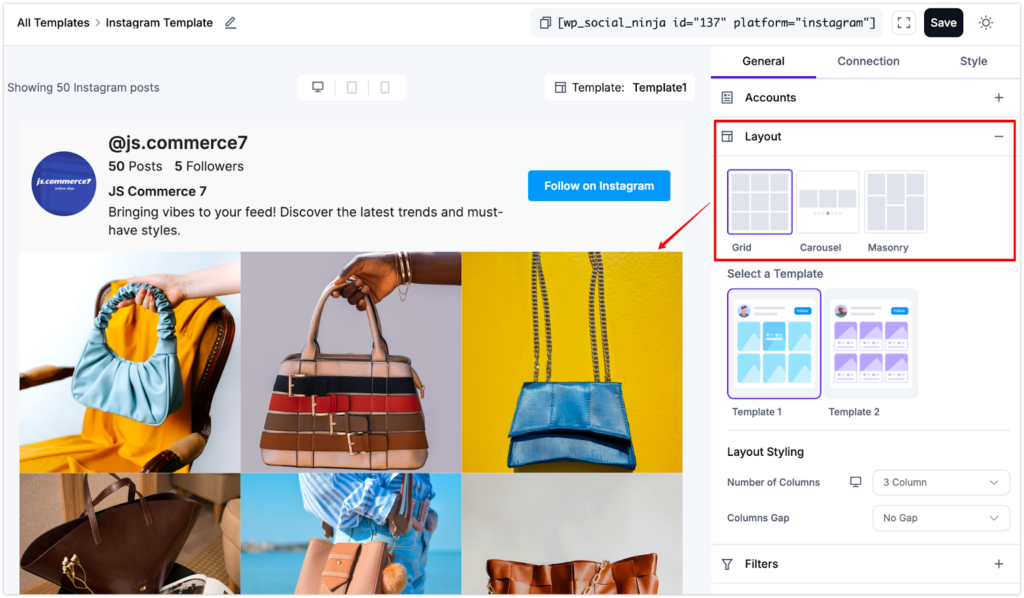
Masonry Layout: Pinterest-style, varying heights for a more dynamic look
Grid: Clean rows and columns, like Instagram’s native layout
Slider: A horizontal scrollable feed, great for headers and banners
The key difference between a proper gallery feed and a basic embed is A live-synced gallery that updates automatically every time you post. No manual updates, no outdated screenshots, just fresh content, always directly from the Instagram feed.
Why Display Instagram Feed on a WordPress Site?
Displaying your Instagram feed on WordPress increases on-site engagement, builds social proof, automatically keeps your website content fresh, boosts SEO, and grows your Instagram following.
Over 130 million Instagram users tap on shopping posts every month embedding a shoppable Instagram feed directly converts that traffic into revenue.
There are five concrete business reasons to embed your Instagram gallery on WordPress, each with measurable impact:
- Social proof at scale: Visitors who see active, settled Instagram feeds on a business website spend 90 seconds longer on that page on average. Visual content from real customers and real use cases builds trust faster than brand-written copy.
- Cross-platform audience growth: Every website visitor who sees your Instagram gallery is a potential new follower. 90% of Instagram users follow at least one business account, making your website a natural recruitment channel.
- Automatic content freshness: Publishing to Instagram automatically updates your WordPress page. No manual content updates, no stale imagery, no developer involvement.
- E-commerce conversion: WP Social Ninja’s shoppable Instagram feed allows product tags on posts, linking directly to product pages. Millions of Instagram users tap on shopping posts every month, and that intent is now capturable on your own site.
- SEO benefits from dwell time: Visitors who engage with an Instagram gallery spend more time on-page. Google treats time-on-page as a quality signal. A well-placed Instagram gallery contributes indirectly to your organic search rankings by reducing bounce rate.
90% of Instagram users follow at least one business account on the platform, making Instagram one of the highest brand-affinity social networks available to business marketers.

Source: Sprout Social 2026 Social Media Content Strategy Report
What You Need Before You Start
To display an Instagram gallery feed on WordPress without coding, you need a self-hosted WordPress.org website with plugin installation access, an Instagram account (Personal or Business/Creator), and the WP Social Ninja plugin installed and activated. No API keys, no developer portal access, and no coding are required.
Before starting, confirm you have the following:
A self-hosted WordPress site (WordPress.org). This tutorial applies to self-hosted WordPress installations where you have admin-level access and can install plugins. WordPress.com free and Starter plans do not allow third-party plugin installation.
An Instagram account. WP Social Ninja supports three Instagram account types: Personal accounts, Business Basic accounts, and Business Advanced accounts. A Personal account works with the free version. Business accounts unlock additional features, including hashtag feeds and shoppable feed functionality.
WordPress admin access. You need Administrator-level access to install plugins and manage settings. Editor or Author-level access is not sufficient.
The WP Social Ninja plugin. Available free from the WordPress.org plugin directory. The Pro version unlocks the shoppable feed, hashtag-based feeds, multiple account management, and additional layout options. Current pricing starts at $44/yr (introductory discounted rate, applicable for the first year; regular renewal pricing applies from year two onward).
Step-by-Step Guide (How to Embed an Instagram Feed Gallery)
To display an Instagram gallery feed on WordPress using WP Social Ninja first install the plugin from the WordPress dashboard, navigate to WP Social Ninja > Social Feeds > Instagram, connect your Instagram account using the one-click OAuth flow, create a new template with your preferred layout (grid, masonry, or carousel), copy the generated shortcode, and paste it into any page or post. The gallery goes live immediately.
The following steps walk through the complete setup process from installation to a live, embedded Instagram gallery.
Step 1: Install WP Social Ninja
- Go to your WordPress dashboard
- Navigate to Plugins > Add New
- Search for WP Social Ninja
- Click Install Now, then Activate
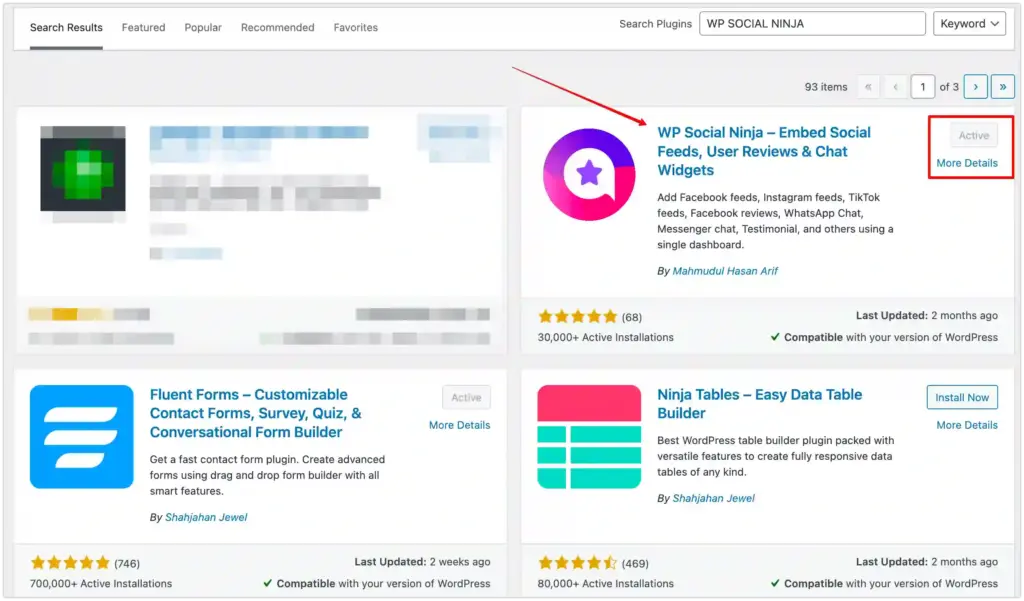
WP Social Ninja connects to 30+ social platforms, including Instagram, Facebook, YouTube, and TikTok feeds – all from one plugin.
Step 2: Connect Your Instagram Account
Once activated, go to WP Social Ninja > Social Feeds > Instagram Feed.
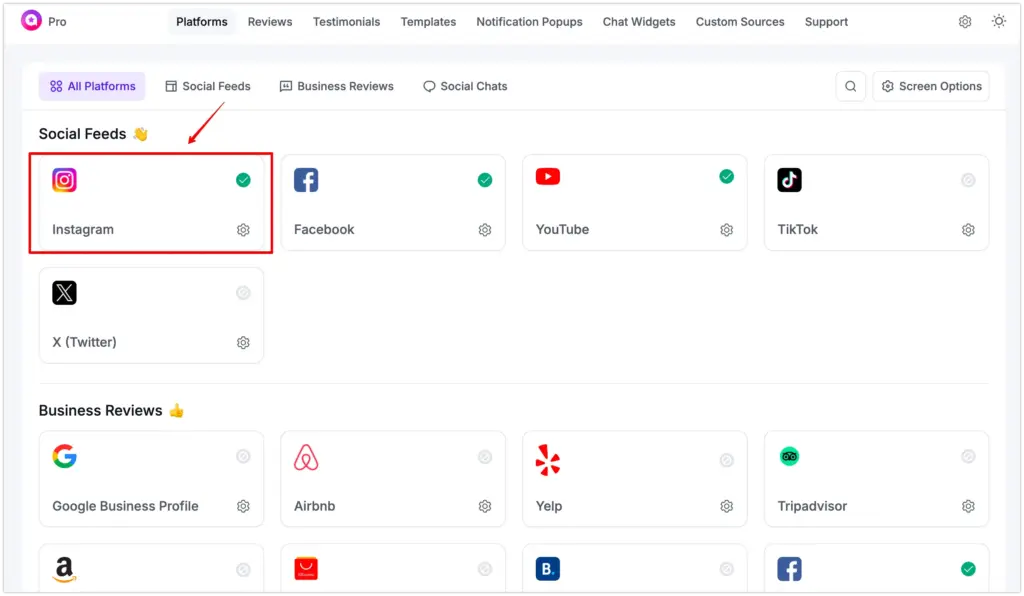
You can connect via three methods:
- Instagram Business Basic: Connects directly via your Instagram account
- Instagram Business Advanced: Requires an Instagram Creator or Business account connected through Facebook/Meta
- Manual connection: Connect via Access Token
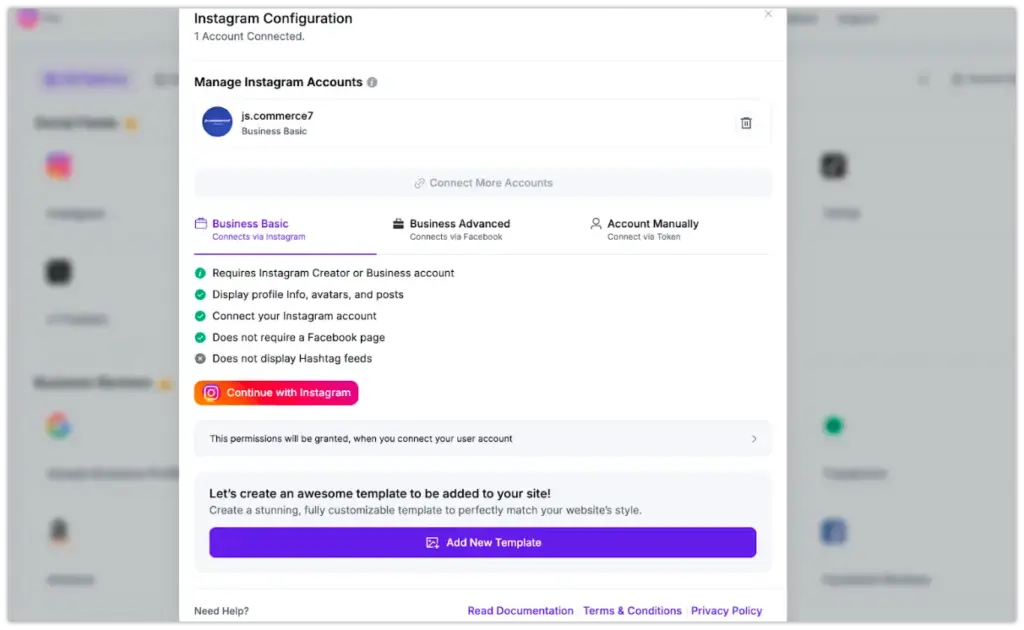
Follow the on-screen instructions to authorize via Instagram/Facebook/Meta and grant the necessary permissions. This is a standard OAuth connection. Your credentials are never stored in the plugin.
Use a Business account to access hashtag feeds, mentions, and Instagram shoppable features.
Step 3: Create a New Instagram Feed
Go to WP Social Ninja > Social Feeds > Instagram > Create New Feed.
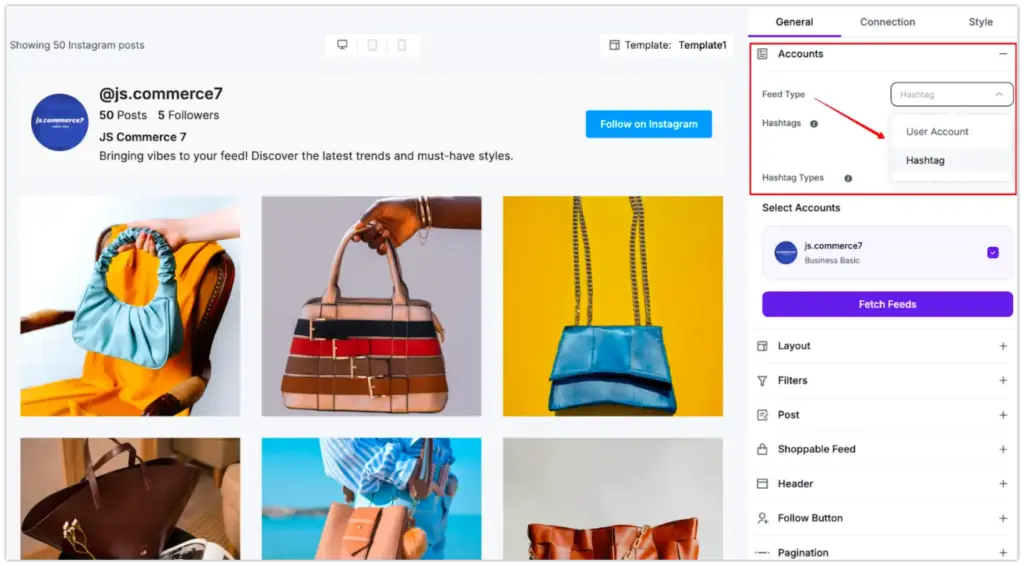
Choose your feed type:
- User Account: Your own posts
- Hashtag Feed: Posts tagged with a specific or popular hashtag (Pro + Business Advanced account required)
Then select your layout:
- Grid: Classic, clean, structured
- Carousel: Well-suited for homepage banners
- Masonry: Dynamic, editorial feel
More on layouts: Instagram Feed Layout Options | Instagram Slider Widget
Step 4: Customize the Gallery Appearance
Now time to use the WP Social Ninja’s vast and super dynamic editor panel to configure:
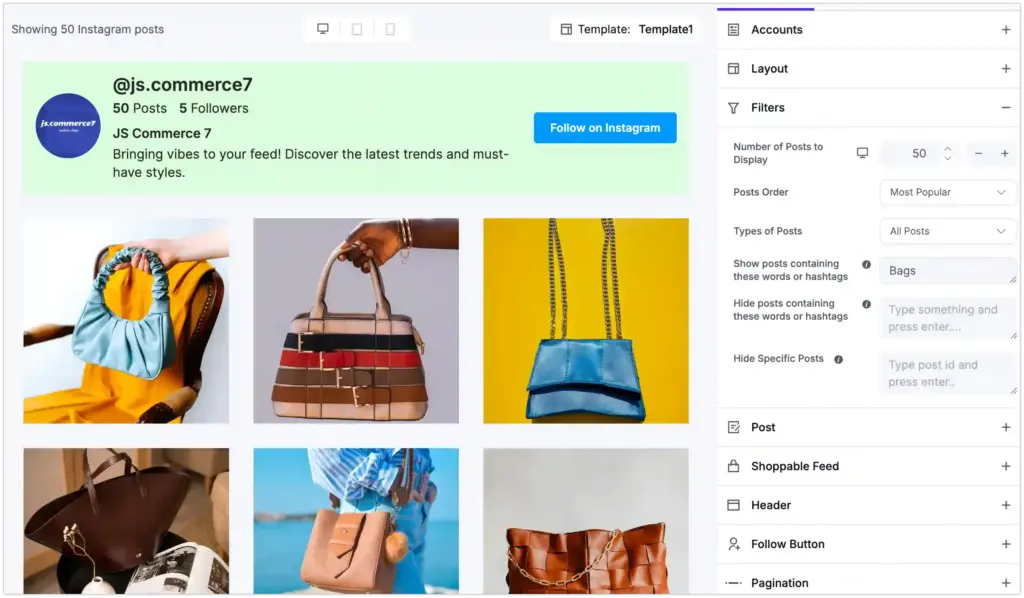
- Number of posts to display
- Number of columns (2, 3, or 4)
- Image spacing and border radius
- Post types and order
- Caption display (show, hide, or show on hover)
- Like and comment count display
- Header style
- Popup lightbox behavior when posts are clicked
- Follow button inclusion and other useful customization options
You can experience and see all changes in real time in the editor’s live preview window. Now, after all the customization, just click the Save button.
Step 5: Copy the Shortcode
After saving your template, WP Social Ninja generates a unique shortcode for that feed configuration. It looks like this:
[wp-social-ninja id='1' type='social_feed']Copy this shortcode from the template screen.
Step 6: Embed the Gallery in Your Page or Post
Navigate to the page or post where you want the Instagram gallery to appear.
- Gutenberg editor: Click the + icon, search for “Shortcode,” and paste your shortcode into the Shortcode block. Alternatively, type
/and search for WP Social Ninja to insert the gallery block directly. - Classic Editor: Paste the shortcode directly into the content area.

Update or publish the page to make the gallery live.
Step 7: Verify and Preview Your Live Gallery
Click View Page (or Preview Changes for an unpublished page) to confirm the gallery displays correctly.
If posts are not appearing, return to WP Social Ninja > Social Feeds > Instagram and confirm your account connection is active. Access tokens occasionally require reauthorization.

JS Commerce 7
Bringing vibes to your feed! Discover the latest trends and must-have styles.

The kind of bag that earns stares and compliments.
#fyp…


Minimal look. Maximum impact.
A timeless piece that completes every…

Designed to move with you.
From workdays to weekends, this…

Elegance that speaks without words.
Meet your new everyday essential…


But don’t worry if your feed encounters any issues; you can set up an email alert in our settings without hurting your site’s performance.
The average setup time reported by WP Social Ninja users for installing the plugin, connecting an Instagram account, and embedding instagram live feed is under 2 minutes.
Customizing Instagram Gallery: Settings Explained
WP Social Ninja’s Instagram feed editor allows customization of post count, column count, image spacing, caption behavior, lightbox popup settings, follow button display, load-more pagination, and color scheme. All settings apply in real time via the visual editor.
- Post Count: Controls how many Instagram posts display at any time. A lower count with a Load More button creates a cleaner initial view with on-demand expansion.
- Column Count: Sets the number of horizontal columns in the grid (typically 2, 3, or 4). Three columns work well for full-width sections; two columns suit narrower layouts or sidebars.
- Image Spacing: Controls the gap between gallery cells in pixels. Tight spacing (0–4px) creates a mosaic effect. Moderate spacing (8–12px) is the most versatile for general business sites.
- Caption Display: Captions can be set to always be visible, hidden, or revealed on hover. Hover captions keep the gallery visually clean while surfacing post context for engaged visitors.
- Popup/Lightbox: When enabled, clicking a gallery image opens a lightbox overlay showing the full post, caption, like count, and a link to the original Instagram post. This keeps visitors on your site.
- Follow Button: Adds an Instagram follow button on the header section and below the gallery, enabling direct follower acquisition from your WordPress site.
- Load More Button: Adds a pagination button below the gallery that loads additional posts on click. The Load More button only renders on live pages, not in the WordPress editor preview.
Where to Display Your Instagram Gallery on a WordPress Site
You can embed an Instagram gallery anywhere a shortcode or block can be placed in WordPress pages, posts, widget areas (sidebar, header, footer), full-site editing templates, Elementor sections, and WooCommerce product pages. Each location serves a different business objective.
- Homepage (above or below the fold): A homepage gallery communicates brand activity to first-time visitors. Positioning it below the main hero section and above the footer is the most common placement for business sites.
- Dedicated Instagram page: A standalone page titled Follow Us on Instagram or Our Instagram Feed gives the gallery room and serves as a destination for social media links in your Instagram bio.
- WooCommerce product pages: Embedding a hashtag-filtered gallery of product photos directly on product pages is one of the highest-conversion use cases. Research shows that user-generated content on product pages increases conversion rates by up to 29% (Amra and Elma, 2025).
- Blog posts and landing pages: Relevant Instagram content embedded in related blog posts creates contextual social proof and extends time-on-page.
- Footer widget area: A compact carousel or 2×3 grid in the footer provides passive brand presence across every page. This is the least intrusive placement and requires the smallest gallery configuration.
WP Social Ninja vs Other Instagram Gallery Plugins
WP Social Ninja is the best Instagram gallery plugin for WordPress sites that also need reviews and chat widgets in a single install. The table below compares the four most frequently used Instagram gallery plugins across the criteria that matter most for a business site.
| Feature | WP Social Ninja | Spotlight | Elfsight | Social Feed Gallery |
|---|---|---|---|---|
| No-code setup | Yes | Yes | Yes | Yes |
| Grid / Masonry / Carousel | All 3 | All 3 | Grid only | All 3 |
| Hashtag feed | Yes | Pro only | Yes | Pro only |
| Shoppable feed | Pro | Pro | No | No |
| Multiple accounts | Yes | Yes | Paid | Yes |
| Native HTML (SEO-safe) | Yes | Yes | No (iFrame) | Yes |
| Reviews + Chat included | Yes | No | No | No |
| Free tier available | Yes | Yes | Limited (SaaS) | Yes |
| Pricing (paid/year) | From $44 | $49 | $19+/mo | $49 |
Notes on the comparison: Elfsight renders content via SaaS-hosted JavaScript rather than native HTML, meaning the gallery content does not contribute to WordPress page SEO.
WP Social Ninja’s paid plans start at $44/yr (introductory discounted rate for the first year) and include not just the Instagram feed but also review aggregation from 9+ platforms and 17 chat widget integrations – replacing tools that would otherwise cost significantly more as separate plugins.
Quick Take: For most WordPress business sites, WP Social Ninja offers the best total value for Instagram gallery display because it delivers a no-code setup, all three layout types, native HTML rendering for SEO, and the option to expand into reviews and chat — all within a single plugin.
Does an Instagram Gallery Feed Help or Hurt Your WordPress SEO?
An Instagram gallery feed embedded with a plugin that renders native HTML, such as WP Social Ninja, contributes positively to WordPress SEO by increasing on-page dwell time, adding visual content that reduces bounce rate, and making post captions crawlable.
Plugins that embed via iframes or external SaaS JavaScript deliver zero SEO contribution from the gallery content they display.
The SEO impact depends entirely on how the gallery content is rendered, not simply on whether a gallery exists.
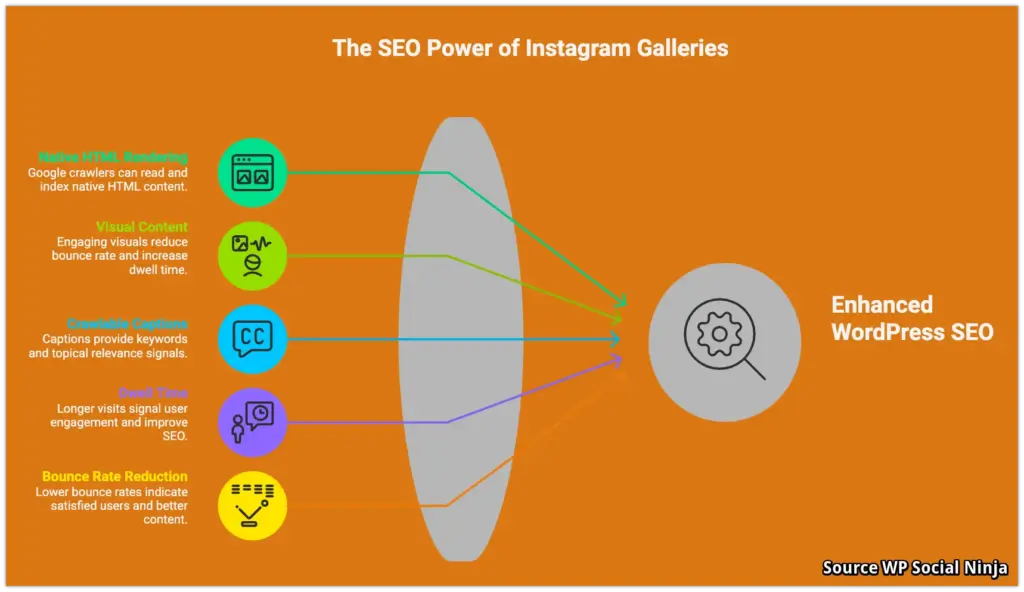
WP Social Ninja renders Instagram feed content as native HTML within your WordPress page structure.
This means Google’s crawler can read the content, including post captions, which can contain relevant keywords and long-tail search terms. Instagram captions rendered natively also contribute to the page’s topical relevance signals.
SaaS-based tools render content via JavaScript loaded from external servers. From Google’s perspective, this content is invisible. Reviews, captions, and visual content delivered this way provide no SEO value, regardless of how much content is displayed.
Beyond crawlability, any Instagram gallery that keeps visitors on-page longer through lightbox popups, Load More interactions, or engaging visual content contributes indirectly to SEO by improving dwell time and reducing bounce rate.
According to the HubSpot Content Marketing Report 2024 and Backlinko On-Page SEO Study 2024, pages with embedded visual social content show an average 15–25% reduction in bounce rate compared to text-only pages in the same content category.
WP Social Ninja Free vs Pro: What Do You Actually Need?
WP Social Ninja’s free version supports basic Instagram gallery display with grid layout, personal and business account connection, and standard customization. The Pro version adds the shoppable Instagram feed, hashtag-based feeds, masonry layout, multiple account support, carousel layout, and advanced pop-up options.
Most WordPress site owners can get a functional Instagram gallery live using the free version. The decision to upgrade depends on your specific use case:
Start with the free version if you want a basic grid gallery of your own Instagram posts, your site is personal or early-stage, and you do not need hashtag filtering, shoppable product links, or multiple-account management.
Upgrade to Pro if: you run an eCommerce store and want the shoppable feed to link Instagram posts to WooCommerce products; you want to display a hashtag-based UGC feed from customers; you manage multiple brands or Instagram accounts; or you want masonry and carousel layout in addition to grid.
The Pro license covers the full Instagram feature set plus all other WP Social Ninja platforms and features like Google Reviews, Yelp Reviews, Facebook Reviews, YouTube Feed, TikTok Feed, and 17 chat widget integrations. If your site needs any of those platforms/features in addition to an Instagram gallery, the Pro license replaces four to six separate plugin purchases.
Frequently Asked Questions
What is an Instagram feed?
An Instagram feed is a multi-post display of Instagram content, such as photos, videos, or Reels, shown in a grid, masonry, or carousel layout. It is distinct from a single embedded Instagram post. An Instagram gallery feed requires a plugin that connects to the Instagram API, retrieves multiple posts, and renders them as a unified visual gallery on a webpage.
What is the Instagram Graph API?
The Instagram Graph API provides access to Business and Creator account data, including hashtag feeds, mentions, and tagged media. WP Social Ninja uses the Instagram Graph API based on the account type you select during setup.
How do I embed an Instagram feed in a WordPress sidebar?
To embed an Instagram feed in a WordPress sidebar:
(1) Create and save your Instagram gallery template in WP Social Ninja.
(2) Copy the generated shortcode.
(3) Navigate to Appearance > Widgets.
(4) Add a Shortcode widget to your preferred sidebar area.
(5) Paste the shortcode into the Shortcode widget’s text field.
(6) Click Save.
A Carousel or compact Grid layout with 2 columns and 6 posts is recommended for sidebar placements to avoid overflow.
How do I display only specific Instagram posts using a hashtag?
To display only Instagram posts with a specific hashtag, you need WP Social Ninja Pro and an Instagram Business Advanced account connected via Facebook. In the template editor, select Hashtag Feed as your feed type and enter your target hashtag. WP Social Ninja will retrieve only posts tagged with that hashtag. This feature is not available with Personal accounts due to Instagram API restrictions on hashtag access for non-business profiles.
Can I display Instagram photos on a WooCommerce product page?
Yes. WP Social Ninja allows you to embed an Instagram gallery shortcode into any WooCommerce product page. For maximum conversion impact, use WP Social Ninja Pro’s shoppable Instagram feed, which allows product tags on Instagram posts to link directly to the corresponding WooCommerce product.
Can I show multiple Instagram accounts in one gallery?
Yes. The Pro plugin supports connecting multiple Instagram accounts and displaying them in a single combined gallery template. This is useful for brands that operate multiple regional or product-specific Instagram accounts, or for agencies managing several client feeds. The free version supports one connected Instagram account per site.
Will an Instagram gallery plugin slow down my WordPress site?
An Instagram gallery plugin can affect page speed if it loads uncached API calls on every page load or injects render-blocking JavaScript. WP Social Ninja addresses this by caching Instagram API responses server-side (configurable cache duration), loading scripts asynchronously, and resizing Instagram images locally. When configured correctly, WP Social Ninja adds a negligible impact to Core Web Vitals scores.
Does WP Social Ninja work with Elementor?
Yes. WP Social Ninja is fully compatible with Elementor. You can embed an Instagram feed in an Elementor page by using a Shortcode widget and pasting your WP Social Ninja gallery shortcode. WP Social Ninja also integrates with Elementor’s block system on compatible versions.
How often does an Instagram gallery feed update on WordPress?
WP Social Ninja retrieves new Instagram posts at intervals set by the Feed Cache Time in the plugin’s global settings. The lowest cache duration is typically 1 hour, meaning new posts will appear on your WordPress site within approximately 60 minutes. You can reduce the cache interval for near-real-time updates or increase it to minimize API calls on high-traffic sites. Manual cache clearing is also available from the settings panel.
How many Instagram posts can I display in a WordPress gallery?
WP Social Ninja’s free version supports displaying up to 9–12 posts simultaneously. The Pro version removes this limit, allowing larger post counts with Load More pagination. Instagram’s API returns posts in batches of up to 12 per request; larger galleries are assembled by chaining API calls. WP Social Ninja handles this automatically. You set your desired post count in the template editor.
Show Instagram Feed on WordPress
Embedding a live Instagram gallery on your WordPress site is a 2-minute task with the right plugin. WP Social Ninja handles the Instagram API connection, gallery layout, and WordPress embedding.
The process is straightforward: install WP Social Ninja, connect your Instagram account via the one-click OAuth flow, configure your gallery layout in the visual editor, copy the generated shortcode, and paste it into any page or post. Your gallery will automatically display your latest Instagram posts, updating whenever you publish new content.
For business sites that want to go further, WP Social Ninja Pro adds vast features and integrations. All from a single dashboard.
According to the Affmaven Instagram Statistics Report 2025, 71% of U.S. businesses use Instagram for marketing as of 2025, with brand-follower engagement on Instagram among the highest of any social platform – making an Instagram gallery one of the highest-ROI social embeds a business website can deploy.
Ready to get started? Install WP Social Ninja free from WordPress.org and have your Instagram feed live today.

Subscribe To Get
Weekly Email Newsletter
Connect, Customize, and Display Social Feeds, Reviews, and Chat widgets


Trending Posts
-
-
 Mashfik Upal Aumy
 -








Leave a Reply